
Welcome to the Operto Team Member Manual
Welcome to the Operto platform! We’re excited to have you onboard. This manual is designed to help you get started with the basics of managing your team members and properties using Operto Connect. Whether you’re new to the platform or need a refresher, this guide will walk you through the key features and functions available to team members.
Getting Started with Operto
Your Operto dashboard is now fully integrated with your PMS, allowing you to manage guest reservations and access codes seamlessly. Upon your first login, it is recommended to change your password. Simply go to Account Settings at the bottom left of the dashboard and follow the steps.
Important: If any new members are added or removed from your team, please notify us so we can adjust login credentials accordingly.
Operto Dashboard Overview
The Operto dashboard is where you can manage your team, view property details, and monitor guest access. Here is a quick overview of the Dashboard:
To assist you in navigating the dashboard, please refer to these key resources:
- Managing Access in Operto Connect
- Help Center
- Knowledge Base
Unit View
In the dashboard, each unit's information can be viewed in the "Unit View" section. Below are key details you will find:
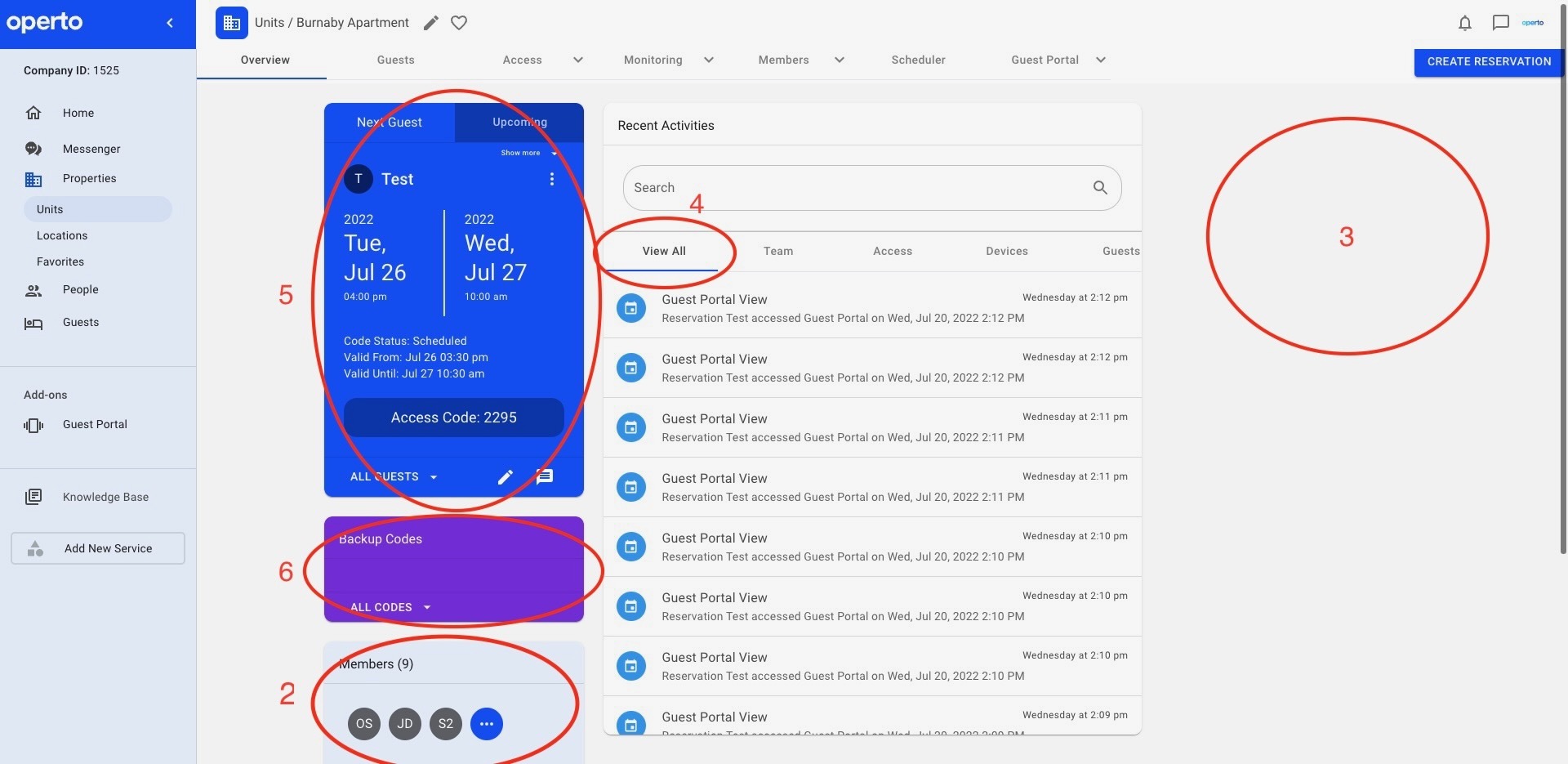
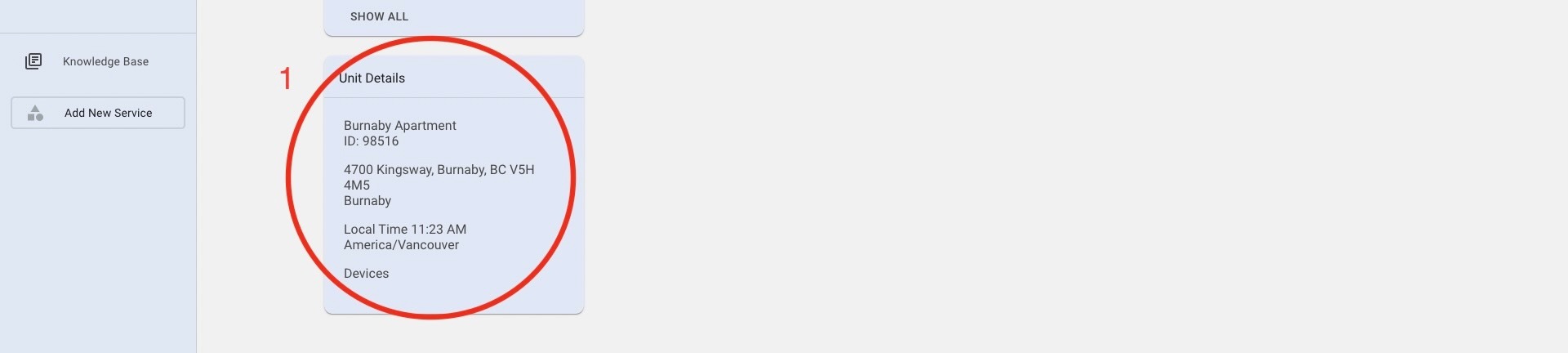
Under each unit, you can view the following information:
- Unit Information: Name, ID, and local timezone.
- Team Members Assigned: Access codes for each team member assigned to the unit will be installed on the lock of this specific unit.
- Lock Status: You can lock/unlock doors remotely. Green means the lock is online, red indicates troubleshooting is required.
- Activity Log: Track activities such as guest check-in/check-out, team member access, cleaning status, and code installations.
- Next Reservation: View guest name, access code status (installed or not), reservation dates, and unit status.
- Backup Codes: Three backup codes are available per unit. These can be reset by deleting and generating new ones if needed.
Operto - PMS Integration
Operto integrates seamlessly with your PMS to log reservations and assign unique access codes automatically. These codes are sent to the guest via the PMS messaging system, making check-ins and check-outs easy for you and your guests.
For more information, please visit our PMS Integration guide.
Navigating the People Tab
In the People Tab, you can manage your team members and set up notifications. Refer to these resources for setting up and managing team members:
- Navigating the People Tab
- Adding New Team Members
- Managing Team Members in Operto Connect
- Using Groups To Assign Members
Code Installation Time
By default, codes are written to locks 30 minutes before check-in and deleted 30 minutes after check-out. This buffer ensures guests have some flexibility with their check-in time and the ability to retrieve items if needed after check-out.
To adjust this buffer or for any questions, contact support@operto.com or call 1-844-517-3589 ext 2.
Using Nuki and Salto Locks
If you are using Nuki or Salto locks at your property, here’s what you need to know:
- Nuki Locks: Check-in codes begin with "99" and check-out codes start with "91". Cleaners receive two codes for starting and completing cleaning tasks. Learn more about cleaner codes here.
- Salto Locks: Salto locks do not use check-out or cleaning codes. Guest check-out is done via the Guest Portal if you have it set up.
Need Further Assistance?
Our Client Success Team is always available to provide additional training or answer your questions. Feel free to reach out to us at support@operto.com or call 1-844-517-3589 ext 2.