Things to Note in Advance:
Important: You will need to follow the below steps in the exact order that they are presented to ensure a successful re-pairing with your z-wave devices.
- If the registration is stuck at 99%, please sign out and sign back into the app. Don't worry, your hub has indeed been set up successfully.
- If the registration is stuck at 72%, it means you've reset the hub before deleting the location. You will need to reach out to Samsung and ask them to reset the IP address for the hub. Once this is done, delete the old location in the SmartThings app, reset the hub, then create a new location and start the setup from the beginning.
- If the hub has not registered successfully to 100%, you'll first need to delete the location on the SmartThings app, then reset the hub. Once finished, create a new location under in the SmartThings app and start the setup process from the beginning.
- If you're unable to set up the hub altogether, follow this link for the next steps.
Important: You will need to follow the below steps in the exact order that they are presented to ensure a successful re-pairing with your z-wave devices.
- Put your hub into z-wave exclusion mode from the SmartThings app:
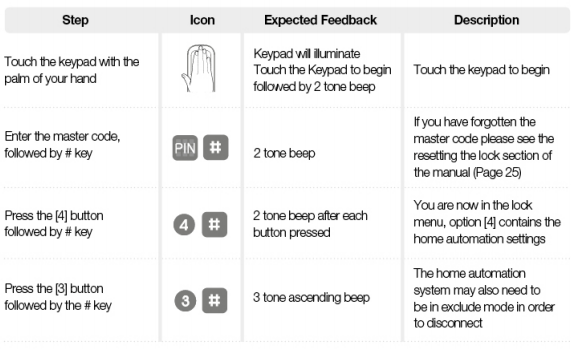
Select the SmartThings Hub, press (⋮), Z-Wave utilities, Z-Wave exclusion - On Yale Lock, enter "Master Code" # 4 # 3 # (which unpairs the lock)
Click "Remove" Button - Delete the property (Location) from the SmartThings app before proceeding to the next steps.
- From the SmartThings app, tap on the three vertical dots (
 ) on the top right-hand side of the screen, tap on 'Manage location'. Please make sure that the [property name] is the property associated with your hub. If the property matches, tap on 'remove location' to delete it.
- From the SmartThings app, tap on the three vertical dots (
- From the SmartThings app, tap on the three horizontal bars (
 ) on the top left side of the screen then tap the drop-down menu to expose all of your properties. At the bottom of the drop-down, tap 'Add new location'. Name the location.
- Reset the hub by first unplugging it. While the hub is unplugged, insert a pointy object such as a pen or paperclip into the 'RESET' port in the back of the hub. With the object still inserted, plug the hub back in. The light on the hub will begin flashing yellow rapidly. Continue to hold the 'RESET' button until the light turns solid orange. At this point remove the object from the 'RESET' port. This will reset the hub.
- When a hub is reset, the LED might display multiple colors as it's doing an update
- Once the hub LED light is flashing red/green, you can now pair the hub and lock to the new recently added location .
Z-Wave Exclusion