


Hardware Checklist
- Yale Keyless Connected Lock
- Blue Z-wave Module
- Aeotec SmartThings Hub
Yale Keyless Connected used on a front door
Please note, the outside escutcheon of the Keyless Connected lock is IP55 rated therefore it is used for doors with the outside panel facing the elements. The main escutcheon should remain indoor.
Step 1: Install the lock on the door
IMPORTANT
- Make sure the green Z-Wave module is inserted into the slot in the back of the lock. Do not throw away the box until you have inserted the module.
- Make sure that you do not forget the Master Code that you created on the lock, it will be needed anytime you configure the lock.
OPTIONAL
- To have your lock automatically relock after 30 seconds, enter the following sequence on the lock: Master Code # 9 # 1 #
Step 2: Setup the SmartThings hub
IMPORTANT
- Make sure that the power outlet is NOT connected to a switch that can be used to turn off the power.
- You can connect your hub either via Wi-Fi or with the provided ethernet cable. Choose the option that makes the most sense to you. Take into consideration signal strength and proximity to your connected devices. If you have a poor Wi-Fi signal in your unit, consider connecting directly to an access point using the ethernet cable. If there are signs of instability, you may need to experiment with the placement of the hub.
- Please note, sometimes guests or their kids may accidentally unplug the device. We suggest for you to print a label "Please do not unplug" to stick on the device.
- Download the free SmartThings mobile app
- Sign In to the app with the SmartThings account that we have created for you. If you would like to use your own SmartThings account, you will need to share your login credentials with us. Please email support@operto.com if you did not receive your login credentials, or if you plan on using your own account.
- From the Home screen, select Menu (
 ) and touch the drop-down arrow.
- If Operto created the account for you, you will see a pre-populated list of all your properties. Select the property from the list that you want to onboard.
If using your own account, you will need to create a new location for each unit by touching the drop-down menu and then touching Add location. Note: every SmartThings location should only have one hub. - Once you have selected the correct location, click Add device
- Touch Wi-Fi/Hub, then SmartThings and then SmartThings Hub 2018 (IM6001-V3P)
- The app will prompt you to select a location for your device. Double-check to make sure that it is correct.
- Follow the remaining in-app instructions to connect your Hub
Step 3: Pair the lock to the SmartThings Hub
IMPORTANT - Make sure you insert the blue z-wave module in the lock while the batteries are out. It is important to follow this order: 1. Insert the z-wave module. 2. Insert the batteries. Otherwise, you will not be able to pair the lock with the hub.
- From the Home screen, touch the Plus (+) icon and select Device
- Search and select Yale
- Make sure to select the Z-Wave option
- Follow the remaining in-app instructions to pair your lock to the hub
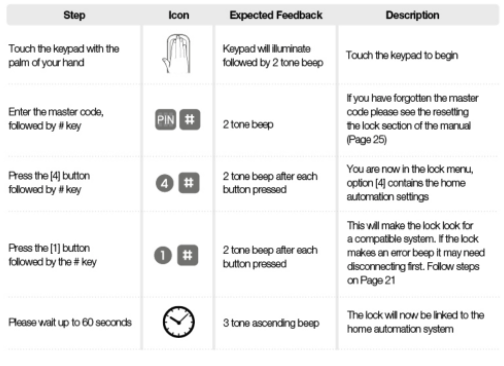
Note: The Yale Keyless Connected Lock will require the following combination on the lock to enter the pairing mode: Mastercode # 4 # 1 # (In some occasions the SmartThings app will prompt you to enter a different sequence which is incorrect)
Step 4: Final configurations
- Make sure that you are able to lock/unlock the lock from inside the app before leaving the unit.
- From your phone settings, turn off all notifications from SmartThings so that they don't interfere with the Operto notifications.
What now?
- Reach out to support@operto.com to let us know you've completed all of the steps above.