
Adding New Team Members
Adding new team members to your Operto Connect account is an essential task that ensures your team has the access they need to manage units and guests effectively. This guide will walk you through the process, including how to assign team members to unit groups.
Steps to Add a New Team Member
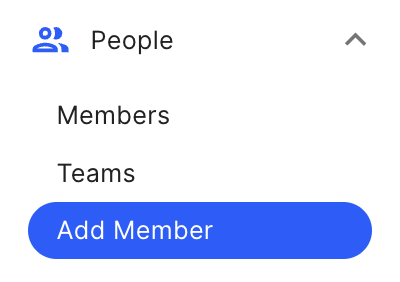
- From the left panel, select People and then Add Member.
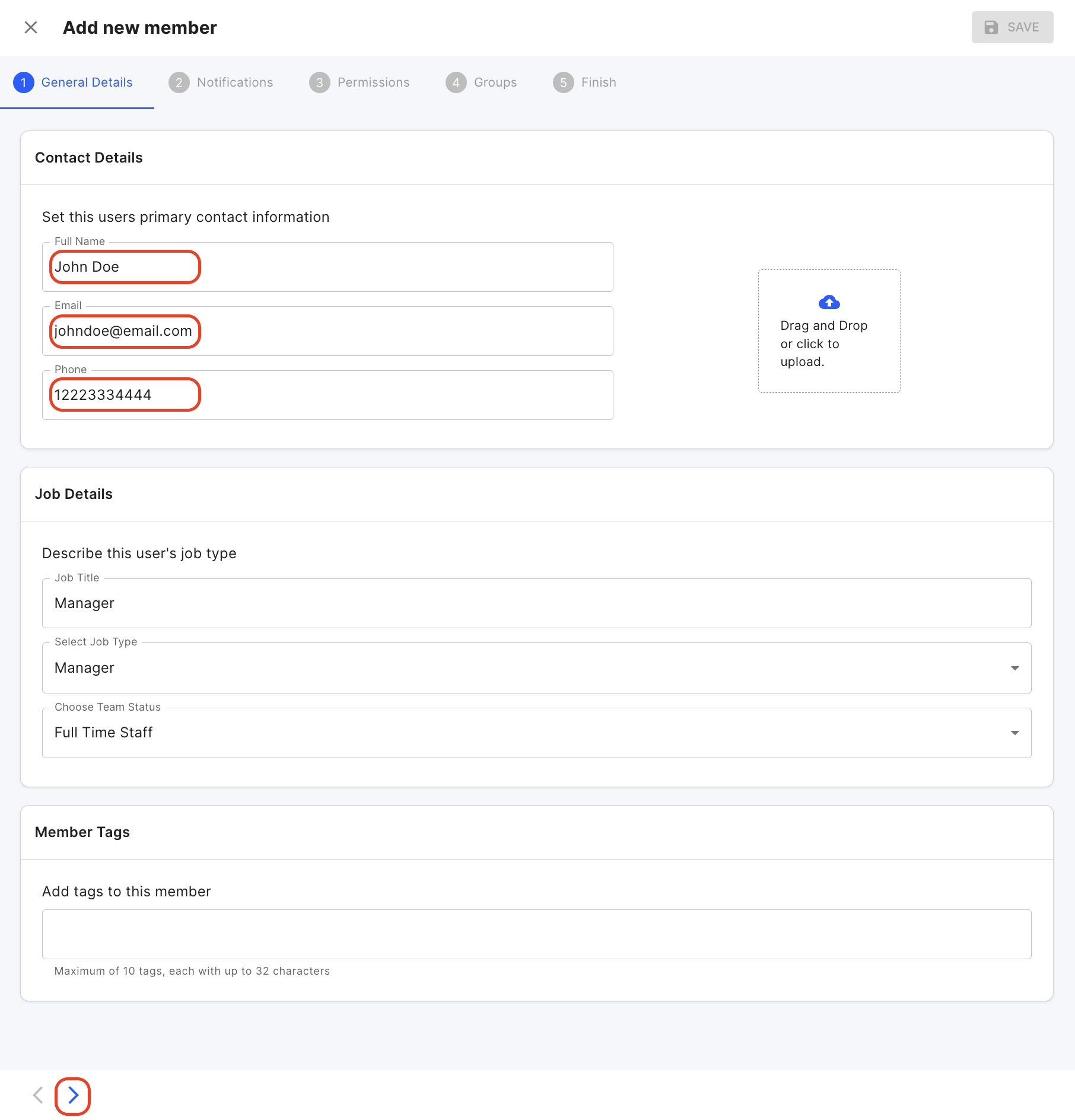
- Fill in the General details section, Contact Details, and Job Details. Make sure to include the country code without '+' in the phone number (i.e., use 12223334444 instead of +1 222 333 4444). You can also add relevant Member Tags. For guidance on Tags, refer to our Guide on Using Tags to Categorize Members.
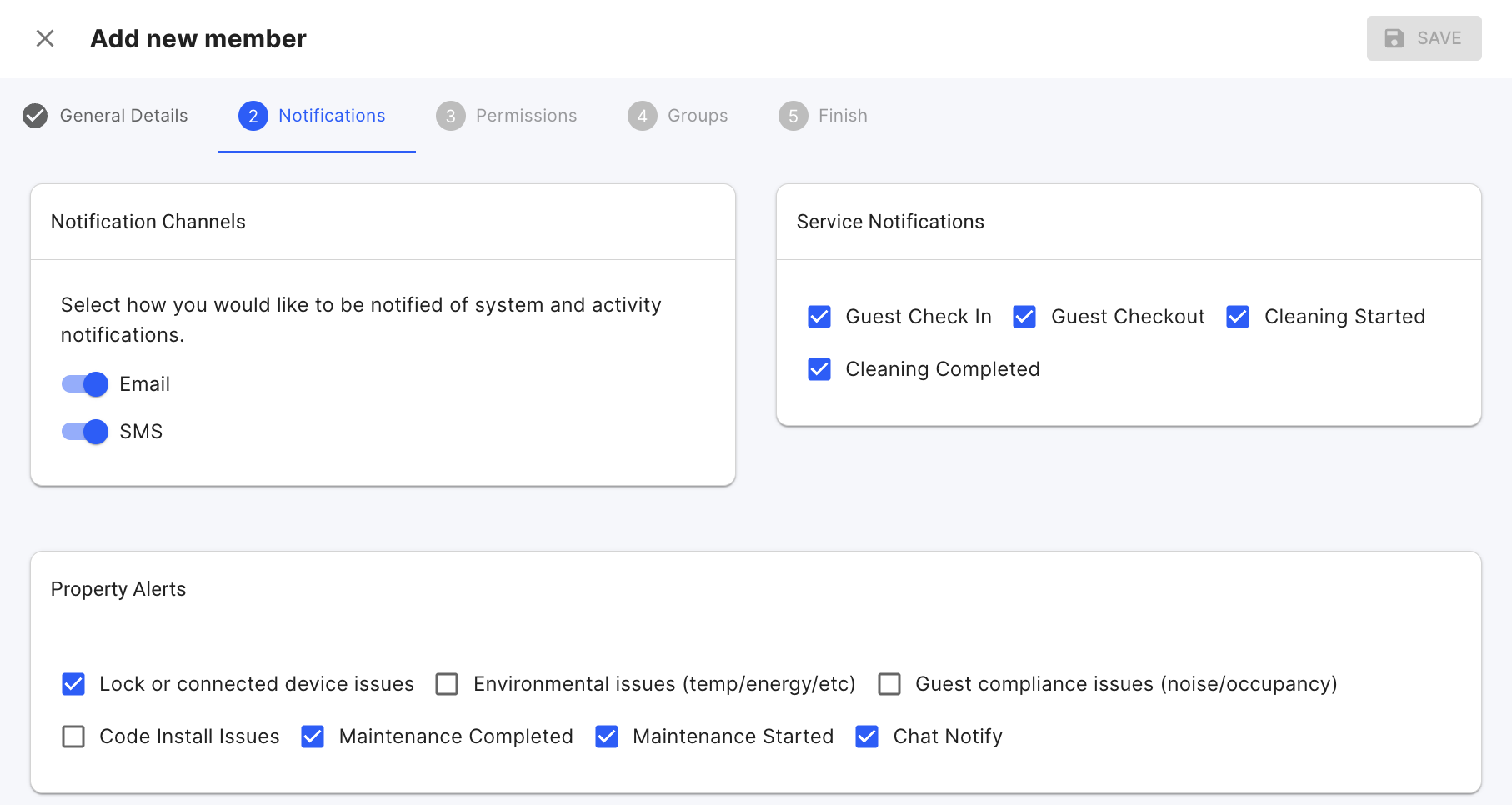
- Enable the desired notifications for the team member.
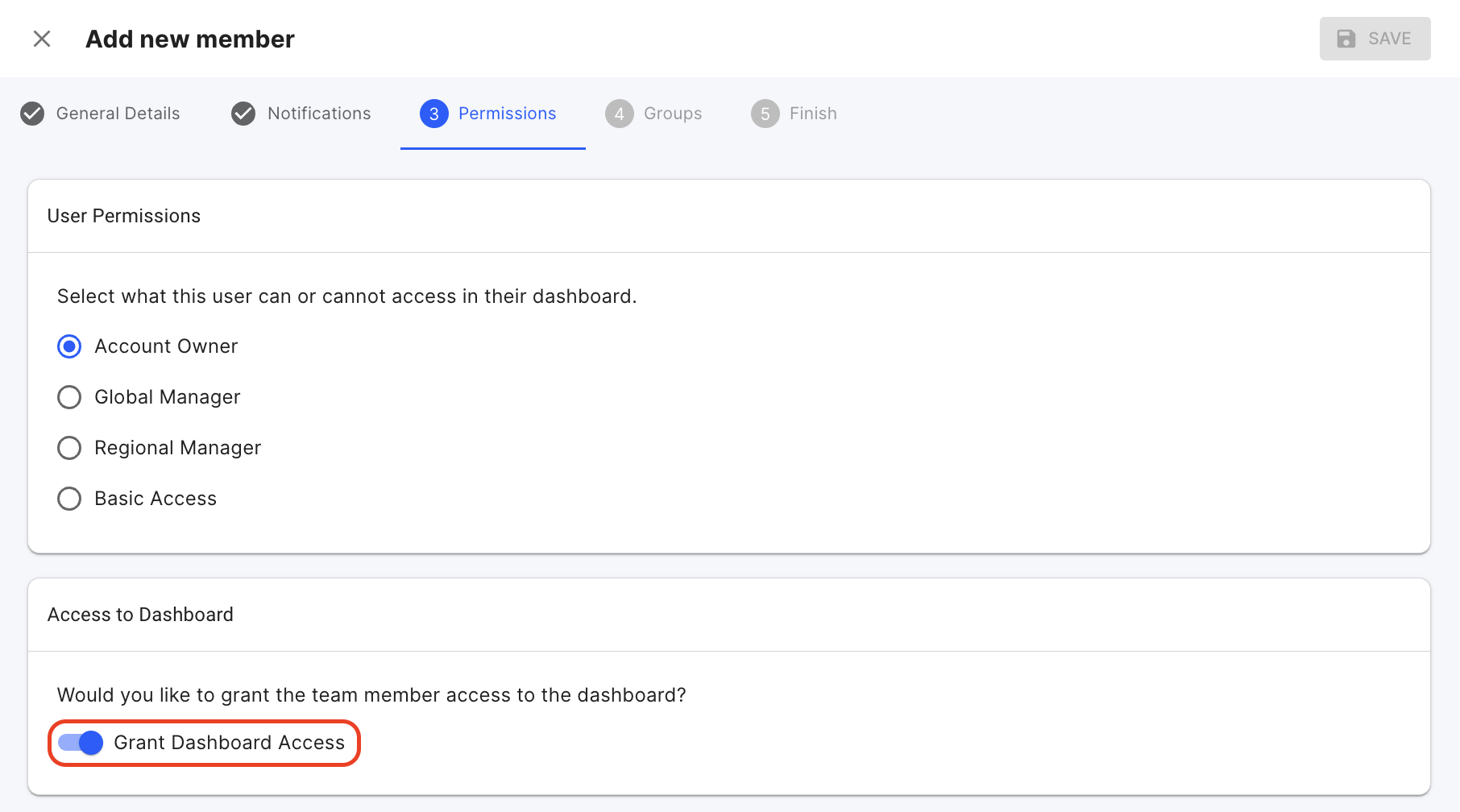
- Set the Permission Level for the team member and enable Dashboard Access if needed. Enabling Dashboard Access will send an email to the member to set up their password. For guidance on the difference between Permission Levels, refer to our Guide on Team Member Permission Levels.
- Assign the member to relevant unit groups for proper unit access. For guidance, refer to our Guide on Using Groups to Assign Members.
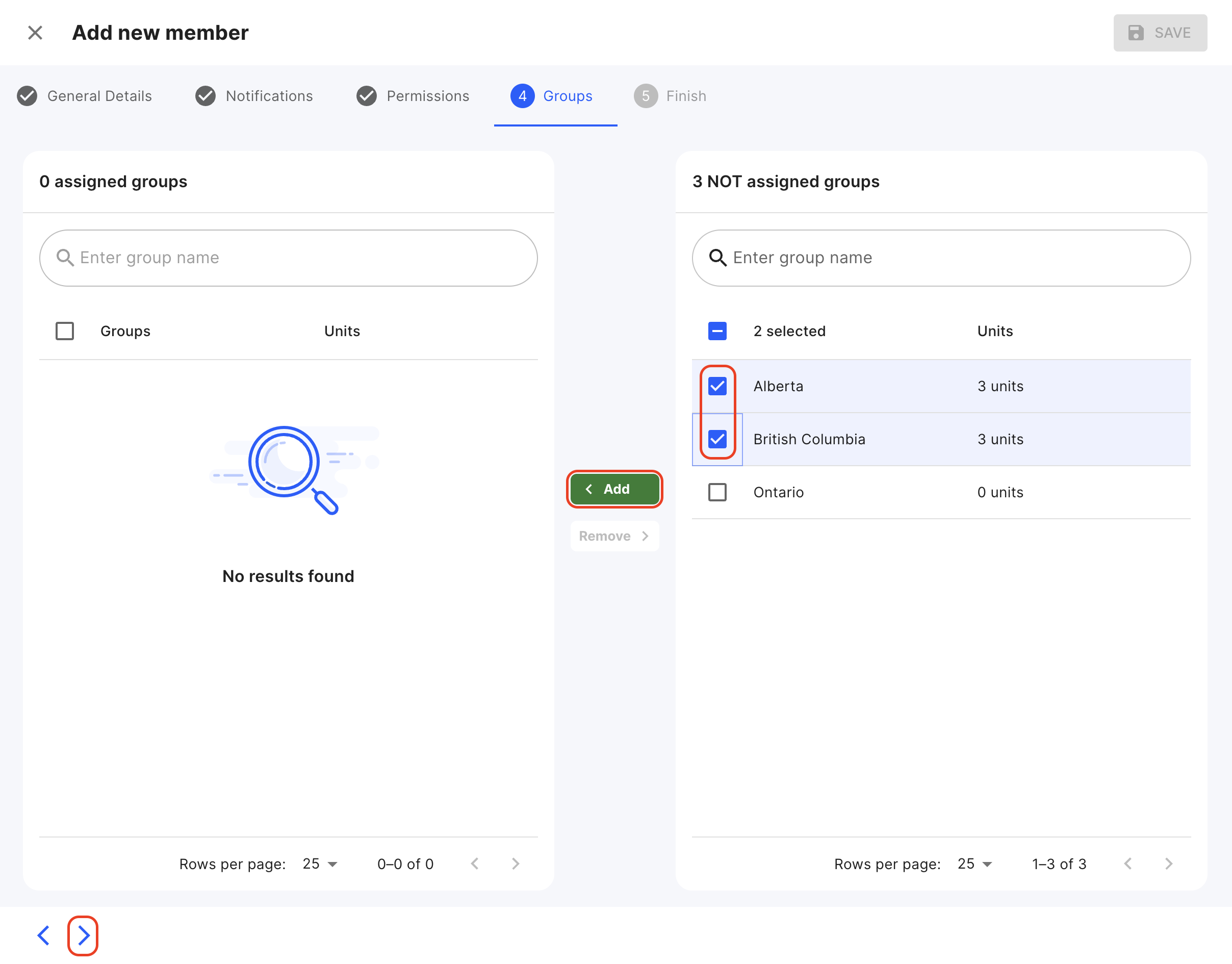
- Confirm the details of the new member and press Save.

FAQs
- Q: Does each team member need a unique email address?
- A: Yes, each team member must have a unique email address to ensure they have individual access to the dashboard and features.
For any further questions, refer to the guide on Managing Team Members in Operto Connect or reach out to our support team for assistance.