
TTLock Battery Life Troubleshooting
TTLock Battery Life Troubleshooting
If your TTLock’s battery is draining faster than expected, try these steps to improve battery life.
1. Update the Lock Firmware
Keeping your lock’s firmware up to date ensures optimal performance.
- Make sure you are within Bluetooth range of the lock and that Bluetooth is enabled on your phone.
- Open the TTLock app.
- Select your lock → Go to Settings.
- Tap Firmware Update (the latest version is 6.4.43.240611+).
2. Enable Wi-Fi Sleep Mode
By default, TTLock connects to Wi-Fi for 10 minutes every time a button is pressed. In setups like hotels or short-term rentals, this means the lock can fetch updates multiple times a day—even outside a scheduled online window.
To save battery while still allowing updates when needed, you can restrict the default online period by setting a 30-minute scheduled window:
- Open the TTLock app and select your lock.
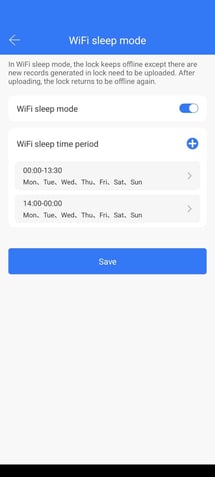
- Navigate to Wi-Fi → Wi-Fi Sleep Mode → Toggle On.
- Configure 2 Time Periods:
- First time period: 00:00 – 13:30 (lock remains offline)
- Second time period: 14:00 – 00:00 (lock remains offline)
With this schedule, the lock automatically comes online between 13:30 and 14:00 (1:30 PM – 2:00 PM) to sync new codes. Importantly, if someone presses a button on the lock, it will go online for 10 minutes to fetch updates—even outside the scheduled window.
🛑 Important: Always set the start and end times to midnight (00:00) to ensure the schedule works correctly.
Below is an example of the Wi-Fi schedule:
By following these steps, your TTLock will efficiently manage battery usage while remaining capable of updating when needed.