
Overview:
TTLock is a platform that supports many different lock brands, including McGrath, ProLok and many others. All locks (regardless of manufacturer) operating on the TTLock platform are compatible with Operto. Network gateways (bridges) are required to enable the locks to operate online.
ⓘ Important for TTLocks with built‑in Wi‑Fi (no separate gateway):
Do not put these locks into Sleep Mode when using Operto. When Sleep Mode is enabled, the lock stops communicating with TTLock and new codes from Operto will not install.
The lock may still appear Online in Operto, but in TTLock it will show as offline (no Wi‑Fi icon beside the battery level and no live lock status).
Installing Locks:
ⓘ It's recommended that the locks are installed by a licenced locksmith. Always confirm compatibility prior to placing the order and installing the locks. Be sure to specify additional hardware such as cover plates and door strikes.
Pairing Locks to the App:
- Download TTLock app from Google Play or Apple App store
- TT lock account also accessible via web: https://lock.ttlock.com/
- Note: The app is required to connect devices, but the web version has more functionality once devices are set up.
- TT lock account also accessible via web: https://lock.ttlock.com/
- Login with the credentials provided by your onboarding specialist.
- Note: If you already have an account, you can use this account and share the credentials with your onboarding specialist.
- Note: There are two ways to create an account on the app: phone number or email. It’s best if the account is created using an email. If you created your account using your phone number, make sure to let your onboarding specialist know.
- First lock pairing, click on the ⨁ in the middle
- Additional lock pairing, click on the ☰ → + Add Lock
- Select ‘Door Lock’ → Manager to activate (or wake up) the lock by placing palm over the keypad area
- Click ‘Next’ button. App will scan and show all the locks nearby
- Select the lock to onboard by pressing '+'
- After successful pairing, a name can be assigned to the lock → press ‘Ok’
- Select the lock → go to Settings → set Remote Unlock to ‘On’
- From the same Settings menu → click on Firmware Update → press ‘Check for Update’ → update if not most current version
Installing Gateways:
ⓘ Two different versions of gateways are available, choose the best one for the application. 1. WiFi 2. PoE. As long as the gateway is labeled “G2” it will be compatible.
- 2.4Ghz network is required if connecting to wifi
- A dedicated SSID for devices is prefered if connecting to wifi for security and bandwidth reasons
- A gateway needs to be within 6m (20ft) of a lock and preferably within line-of-site for best connection
Pairing Gateways to the App:
ⓘ Set up one gateway at a time, make sure locks are set up prior to setting up gateways.
- Click on the ☰ → Gateway
- Select the gateway type desired for pairing
- Connect the gateway to a power supply
- Once the gateway light is flashing, click ‘Next' on the app. App will scan and show all the gateways nearby
- Select the gateway to onboard by pressing '+'
- Enter wifi name and password (if applicable) and assign a name the gateway → press ‘Ok’
After the gateway is successfully paired, go back to the menu (☰) → Gateway and see the status of the gateway, plus it will scan for all the nearby locks it’s connected to.
ⓘ There is a many-to-many relationship between locks and gateways, which is useful in creating a mesh network of devices. Multiple locks can be associated to one gateway and multiple gateways can be associated to one lock.
Testing Gateway to Lock Connection Strength
- Click on the ☰ → Gateway
- Select first gateway on list → tap ‘Nearby Locks’
- Analyze signal strengths for each connected lock. A signal strength that is > ‘weak’ is acceptable
ⓘ Repeat this process for each gateway on the list. Make sure that every lock has at least a ‘medium’ connection to at least one gateway.
Sleep Mode (built‑in Wi‑Fi TTLocks only)
Some TTLock models have built‑in Wi‑Fi and connect directly to the internet without a separate gateway. These models often include a Sleep Mode (sometimes labeled Power Saving in the TTLock app).
ⓘ Do not enable Sleep Mode on TTLocks with built‑in Wi‑Fi when using Operto.
If Sleep Mode is turned on:
- The lock will not receive new codes from Operto (code installs will fail).
- The lock can still show as Online in Operto, but:
- in the TTLock app it will appear offline (no Wi‑Fi icon beside the battery), and
- the lock status will not refresh.
How to check and disable Wifi Sleep Mode / power saving
- In the TTLock app, tap the lock.
- Open ⚙️ Settings -> Wifi
- Check if the lock has sleep mode turned on:
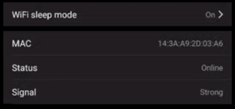
- If it is on like in the screenshot above, Toggle this setting Off.
- Physically wake the lock by touching the keypad / handle.
- Wait 30–60 seconds and confirm in the TTLock app that:
- The Wi‑Fi icon appears next to the battery, and
- The lock status can be refreshed.
ⓘ After disabling Sleep Mode and getting the lock back online in TTLock, any pending codes from Operto will be able to install. If a guest is currently affected, contact Operto support to re‑push the code if necessary.
Disabling/Enabling the Privacy Mode Feature:
Some TTLock locks have a privacy mode button that guests can activate. Once privacy mode is enabled on the lock, it will only allow an administrator to unlock the door and will block out any non-administrator codes. The following steps will demonstrate how to disable/enable privacy mode.
ⓘ Note that the lock must be within Bluetooth range of the phone with Bluetooth settings on.
- In the TTLock App, select the lock you want to disable/enable the privacy mode feature on.
- Then open "Lock Settings."
- Select "Privacy Lock."
- Press "Turn On" or "Turn Off." The default setting will be On.
What to do if a guest is locked out due to the privacy mode being enabled:
Due to the privacy mode's configuration, it is possible for a guest to enable the feature and close the door behind them resulting in the guest becoming locked out of the door. If this occurs, privacy mode can be disengaged in two ways.
- Someone with administrative credentials can use them on the lock.
- From the app or dashboard, trigger a remote unlock and have the guest pull down on the handle to disengage.