Troubleshooting Unexpected Behavior with Ecobee
If you notice unexpected set point changes in Ecobee, you may have an eco+ feature enabled. This article explains how to disable those features.
For Operto's integrations to work, you would need to ensure that your ecobee app settings are not overriding the settings set by Operto. Please ensure that your settings are configured as follows:
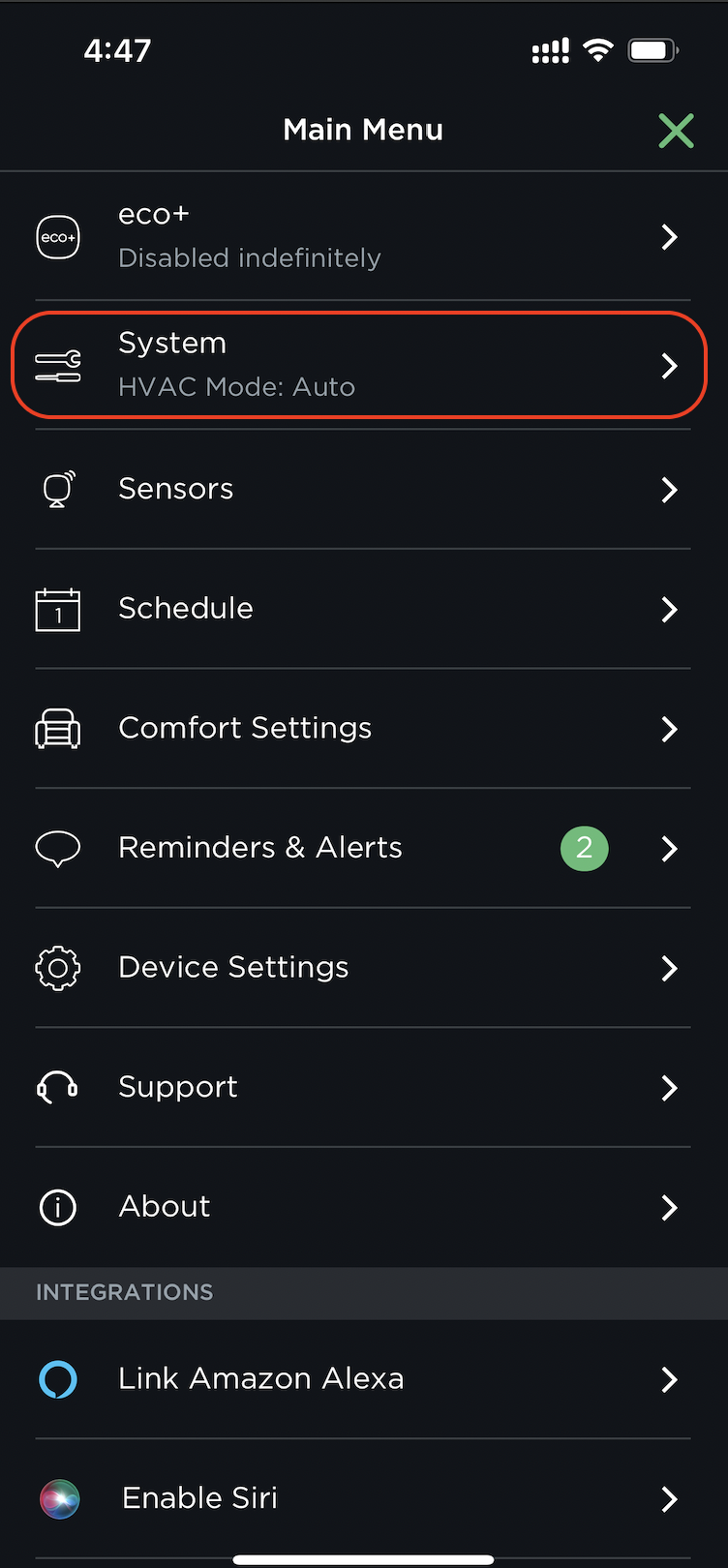
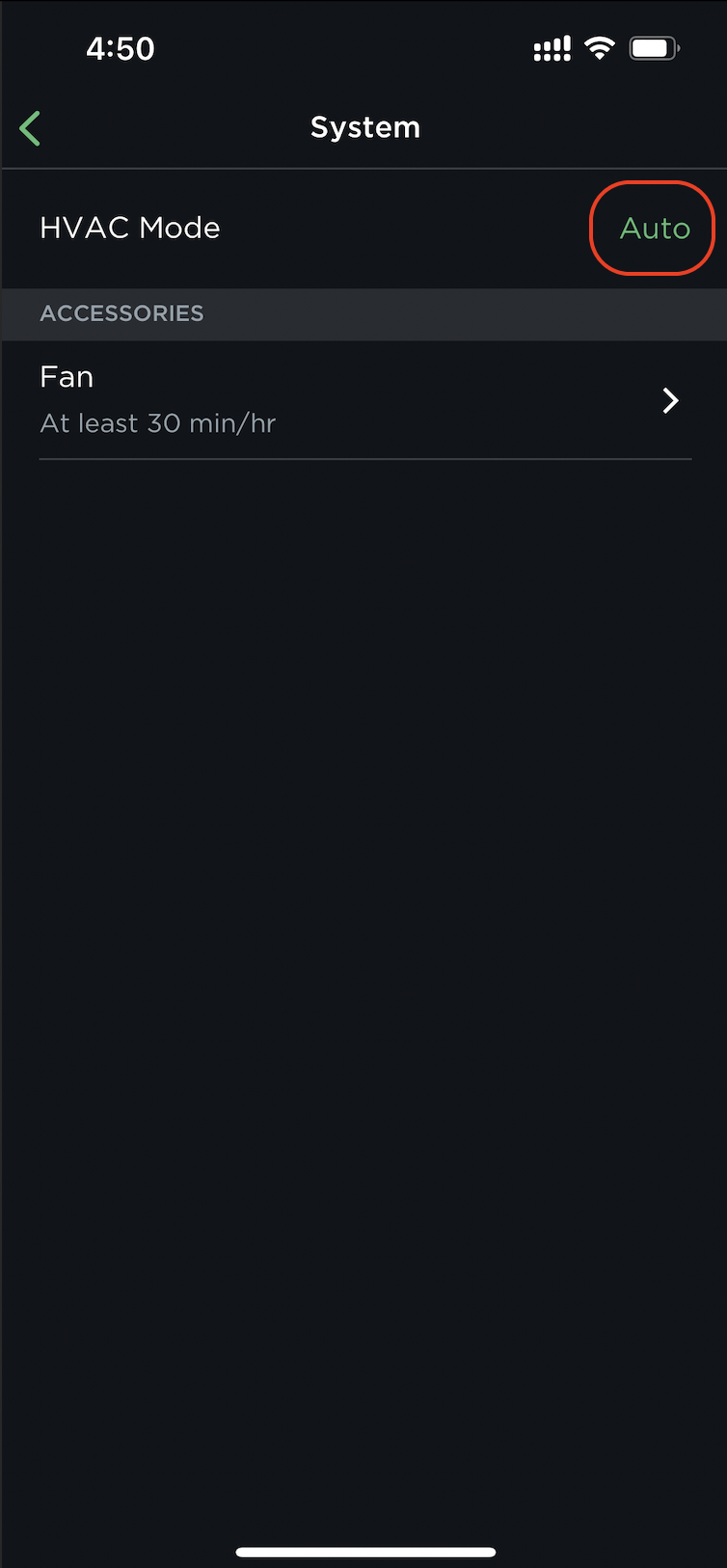
1. "System" is set to Auto mode
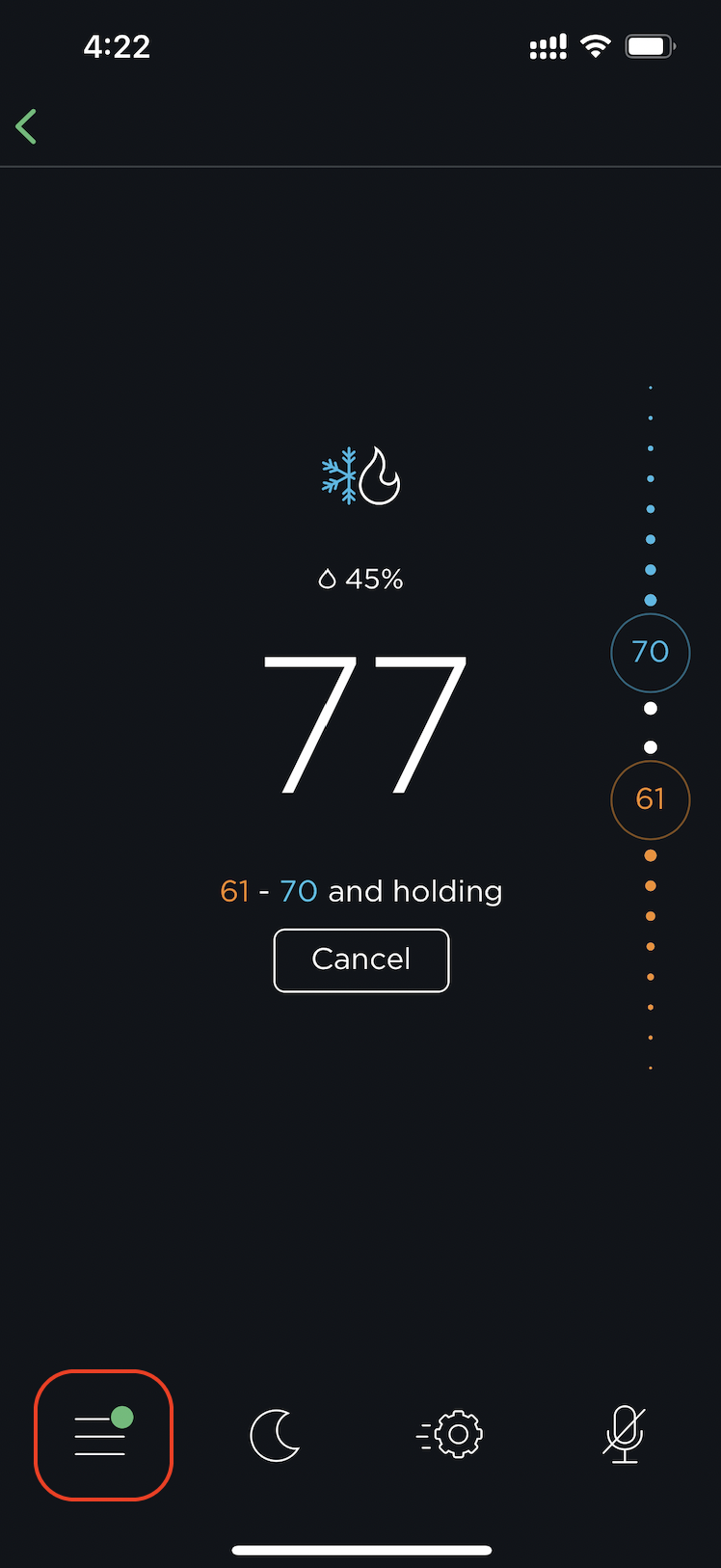
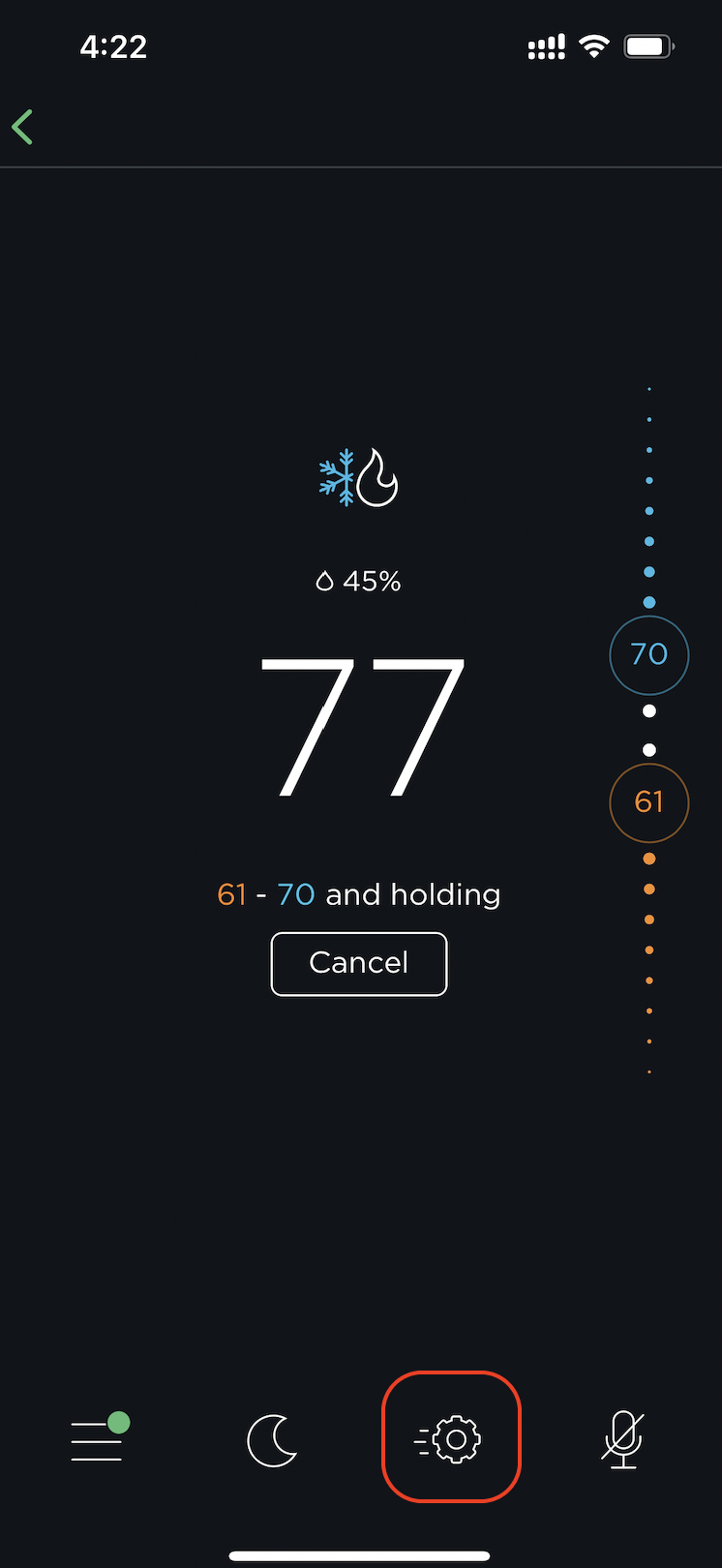
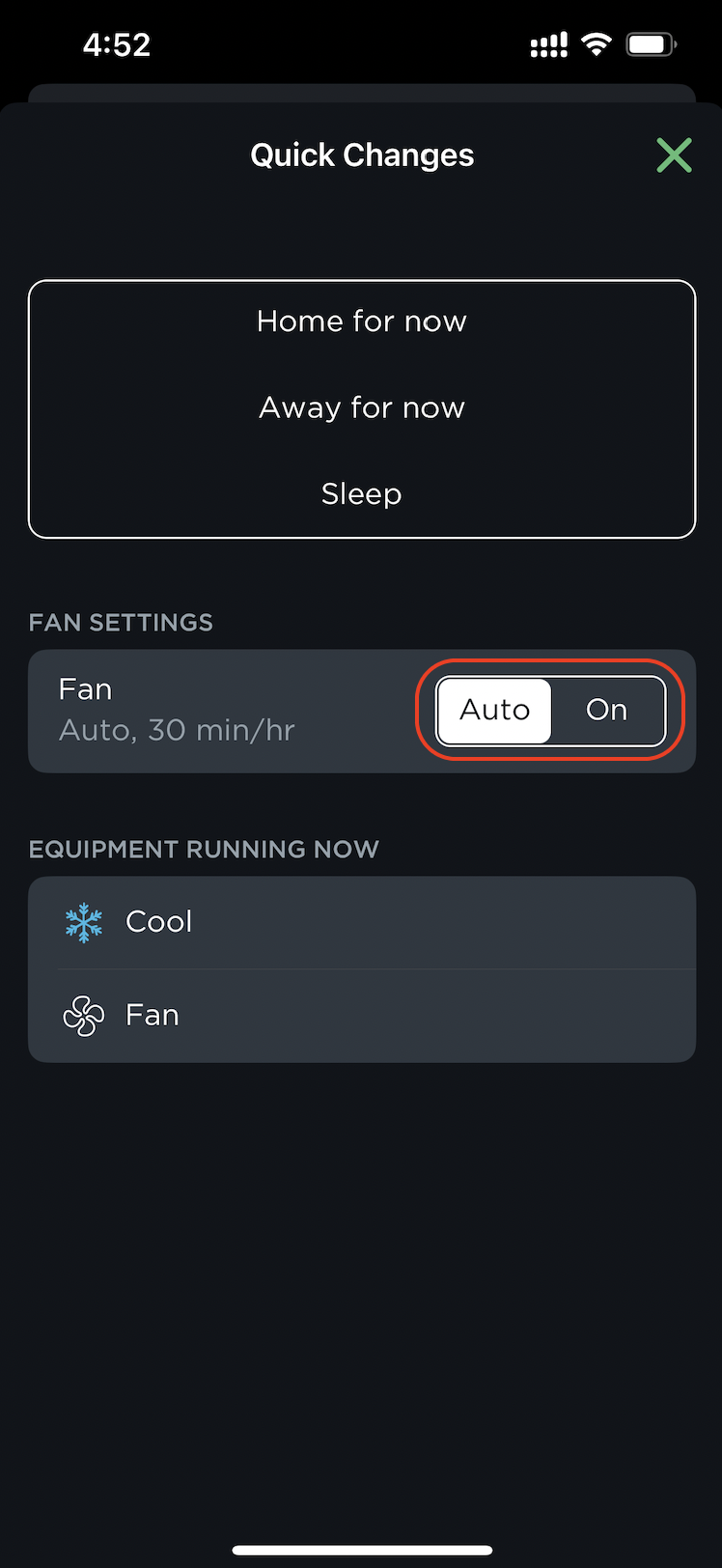
2. "Fan" is set to Auto mode
When you integrate your ecobee with Operto, Operto will be controlling your ecobee. Certain ecobee features will conflict by also trying to adjust the ecobee set point. These features need to be disabled.
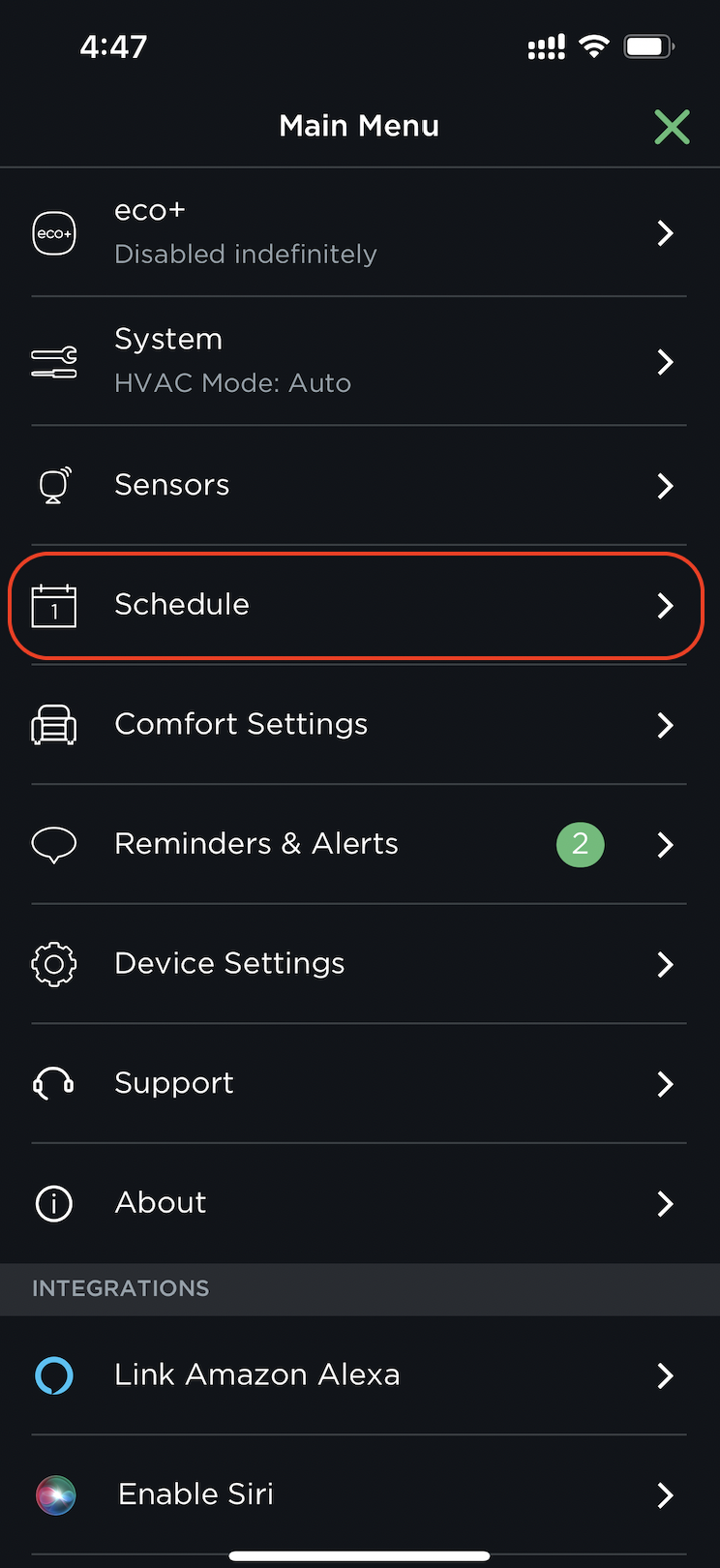
1. eco+ is disabled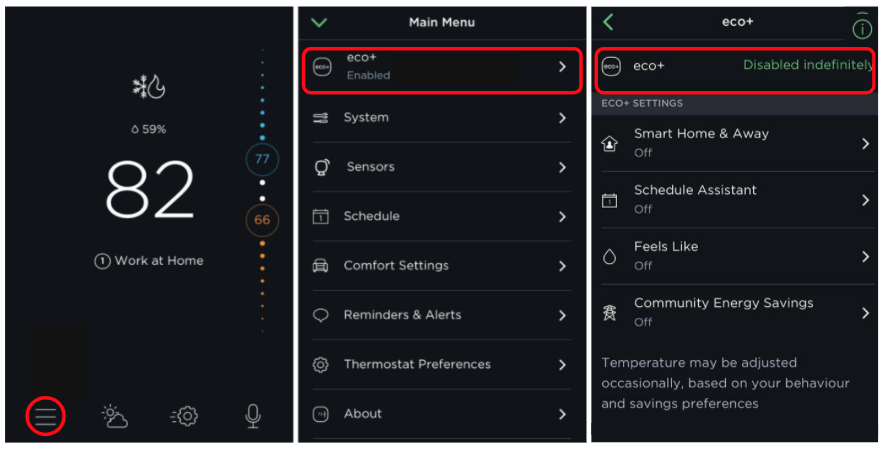
2. Smart Home/Away and Follow Me is disabled.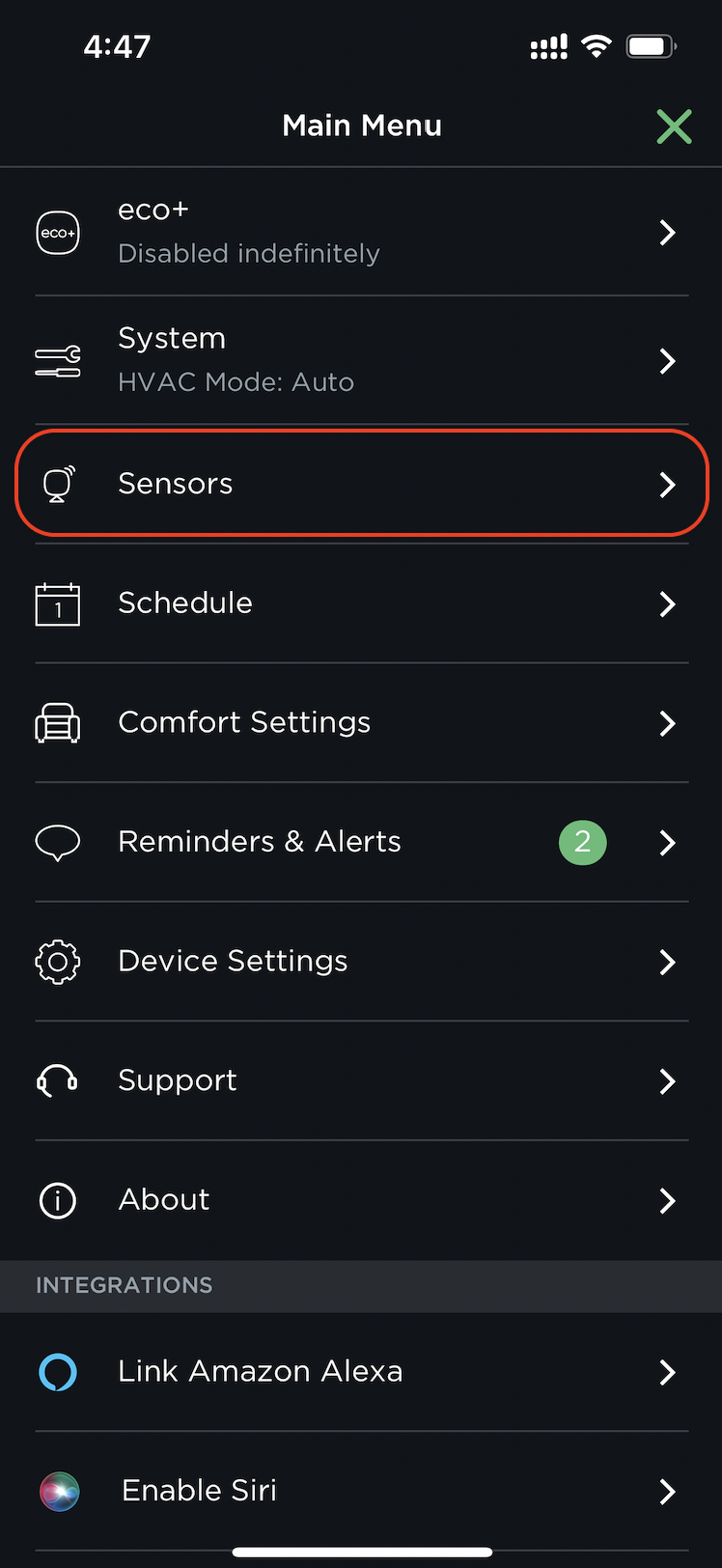
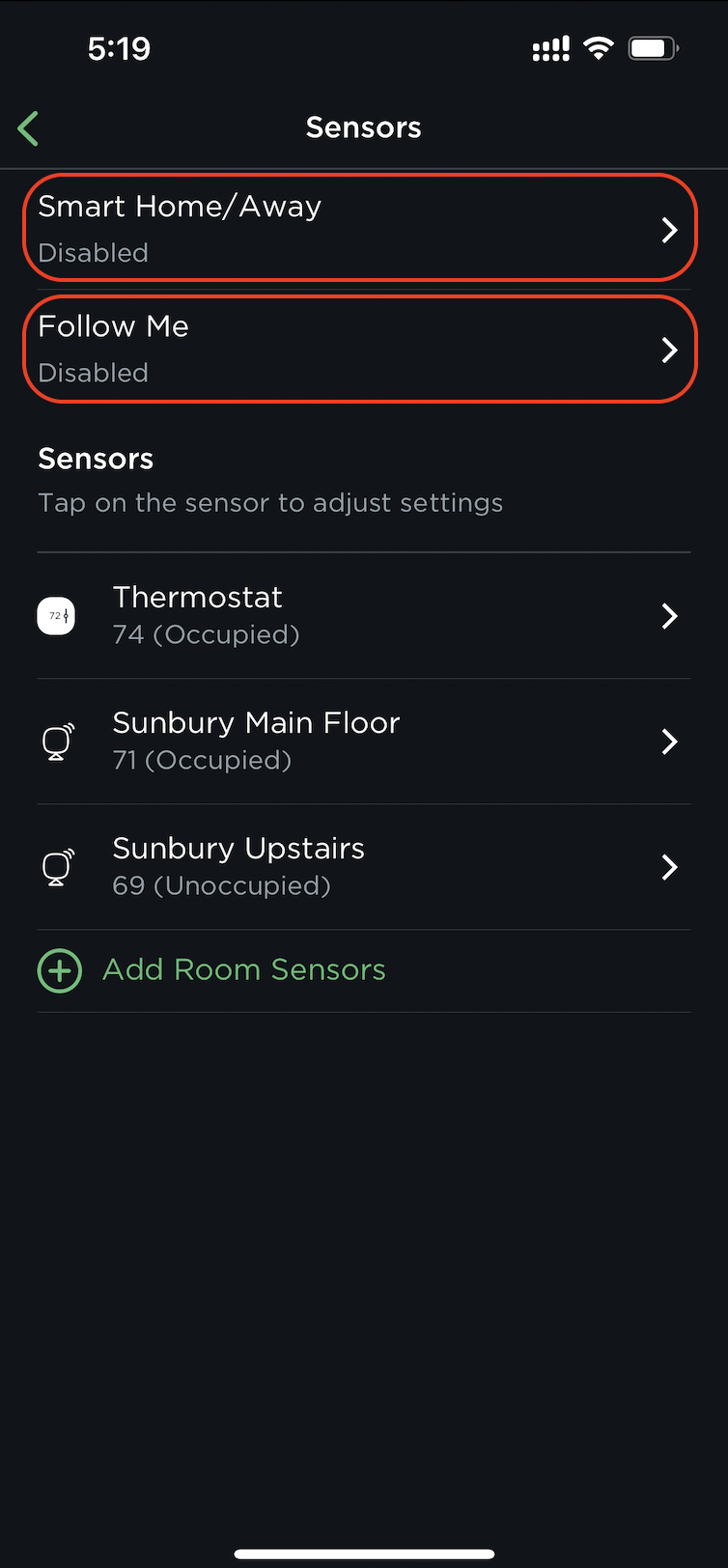
If you notice unexpected set point changes in Ecobee, you may have an eco+ feature enabled. This article explains how to disable those features.
For Operto's integrations to work, you would need to ensure that your ecobee app settings are not overriding the settings set by Operto. Please ensure that your settings are configured as follows:
1. "System" is set to Auto mode
2. "Fan" is set to Auto mode
When you integrate your ecobee with Operto, Operto will be controlling your ecobee. Certain ecobee features will conflict by also trying to adjust the ecobee set point. These features need to be disabled.
1. eco+ is disabled
As of 12/27/2021, these are the eco+ features supported by ecobee. You can learn more on ecobee's website here: eco Frequently Asked Questions.
- Smart Home & Away
- Schedule Assistant
- Feels Like
- Community Energy Savings
2. Smart Home/Away and Follow Me is disabled.
(More recent versions of the ecobee may have Smart Home/Away in the eco+ menu. See above for disabling eco+.)
If you don't have an eco+ enabled Ecobee, then it is possible that some ecobee scheduled events are kicking in and changing the temperature set points.
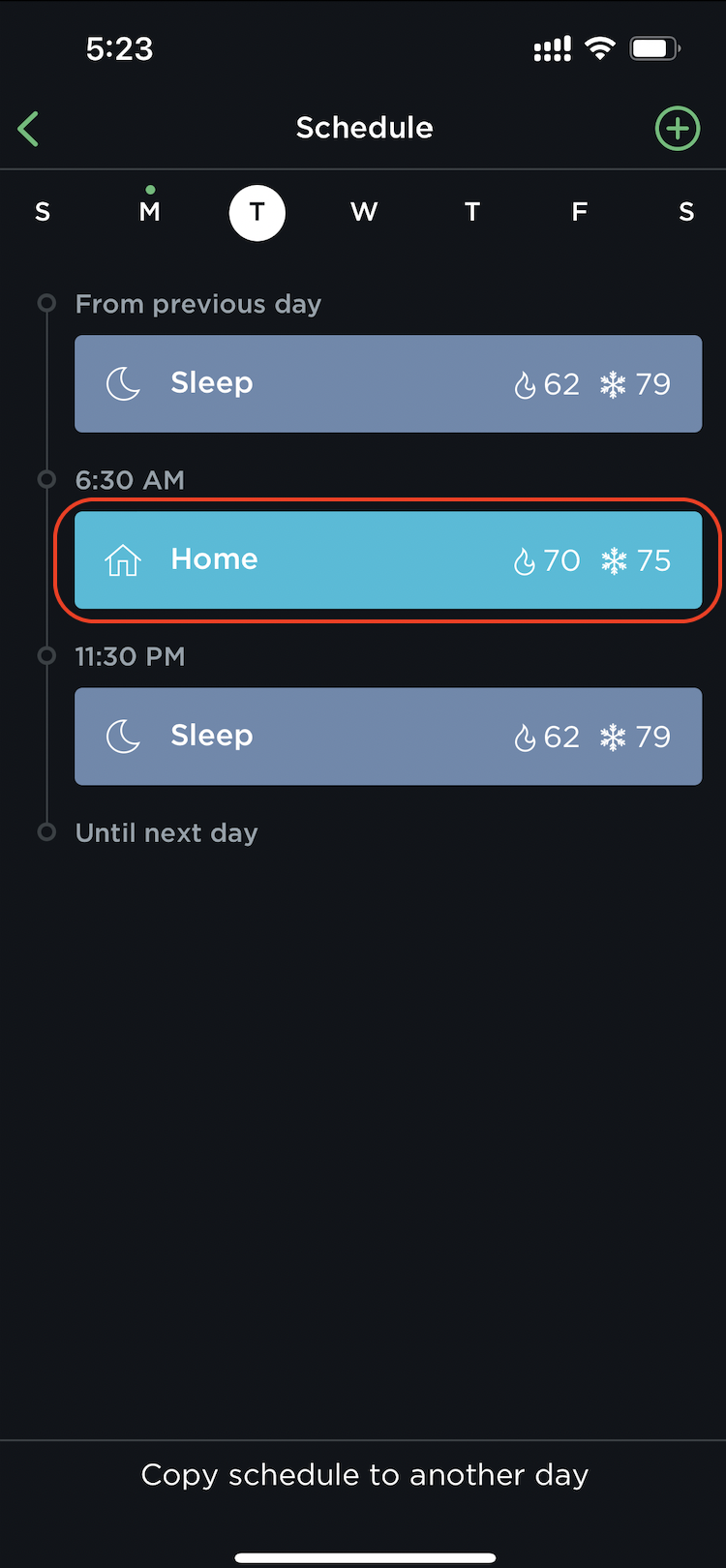
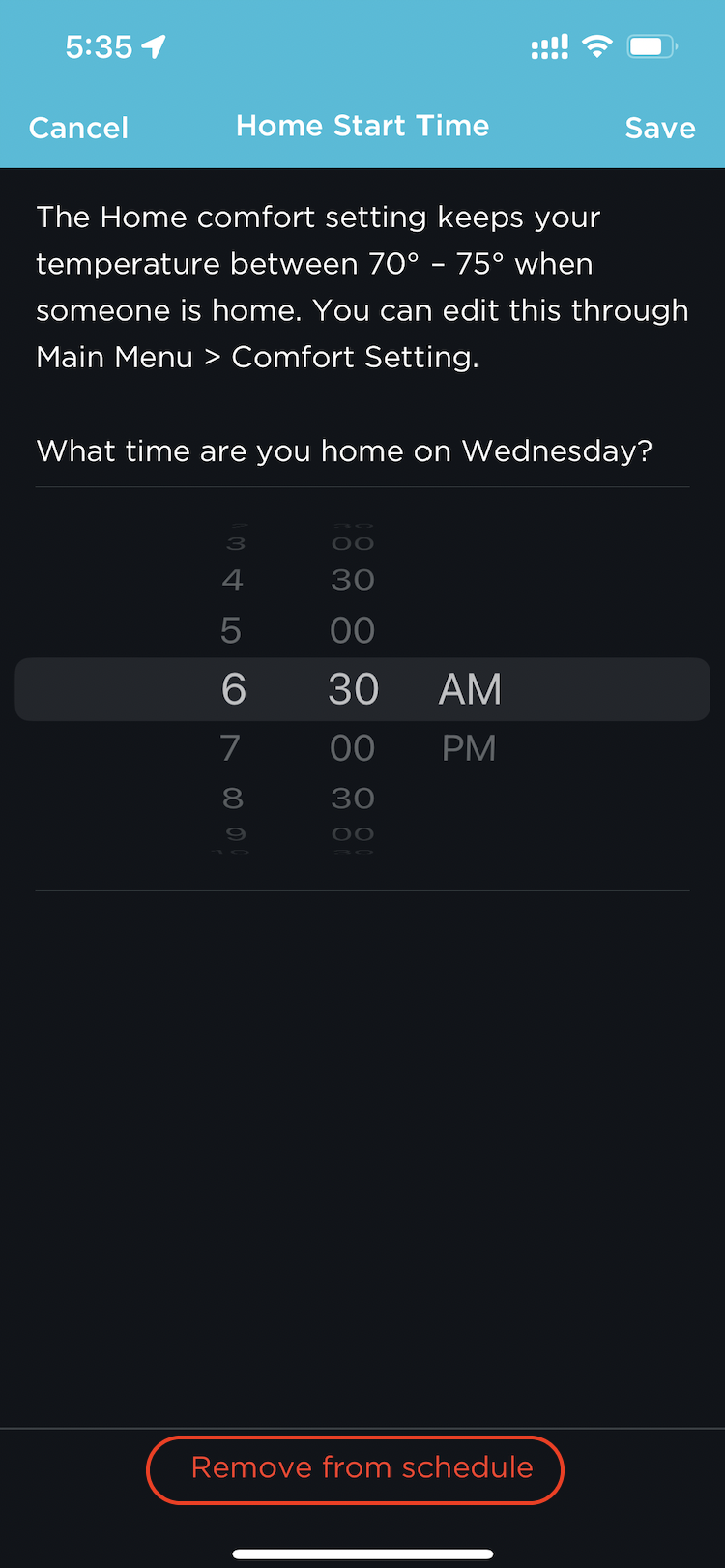
There are a few steps to disabling an ecobee schedule and preventing ecobee set point changes from interfering with Operto:
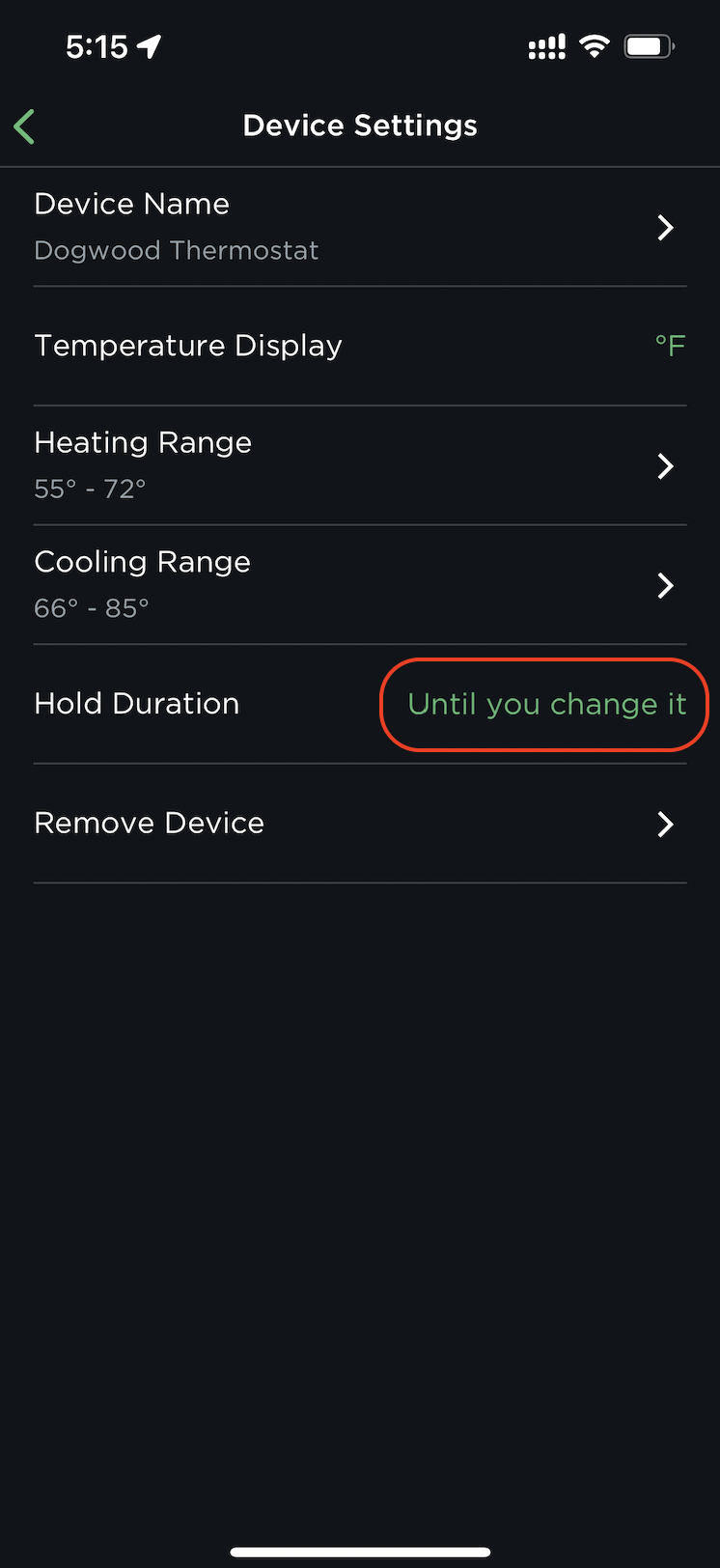
This could be fixed by changing the following settings:Hold Action is set it to "Until you change it".
On the ecobee, go to: Main Menu->Settings->Preferences->Hold Action and set it to "Until you change it".
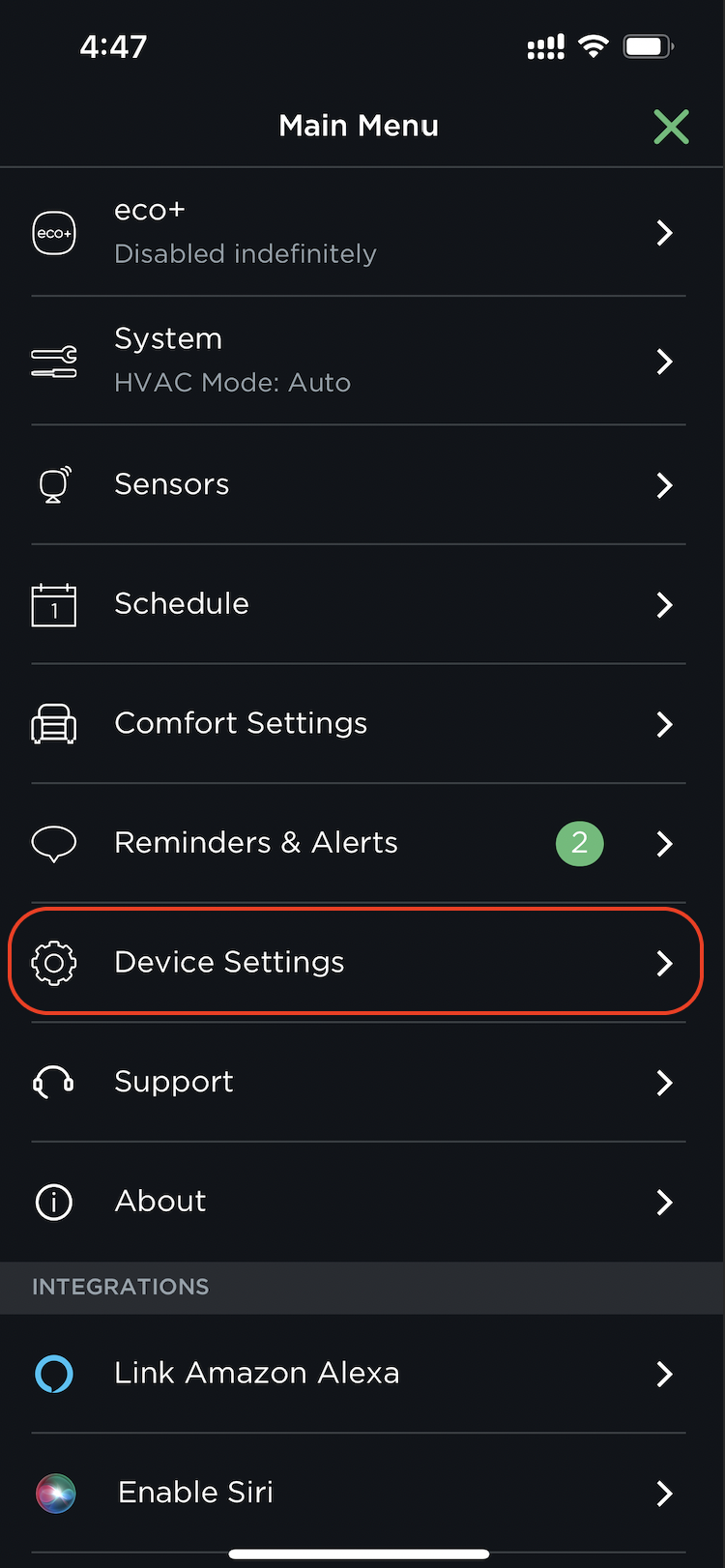
Also ensure that there are no Schedules set. If they are, delete them.