How the Operto Connect Integration Works
Early Checkout Notifications and Task Time Updates
- A guest enters their check-out key code into the Operto Connect lock upon checkout and the Operto Connect property status is updated.
- Operto Teams is polling for the updated status every 5 minutes on check-out days.
- Operto Teams picks up that the guest has checked out.
- If the scheduled check out time is in the future:
- The booking check-out time is updated to the current time
- Any tasks scheduled for the booking time are updated to the current time (and will show above other tasks at the check-out time on the employee dashboards).
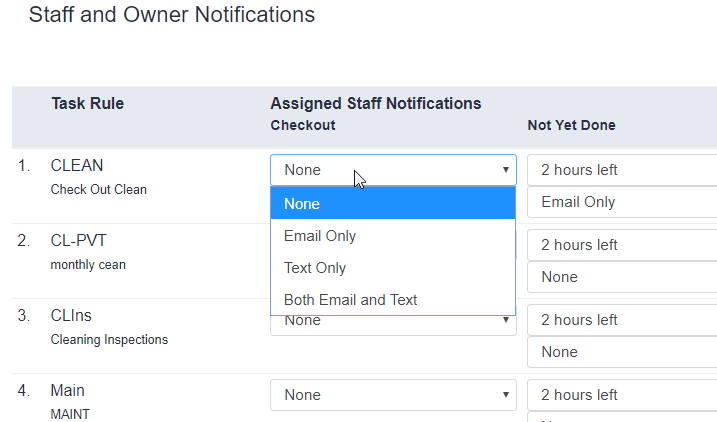
- Notifications are sent to Administrators and Staff per their settings.
Operto Connect Status Updates
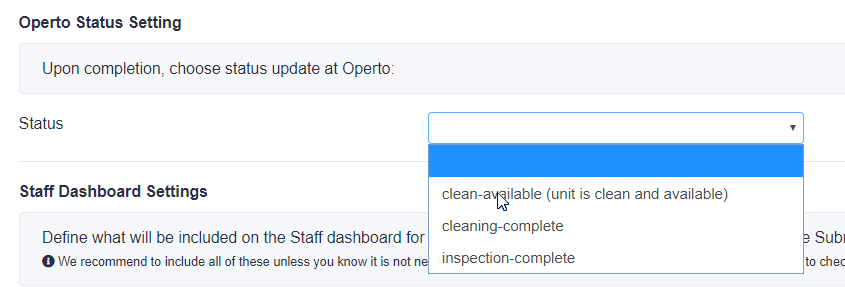
When any task is completed, Operto Teams can update the status at Operto Connect. For example, when cleaning is completed, Operto Connect status can be updated to cleaning-complete, then when the inspection is complete, Operto Connect status can be updated to clean-available.Setup Steps
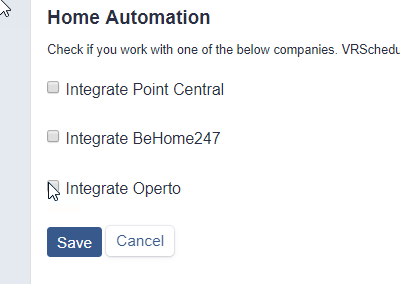
STEP 1: Turn on Operto Connect
- Navigate to Setup --> System Settings
- Select Edit
- Check Integrate Operto
STEP 2: Choose Properties for Integration and send to Operto Connect
Use this process both for initial setup and adding additional properties to the integration.
- Navigate to Setup --> Properties
- Select Edit (the pencil icon) next to each property that has or will have an Operto Connect lock.
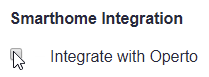
- Scroll down to the Smarthome Integration section and then select Integrate with Operto
- Use the Show all Details feature on the Property listing page to check your work. Use Ctrl+F and search for Operto to quickly see which properties are chosen for integration.
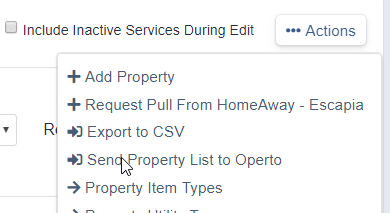
- Once all the properties are updated, go to the Actions menu and click Send Property List to Operto.
Step 3: Set Task Rules to update status' at Operto
Keep Operto Connect up to date with your property status by assigning status updates in Task Rules.
- Navigate to Setup --> Task Rules
- Select Edit (the pencil) next to the Rule to be used.
- Scroll down to the Operto Status Setting section and choose the correct status. We suggest clean-available after an inspection is done.
Step 4: Adjust Notification Settings
- Navigate to Setup --> Administrator Notifications.
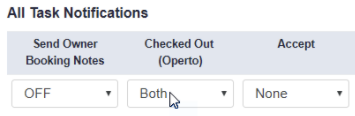
- Choose the Administrator to receive the check-out notifications, and click the Edit button
- Update the Checked-Out setting.
- Notify staff assigned to a task associated with booking check-out when a guest checks out early.