
DOORMAN L3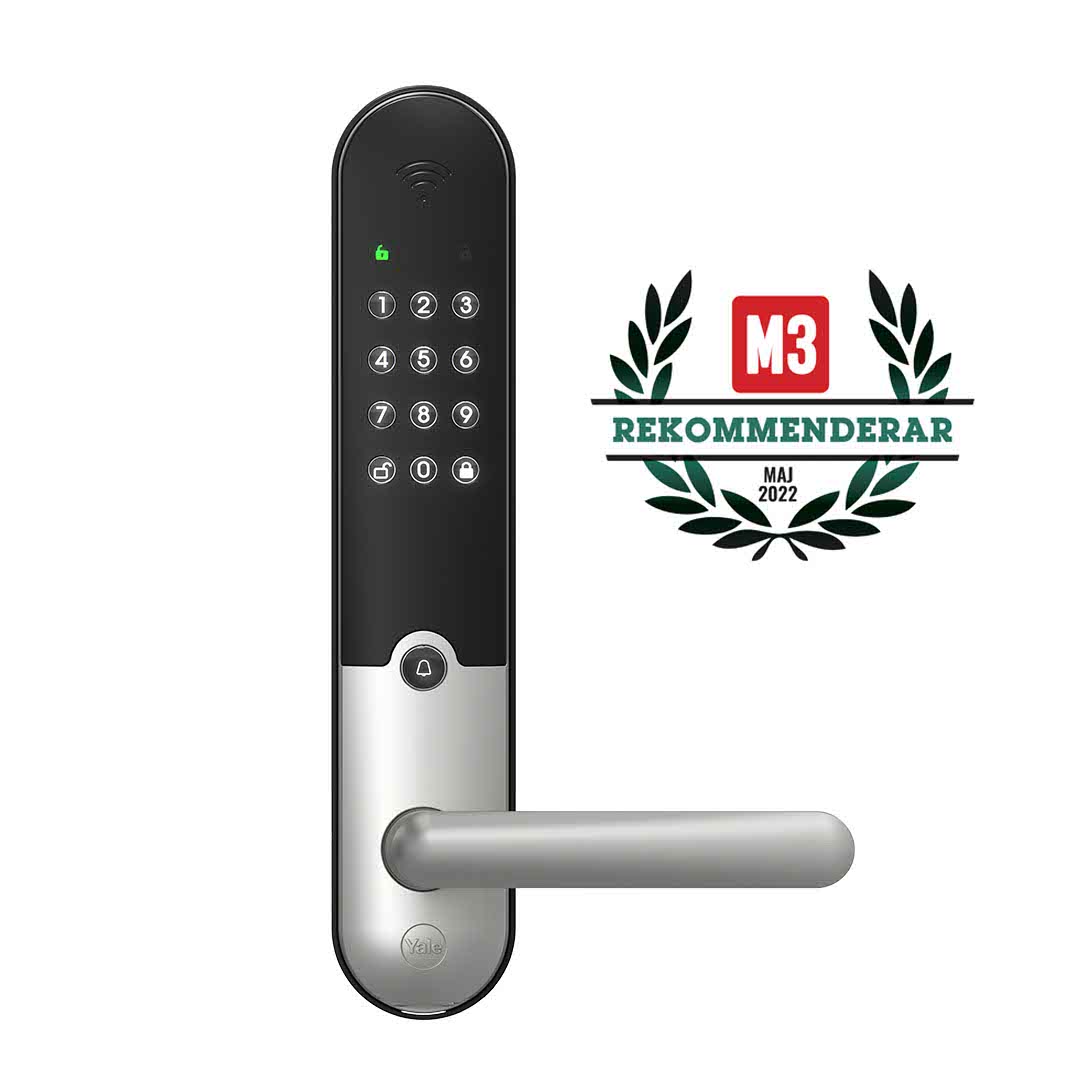
ⓘ If you are located within the US/Canada, download the Yale Access app for set up.
ⓘ If you are located outside of the US/Canada, download the Yale Home app for set up.
In order to pair this lock in the Yale App and connect it with Operto, you will need the Yale Connect WiFI (bridge) which should come together with the lock.
The Doorman L3 does not require a Yale Module since Bluetooth is built-in.
STEP 1 - Installing the Yale Application
In order to get the Doorman L3 into the Yale App, you will have to activate Bluetooth on the lock as follows:
1.) Keep the door open
2.) Press the "Unlock" button
3.) Enter the Mastercode (123456 by default or use the mastercode you created during initial installation)
4.) Press the "Unlock" button again
5.) Then press 0 to activate Bluetooth
At this stage the lock is in discovery mode and you should be able to set it up using the Yale App.
STEP 2 - Setting up the Yale Connect Wi-Fi Bridge
- Plug the bridge into a power socket within 10-15 feet of the lock, in an inconspicuous area where the risk of it getting unplugged is minimal. *Note that only one lock can be connected to each bridge. Note: Ensure this plug is not connected to a switch that a guest could potentially turn on and off.
- If the light on the Bridge is not already flashing green, hold the button on the bridge for 5 seconds until it does so, then tap ‘OK’.
- From the home screen of the app, tap 'Set up a device'
- You will be asked to scan the QR code on your bridge.
- If you can't scan the code, click 'Can't scan the code?' and enter the serial number located behind the bridge.
- If you cannot enter a serial number or it did not work, click on 'Can't find the serial number' Select 'Yale', then 'Accessory, then 'Yale Connect Wi-Fi Bridge'
- Tap ‘Start’. It is important to note that you must be connected to a 2.4 GHz WiFi connection in order to function properly
- Check to make sure that the correct network is selected. The bridge will now connect to that network
- Tap ‘Test Signals’
- If the app registers that it "Can't connect to signals'' Ignore this and tap ‘Continue’ to skip this process
- Test to see if the lock can be opened and closed with the Bluetooth settings on your phone turned 'on'
- Turn off the Bluetooth on your phone and repeat the test to check if the bridge is connected properly.
- If the lock can be controlled without Bluetooth, the lock and bridge are connected properly!
STEP 3 - Add Operto
- Tap on the "People icon" in the property view
- Tap 'Invite'
- Invite via the mobile number that was given to you in your onboarding email
- Enter "Operto" as the first name and "Support" as the last name
- Grant this user 'Owner' access level
- These steps must be performed for each lock in your Yale account.
Final Step: Ensure you have turned off all notifications for Yale Connect on your phone so that they don't interfere with the Operto notifications.
What now?
Reach out to support@operto.com to let us know you've completed all of the steps above.
DOORMAN CLASSIC (also called DOORMAN V2N) + YALE
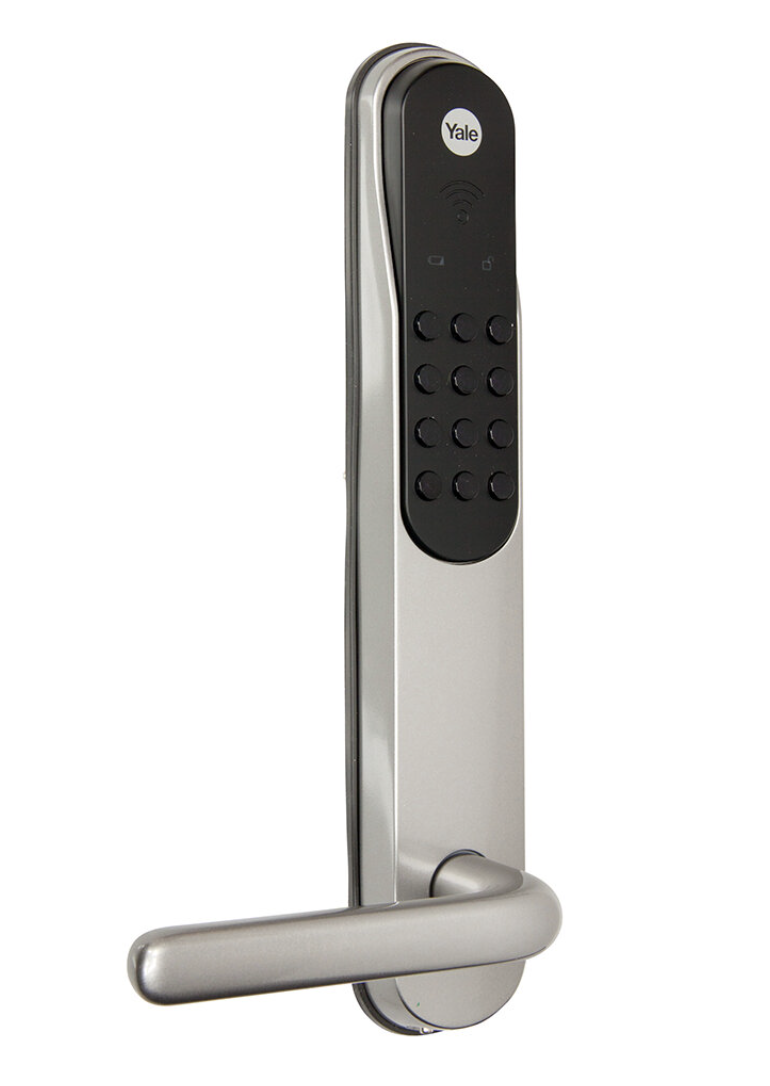
In order to pair this lock in the Yale App and connect it with Operto, you will need to purchase the Yale kit (module and bridge).
STEP 1 - Installing the Yale Module
Please follow these instructions to install the Yale module.
STEP 2 - Installing the Yale Application
Yale devices come with a QR code that can be used to set up the device in the Yale App. This code is included on the Yale Module and is helpful during setup. If you no longer have a QR code associated with the device, the serial number can be used during setup.
- Open the Yale App
- Select the menu in the top-left corner
- Select Set up a Device to access the QR code scanner
- Scan the code. If you are unable to scan it, select Can’t Scan the Code to set up with the Serial Number, which is the 10-digit number located on the sticker inside the battery cover.
- Follow in-app instructions to complete setup steps
STEP 3 - Setting up the Yale Connect Wi-Fi Bridge
- Plug the bridge into a power socket within 10-15 feet of the lock, in an inconspicuous area where the risk of it getting unplugged is minimal. *Note that only one lock can be connected to each bridge. Note: Ensure this plug is not connected to a switch that a guest could potentially turn on and off.
- If the light on the Bridge is not already flashing green, hold the button on the bridge for 5 seconds until it does so, then tap ‘OK’.
- From the home screen of the app, tap 'Set up a device'
- You will be asked to scan the QR code on your bridge.
- If you can't scan the code, click 'Can't scan the code?' and enter the serial number located behind the bridge.
- If you cannot enter a serial number or it did not work, click on 'Can't find the serial number' Select 'Yale', then 'Accessory, then 'Yale Connect Wi-Fi Bridge'
- Tap ‘Start’. It is important to note that you must be connected to a 2.4 GHz WiFi connection in order to function properly
- Check to make sure that the correct network is selected. The bridge will now connect to that network
- Tap ‘Test Signals’
- If the app registers that it "Can't connect to signals'' Ignore this and tap ‘Continue’ to skip this process
- Test to see if the lock can be opened and closed with the Bluetooth settings on your phone turned 'on'
- Turn off the Bluetooth on your phone and repeat the test to check if the bridge is connected properly.
- If the lock can be controlled without Bluetooth, the lock and bridge are connected properly!
STEP 4 - Add Operto
- Tap on the "People icon" in the property view
- Tap 'Invite'
- Invite via the mobile number that was given to you in your onboarding email
- Enter "Operto" as the first name and "Support" as the last name
- Grant this user 'Owner' access level
- These steps must be performed for each lock in your Yale account.
Final Step: Ensure you have turned off all notifications for Yale Connect on your phone so that they don't interfere with the Operto notifications.
What now?
Reach out to support@operto.com to let us know you've completed all of the steps above.