

Hardware checklist: Iglooco Lock, 4xAAA Batteries (not included), Slim Shackle
Step 1: Setup the Iglooco keybox
- Make sure your phone's Bluetooth is turned on.
- Download the free Iglooco mobile app.
- Sign In with the credentials that we have created for you. *Note: if you are signed in with a different account, sign out and then sign in with the provided account. If you did not receive your login credentials, please email our Client Success Team.
- From the Welcome screen, tap 'Pair new lock'.
- Select the property from the list that corresponds to the unit you want to onboard.
- Follow the remaining in-app instructions to connect your lock.
- Name your lock to match the naming of the property.
- Repeat this process from Step 4 to connect other properties.
Step 2: Install team member codes
- Confirm you are connected to the lock via Bluetooth.
- From the app, select 'access' and then '+access' on the lock you would like to install member codes to
- Select 'Permanent PIN'
- Create a name for the PIN (ie, 'Cleaner')
- Choose 'Customize PIN via Bluetooth' and create a 4-6 digit PIN *Tip: use this same PIN on all the locks that you want to give a member access to.
*Note: this process only needs to be done for team member codes. Operto will automatically assign access codes to all guest reservations
Step 3: Install the Iglooco keybox
Instructions on how to install the Iglooco keybox can be found here.
What now?
Reach out to support@operto.com to let us know you've completed all of the steps above.
Working with Iglooco keybox
- Check-in times should always be created on the hour, as access codes will only activate on the hour. For example: If a reservation is made for 3:30 pm, the access code will not work until 4:00 pm. The same holds true for last-minute reservations. For example: If you create a reservation at 4:06 pm, the access code will not be available until 5:00 pm
- It is important to note that once a guest is given an access code, it cannot be removed from the lock until the reservation expires. In other words, if a guest receives an access code and the reservation is later canceled, the code will still be active on the lock
- If the reservation time is changed in PMS, a new access code will be generated for that reservation and get updated in the PMS. You will need to ensure that the guest is informed of this change.
- Since the lock operates offline, you will lose dashboard access to certain features such as the activity feed and the ability to lock/unlock the keybox remotely
- Igloohome only allows the creation of access codes for a duration of up to 28 days. If you have a reservation longer than 28 days, the reservation won't be imported as the Igloohome API doesn't issue a code that long. For reservations like these, we would advise you to create them manually in 2 (or more) parts on the Operto dashboard. Alternatively, you can also use the igloohome app to issue a new code. This limitation is entirely on Igloohome's end and stems from the limited code storage available on the lock.
Iglooco Keybox - Troubleshooting and Identifying if a Resync is needed
iglooco keyboxes work offline, and over time they can run out of codes. In this case, a resync will be needed and will update the lock's code catalog with new codes.
Should a resync be needed, the app will show a red circle with a question mark in the middle when a sync is required.
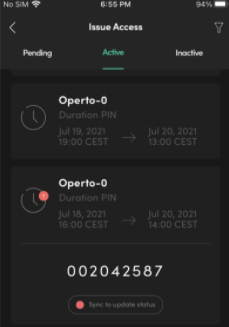
To sync the lock, make sure you are near the lock and the Location Services and Bluetooth is on. Then, you would need to:
- Pull up the iglooco app
- Tap the name of the lock
- Tap Access
- Tap Sync
These locks need to be synced once in a while. So, we recommend that you resync every few visits so it is always up to date.