
Automated Text and Email Messaging in Whistle
Adding Automation to send out Guest Code
1. Once you have logged in to your Whistle account, navigate to the Automation Tab.
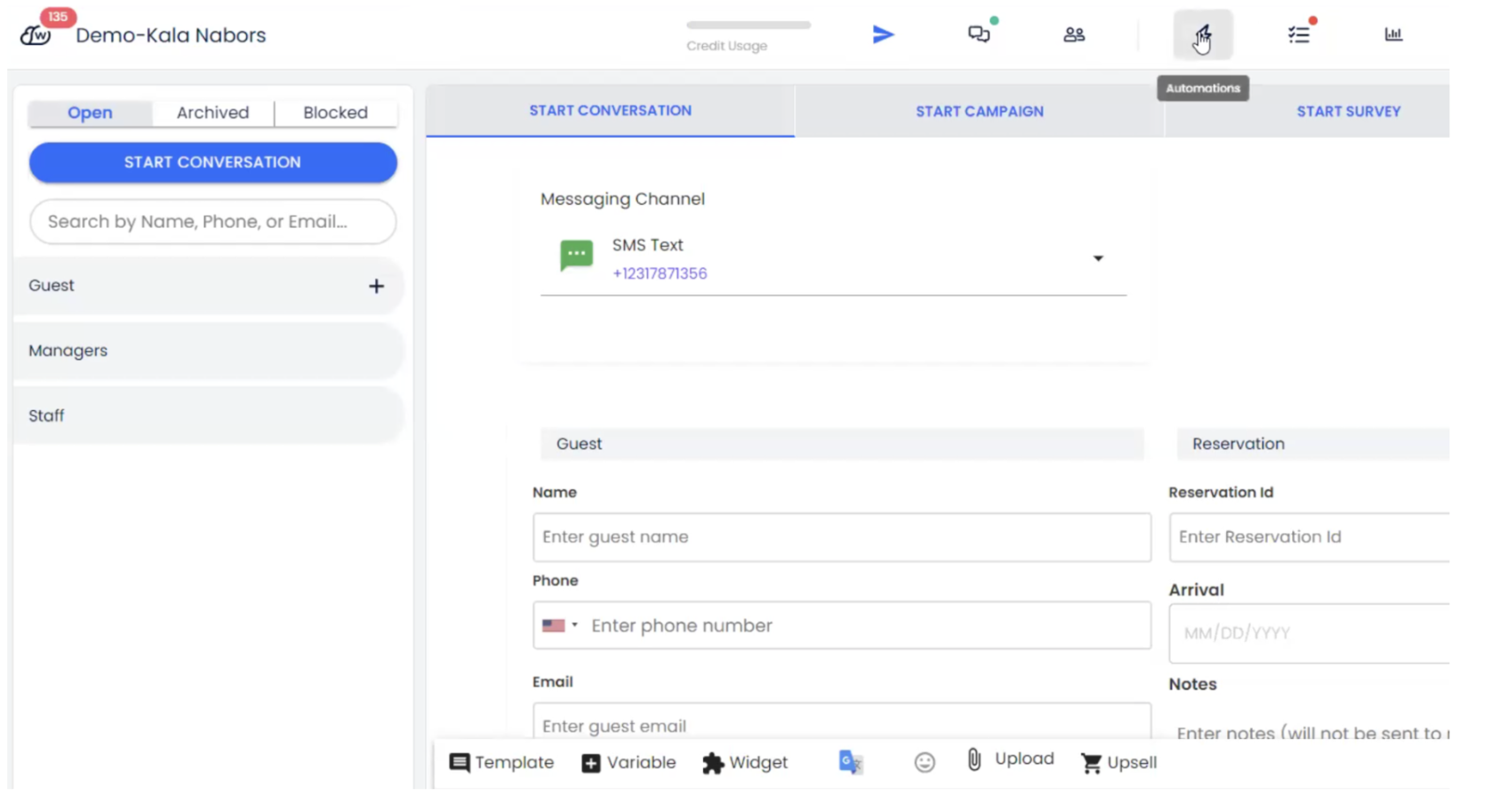
2. You can choose to edit messages that are currently in here or you can create a new automated message depending on when you want the check-in code to be sent to the guests.
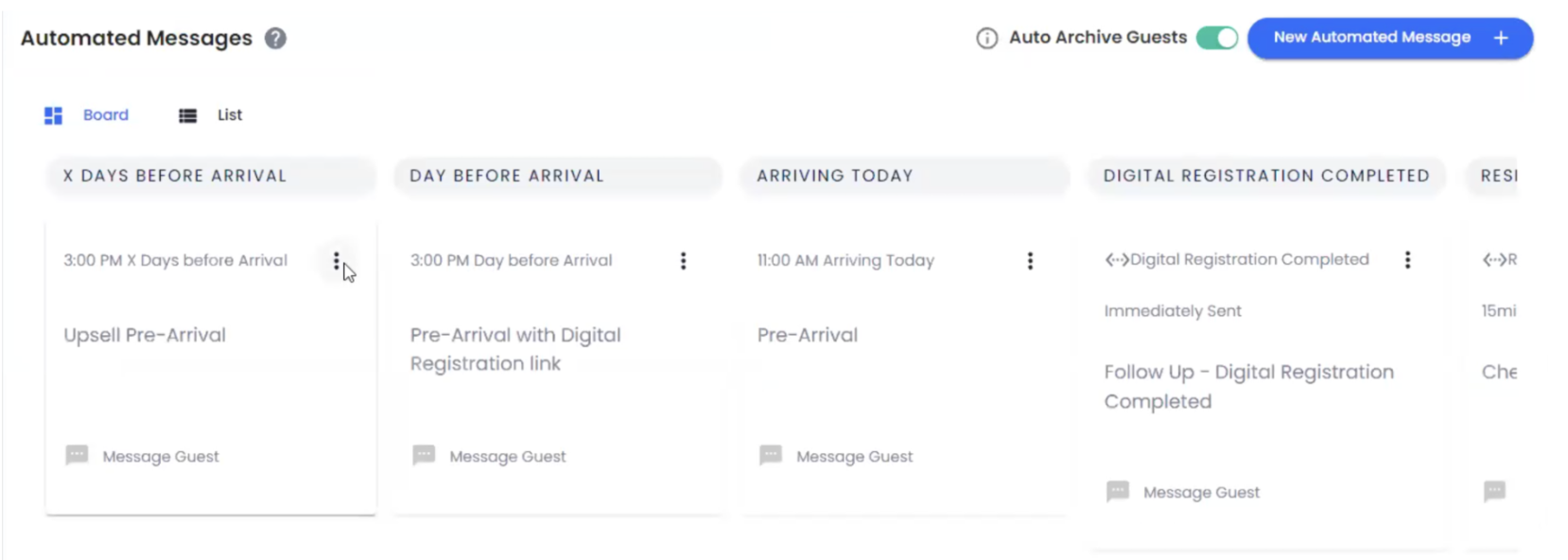
3. Select the time at which you want the email to go out and make sure to set the Schedule as 'Repeating' and have all days selected.
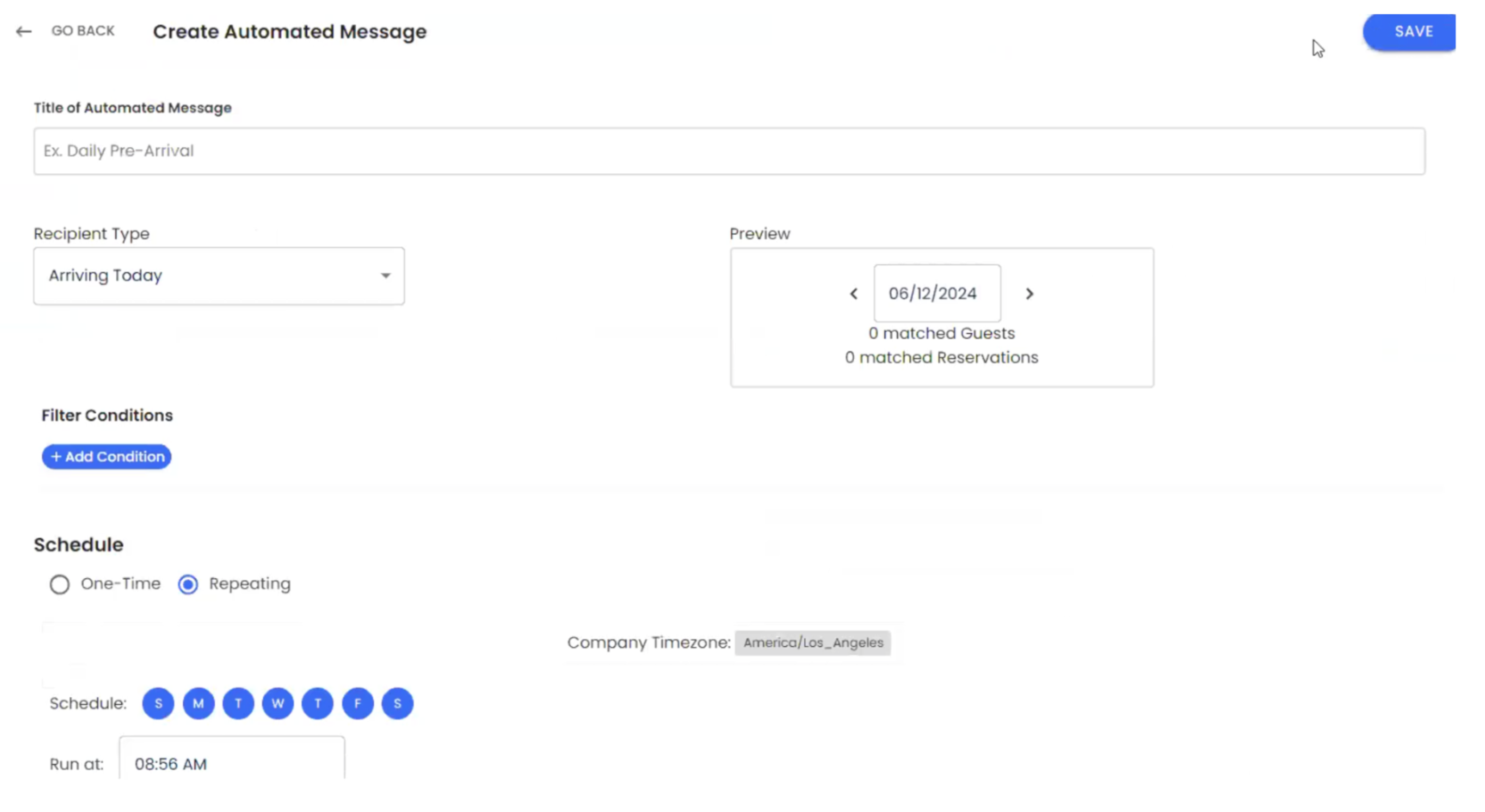
4. Check the 'Enable Missed Messages' toggle. Type a new message or use one of the existing templates with the 'Check In Code' variable.
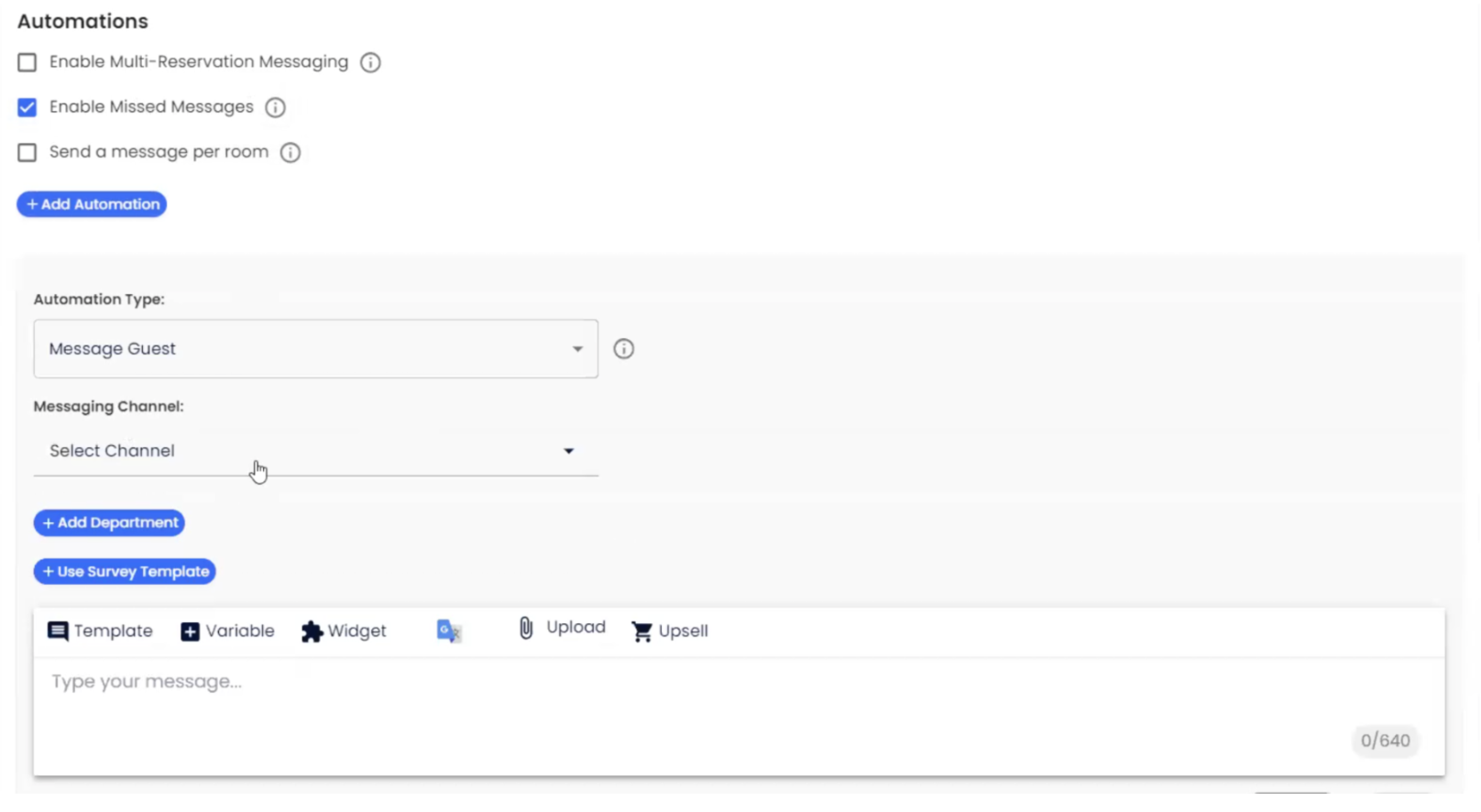
5. Select the desired messaging channel: Text message or Email. Please make sure that your typed message or the template contains the Check In Code variable for the door code to populate correctly.
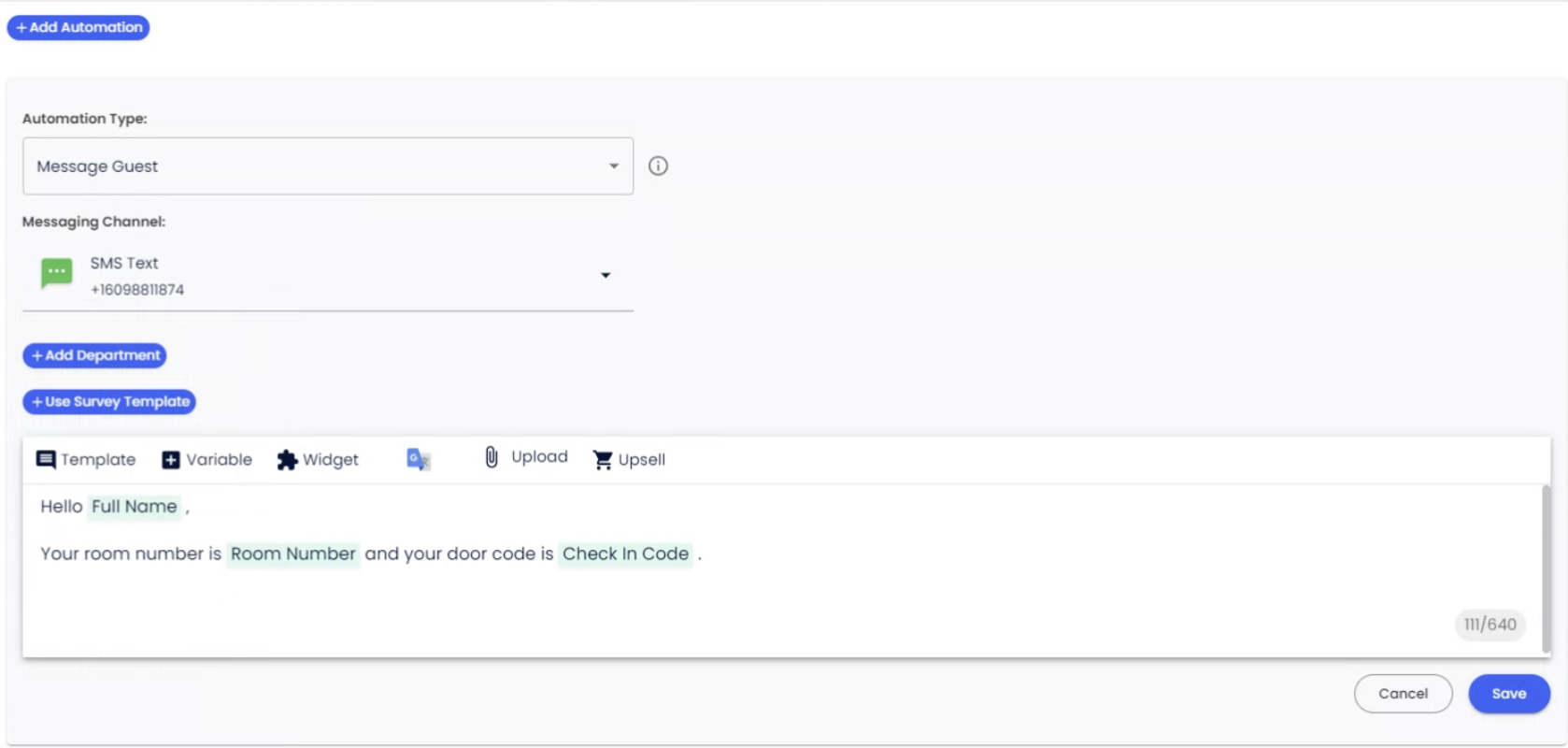
6. Click Save.
Adding Guest Portal Link to Whistle Message Template
In order to add the guest portal link, add this to your message template:
guests.operto.com/CID_{Reservation ID}
CID is your Operto company ID.
Reservation ID is the variable in whistle.
guests.operto.com/CID_{Reservation ID}
CID is your Operto company ID.
Reservation ID is the variable in whistle.
FAQs
Q. Can I only send the access code to the guest?
A. You can use Whistle's inline scripting to fetch only the Guest Code part from the variable. However, if you have a reservation booking multiple rooms, the inline scripting would only return the Guest Code for 1 room. You would then need to send out the the Guest Code for other rooms manually. Here is the scripted Guest Code variable:
{{ cloudbeds_check_in_code | split: ":" | last }}