
Security Deposits
Index
- Integrate Stripe with Operto
- Security Deposit features in Operto Connect
- Transactions in the Stripe account
- Guest Experience in Guest Portal
- Payments FAQs
-
Log into Stripe and go to https://dashboard.stripe.com/apikeys
-
Click on 'API keys' → click on '+ Create secret key'
-
Enter the name and click 'Create'
-
-
Copy and save the API key (sk_live_xxxxxx…). Note: This key can only be viewed once! Please ensure to copy it somewhere safe.
-
Login to the Connect Dashboard
-
Click on the member profile icon (top right) → Select ‘Settings’
-
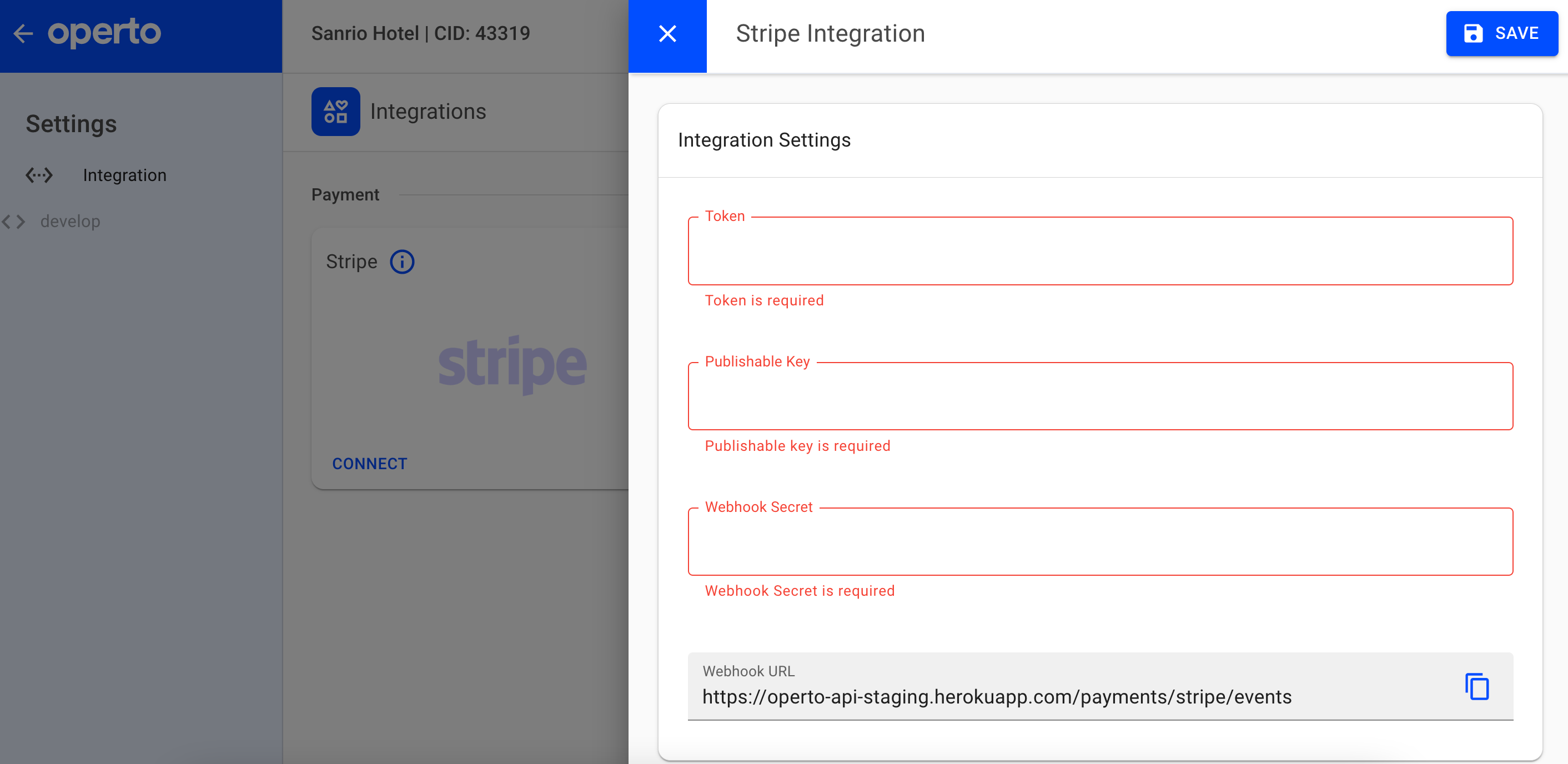
Fill in the required fields with Stripe credentials
-
Token (API key - sk_live_xxxxxx…)
-
Publishable Key (This will be under the API Keys section on your Stripe account: pk_live_xxxxxx…)
-
-
Copy and Save Webhook URL on Operto
-
Go back to your Stripe account and go to https://dashboard.stripe.com/webhooks
-
Click on 'Webhooks' -> click on '+ Add endpoint'
-
Paste the Webhook URL from Operto to the 'Endpoint URL' field in Stripe
-
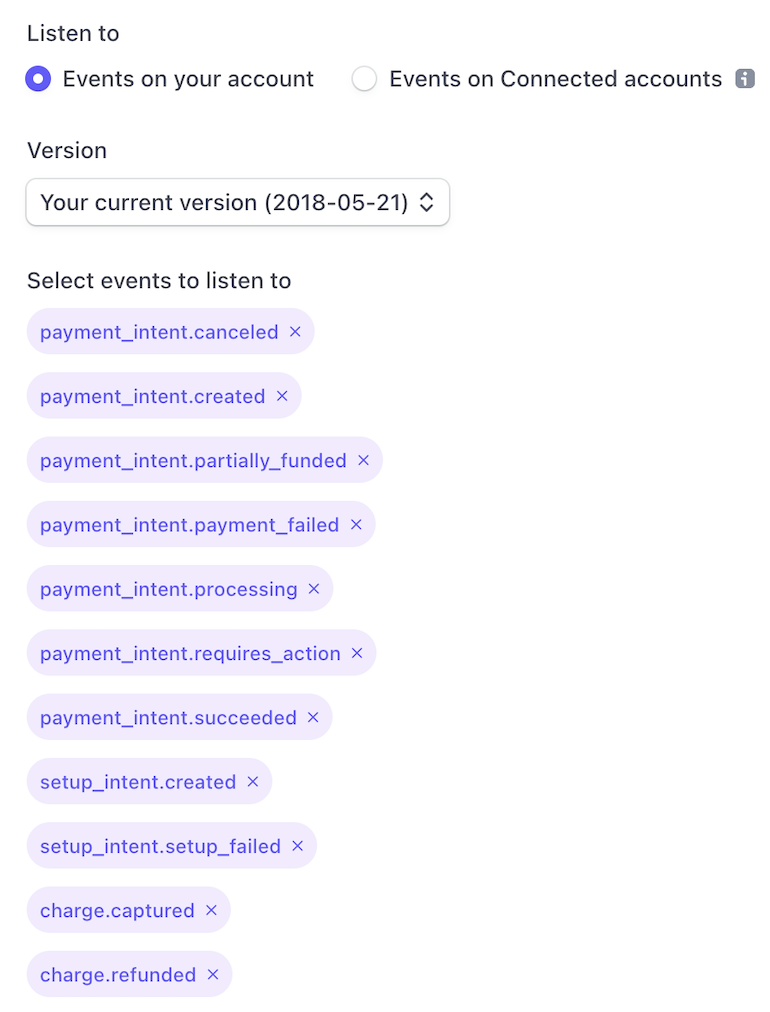
Click on 'Select Events'.
- Please select all these under ‘Events to Send’:
- Click 'Add endpoint'
-
Click on the URL recently added → click 'Reveal' under 'Signing secret'.
-
Make sure the API version on Stripe is 2018.
-
Copy and paste the 'signing secret' from Stripe to the 'Webhook Secret' field on Operto
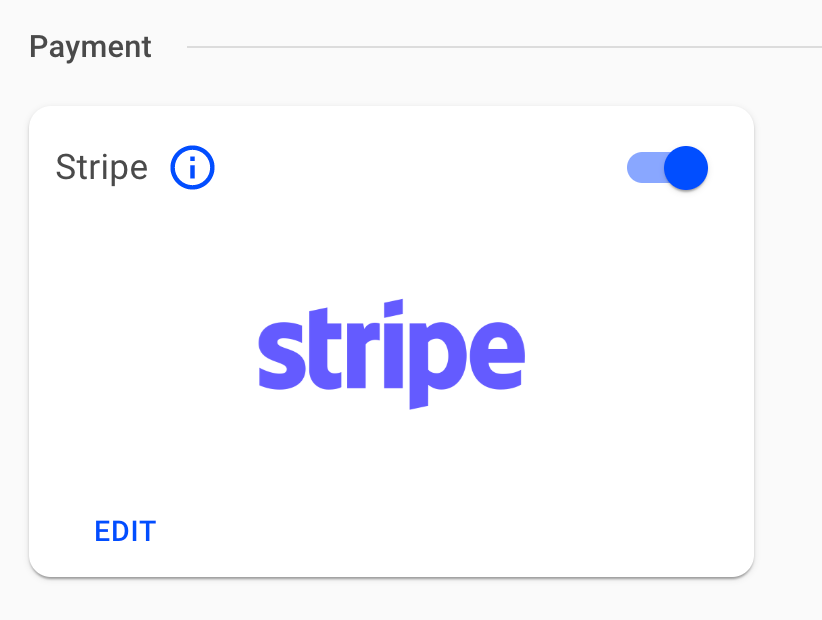
Once Stripe credentials are entered, you can choose to disable/enable the Stripe integration. Disabling/enabling will not remove the Stripe credentials from our system, but it will simply just pause the integration.
Enable/Disable Stripe integration
-
Log in to Connect Dashboard
-
Click on the member profile icon (top right)
-
Select ‘Settings’
-
Click on the toggle
-
A popup will appear to confirm. Click Enable/Disable
Security Deposit features in Operto Connect
Once you have set up the integration with Stripe, the Connect Dashboard will show the following new features:
-
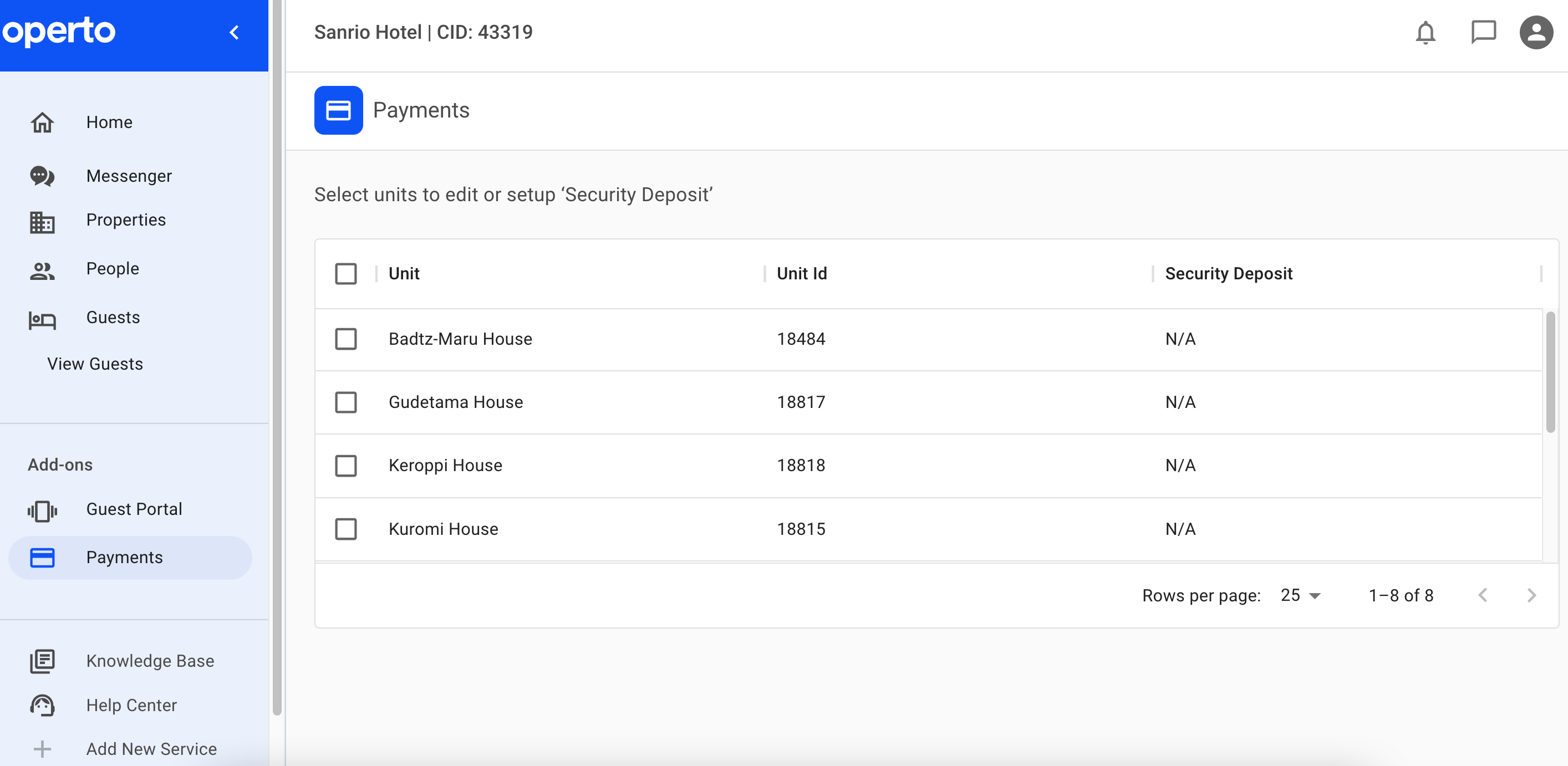
Payments tab on the left-side navigation menu
-
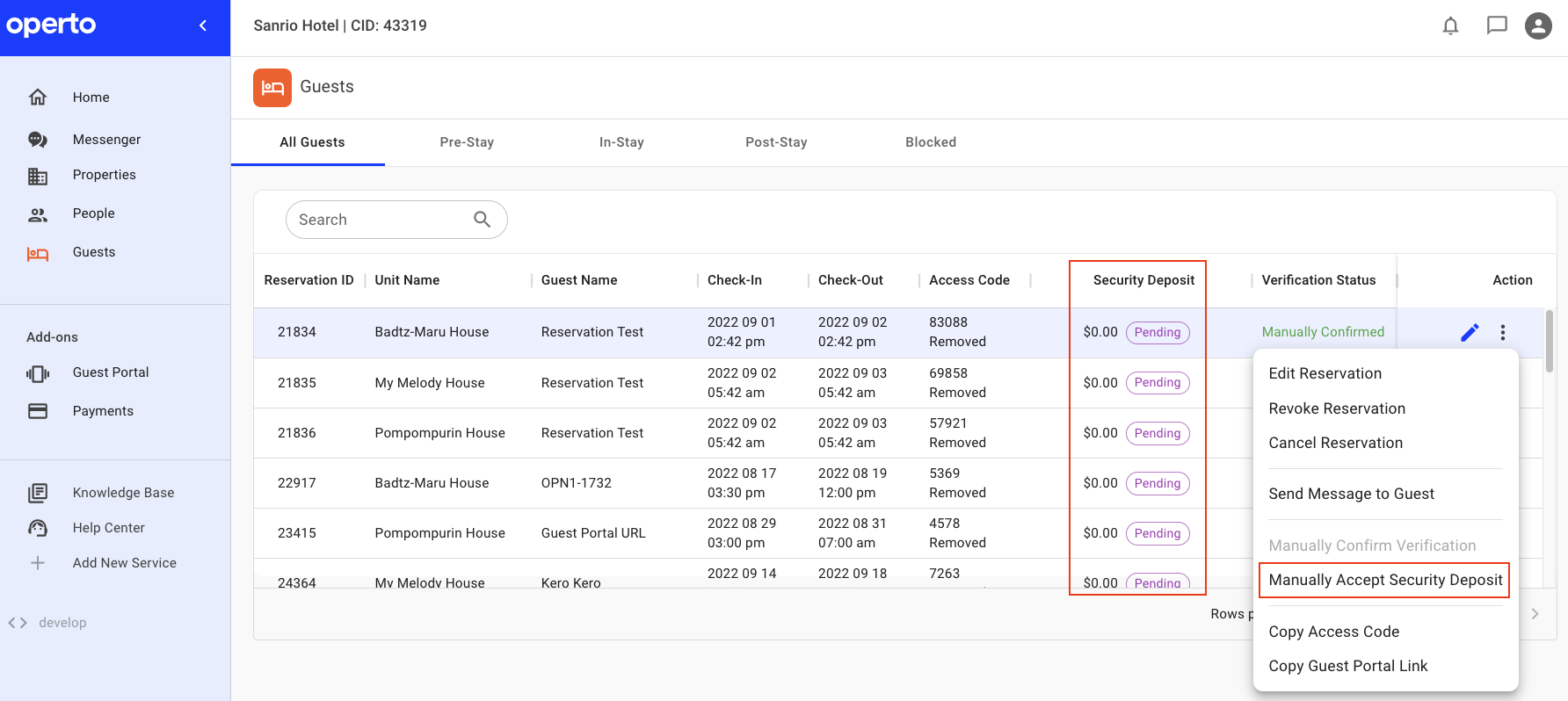
Security Deposit column on the global-level and unit-level guest list
-
Security Deposit column on the check-in/check-out smart cards on the dashboard homepage
-
Manually Accept Security Deposit option found on the reservation smart card and guest list multi-action menu (3 dots)
Setting up Security Deposit
-
Go to Payments (left side navigation menu)
-
Select the units to update the security deposit
-
Click on ‘Edit Security Deposit’
-
A window will pop up with the security deposit entry amount
-
Note: all entries done are in USD currency
-
-
Click ‘Save’
-
The security deposit column will show the new amount.
Guest List
Security Deposit Statuses
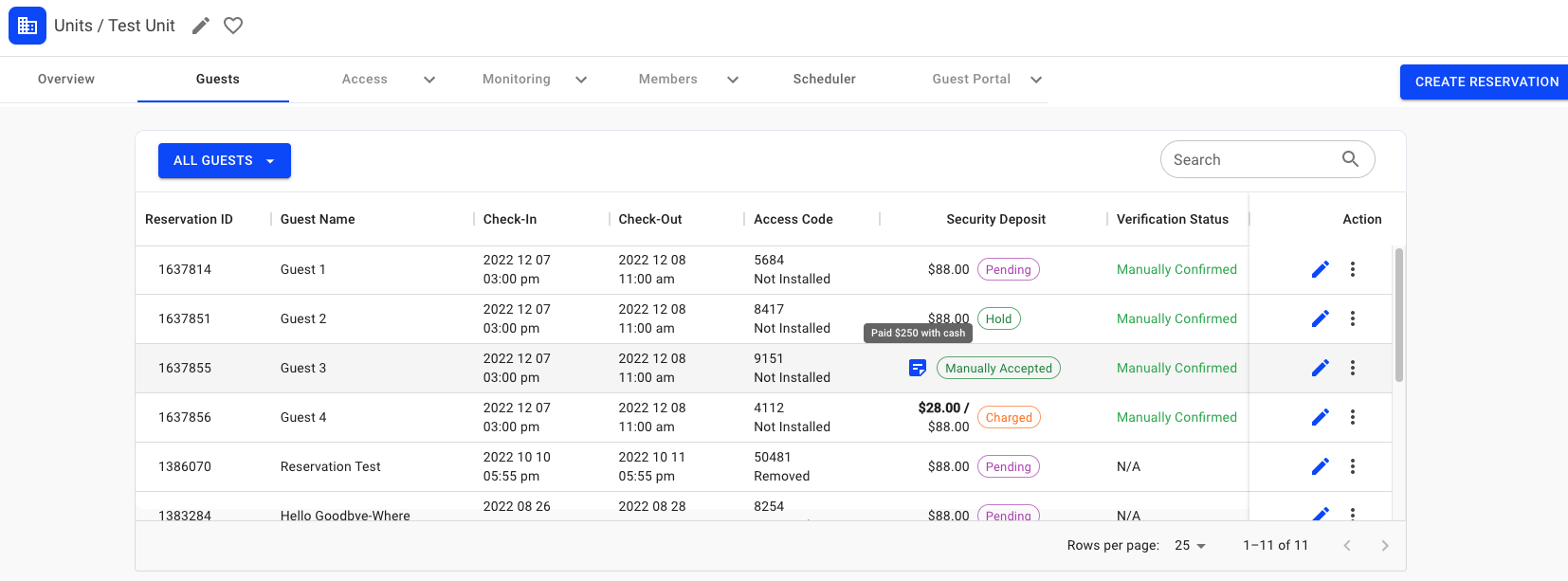
You will see the following Guest's security deposit statuses in Connect:
Pending
-
The guest has not gone through the security deposit flow on Guest Portal yet
-
The dollar value will show the deposit amount required. The deposit amount can change on the reservation:
-
if you update the unit’s security deposit on the Payments tab
-
status is still pending
-
Hold
-
The Guest has completed the security deposit flow on Guest Portal
-
The dollar value will show the amount placed on hold
Note: Placed on hold simply means that the Guest's credit card has $x.xx amount blocked and they cannot spend the money. It does not mean the money is taken out and transferred to you (the Property Owner/Manager).
Manually Accepted (steps here)
-
In certain scenarios, (like when a guest is having issues with the Security Deposit flow or is paying via cash or debit card) you have the ability to Manually Accept a Security Deposit. The Guest doesn't need to go through the Security Deposit flow for this process.
-
No dollar value will be shown
Charged (steps here)
-
When you have placed a charge on the security deposit amount. This could be a partial charge (ex. $100/$250) or a full charge. The remaining amount not charged will automatically be refunded to the Guest.
-
The dollar value will show the amount charged to the Guest.
Released (steps here)
-
When the Guest’s security deposit has been released
-
Dollar value will show how much is released
-
The Release will happen in 2 ways:
-
You have manually released the hold from their Stripe account
-
The 7-day hold has expired so Stripe will automatically release the hold
Note: 7 days is set by Stripe and cannot be changed for now
-
Declined
-
The guest has attempted to pay Security Deposit but was not successful
-
The dollar value will show the amount required
Manually Accept Security Deposit
There may be occasions when you might want to:
- override the security deposit requirement (owner bookings) or
- the Guest is paying via cash or debit card.
Steps to override/manually accept the Security Deposit in Connect:
-
Go to the unit/global level guest list and locate the reservation
-
Click on the multi-action menu (3 dots)
-
Click on ‘Manually Accept Security Deposit'
-
Add a mandatory note in the pop-up window
-
Click ‘Confirm’
Note: To ‘Manually Accept Security Deposit' in Connect simply requires adding a note. The actual intake of money (if any) will happen outside of Connect/Guest Portal > Stripe application.
Once a note is added, it cannot be undone. Therefore, if you take in, for example, a $250 cash deposit and refund upon guest check-out, then you will simply update the note to reflect the refund.
Transactions in the Stripe account
Charging (capture) and releasing (cancel) a hold
-
On Stripe Dashboard, click on ‘Customers'
-
Locate and click on the Guest's name
-
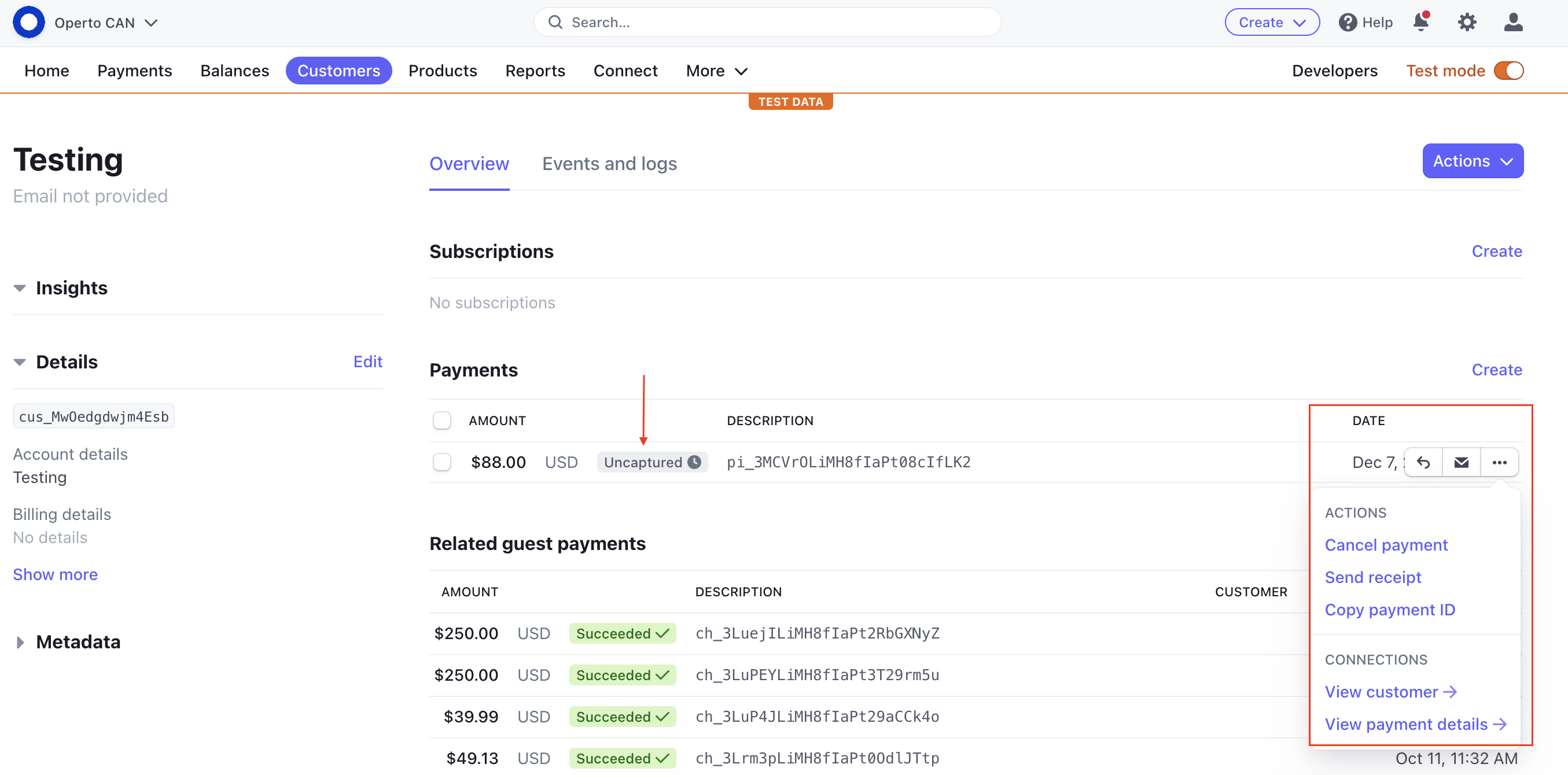
Locate the Payment. The amount should show ‘Uncaptured’
-
Click on the multi-action menu (3 dots)
-
To release
-
Select ‘Cancel Payment’
-
Input field requirements
-
Select ‘Yes’
-
-
To charge
-
Select 'View Payment Details'
-
Select ‘✓ Capture’
-
Input amount
-
Select ‘Capture’
-
Guest Experience in Guest Portal
On Guest Portal, the Guest will only see the security deposit banner when the current time is after the reservation time. Similar to in-person check-in at a hotel, we do not want to ask the Guest for a security deposit until it’s time to check in.
The security deposit flow will start when the Guest clicks on either the orange banner at the top or the check-in button. The Guest will simply input their credit card details, once the security deposit hold is successfully placed, the Guest will see the access code appear on their Guest Portal. If for whatever reason, the hold is not successfully placed, the Guest will see an error screen. He/she will have to try another credit card or contact the Property Owner/Manager.
Payments FAQs
Why did we choose Stripe as our initial partner/What are the benefits of using Stripe?
-
Stripe is the most mature payment processing partner in terms of API and UI components. Many VR and hotels already have Stripe accounts and setting up a new account is a quick and easy process.
What are the prerequisites for enabling a Security Deposit:
-
To use the security deposit feature, you would need to have both Guest Portal and Verification (Superhog or Autohost) enabled for the property.
Can we use another payment processing partner?
-
We built the initial phase of the Security Deposit feature with Stripe but we will be able to plug in other gateways in the future.
What are the costs for a customer to process a payment/security deposit?
-
Our base Security Deposit / Incidentals are included in your Guest Portal subscription, but there will be fees charged by Stripe that are dependent on your Stripe terms. There is a % fee charged against any Incidental / Security that is transacted (held or released) that will be tracked in your Stripe account.
-
As the volume of transactions increases, we will be looking to negotiate a better rate via Stripe Connect (or another partner), but for the initial phase of this feature, negotiation is between you and Stripe
Are there other transaction types coming?
-
We will be looking to offer the ability to use our smart buttons on any content as an upsell tool and set up a payment link via their Stripe account. We are currently working on:
-
vaulting the card for paying a balance,
-
early check-in / late checkout fees
-
Can Guests use Apple Pay and Google Wallet for Security Deposits?
-
Currently, we can only enable Google Wallet. Apple doesn’t allow us to set up Apply Pay for multiple clients all from a single GP domain. We are looking to implement Stripe Connect API to solve this issue.
What shows up on a Guest's credit card statement?
-
You can configure the business and transaction information in your Stripe account. Stripe has excellent documentation and Account set up and activation details can be found here: Activate your account.