
Hardware checklist:
- Schlage Lock
- SmartThings Hub
Step 1: Setup the SmartThings hub
Make sure that the power outlet is NOT connected to a switch that can be used to turn off power.
You can connect your hub either via Wi-Fi or with the provided ethernet cable. Choose the option that makes the most sense to you. Take into consideration signal strength and proximity to your connected devices. If you have poor Wi-Fi signal in your unit, consider connecting directly to an access point using the ethernet cable. If there are signs of instability, you may need to experiment with the placement of the hub.
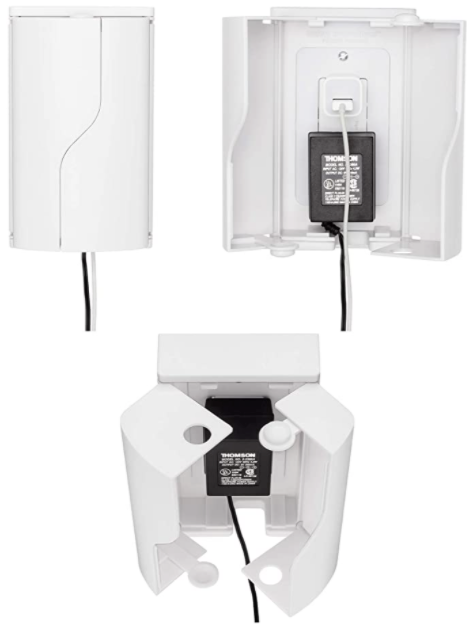
Please note, sometimes guests or their kids may accidentally unplug the device. We suggest for you to print a label "Please do not unplug" to stick on the device. Also, you can consider protecting the device with a basic outlet cover to avoid it from being unplugged.
Example outlet cover:
Download the free SmartThings mobile app
- Sign In with the credentials that we have created for you. *Note: if you are signed in with a different account, sign out and then sign in with the provided account. If you did not receive your login credentials, please email our Client Success Team
- From the Home screen, select Menu (three horizontal lines) and touch the dropdown arrow. You will see a list of all your properties. Select the property from the pre-populated list that you want to onboard.
- From the Home screen, touch the Plus (+) icon and select Device
- Touch Wi-Fi/Hub, then SmartThings and then SmartThings Hub 2018 (IM6001-V3)
- The app will prompt you to select a location for your device, double check to make sure that it is correct
- Follow the remaining in-app instructions to connect your Hub
Step 2: Install the lock on the door
We encourage our clients to obtain the services of a professional locksmith. If you decide to take this on yourself, we recommend that you follow the manufacturers instructions
*IMPORTANT* Make sure that you do not forget the Master Code that you created on the lock, it will be needed anytime you configure the lock.
Step 3: Pair the lock to the SmartThings Hub
- From the Home screen, touch the Plus (+) icon and select Device
- Search and select Schlage
- Make sure to select the Z-Wave option
- Follow the remaining in-app instructions to pair your lock to the hub
- Enter in the Programming Code which can be found on a sticker on the back of the owners manual or on the backside of the lock. After entering the programming code, press 0. This will put the lock into pairing mode.
Note: If the device does not pair the first time, go through this process again
Final Step: Ensure you have turned off all notifications for SmartThings on your phone so that they don't interfere with the Operto notifications.
What now?
Reach out to support@operto.com to let us know you've completed all of the steps above.
*IMPORTANT* Make sure that you are able to lock/unlock the lock from inside the app before leaving the unit.