
FAQ's for Operto Guest - Building your Guest Portal
How do I create specific guides for each unit that are not global guides?
You will always need to start creating any new guide under the Global Guest Portal section. Guides cannot be added under units.
Here is how to proceed: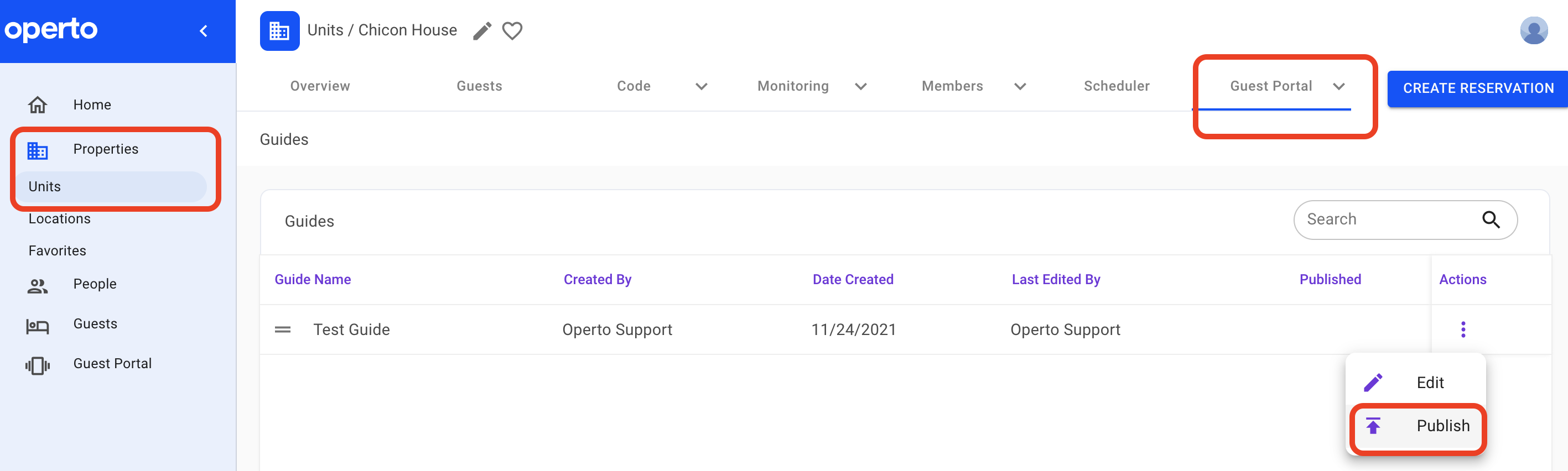
How do I enable messenger within my guest portal?
Your guests can now message you directly via their guest portal.
In order for you and your team members to receive your guests' messages and requests, you will need to configure their profiles accordingly.
1. Under People -> Members: you will select the team member who needs access and make sure to activate "chat notify" under his/her Property Alerts. If you'd like this team member to also get notified by email or phone when a new guests' message is received, you will activate the preferred Notifications Channel.
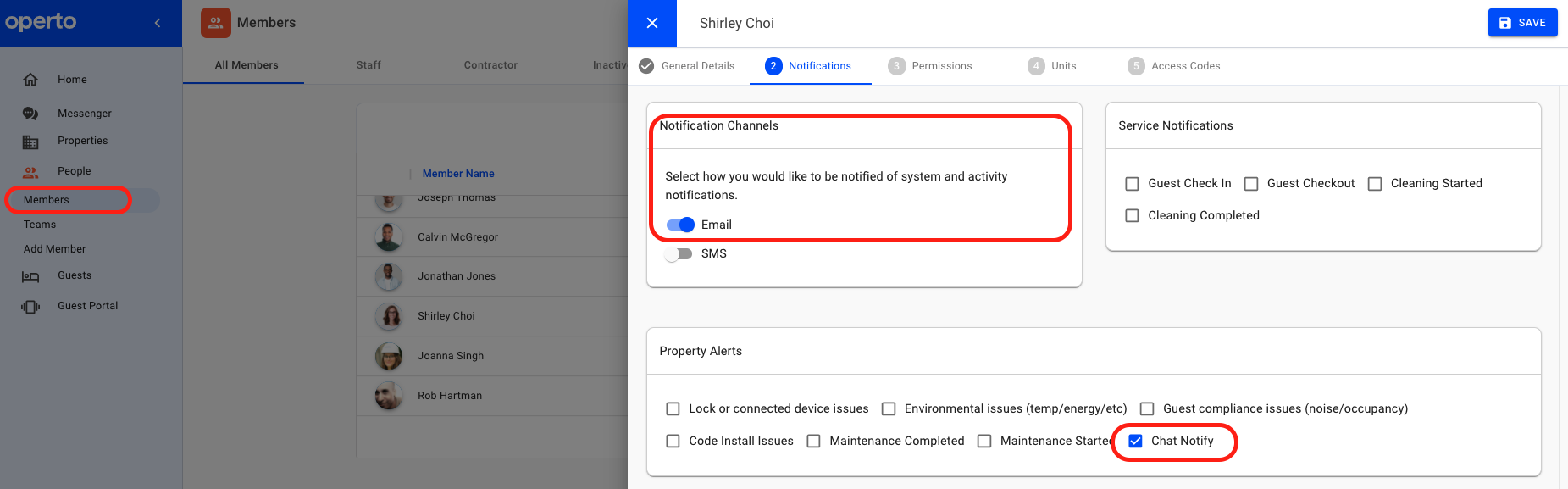
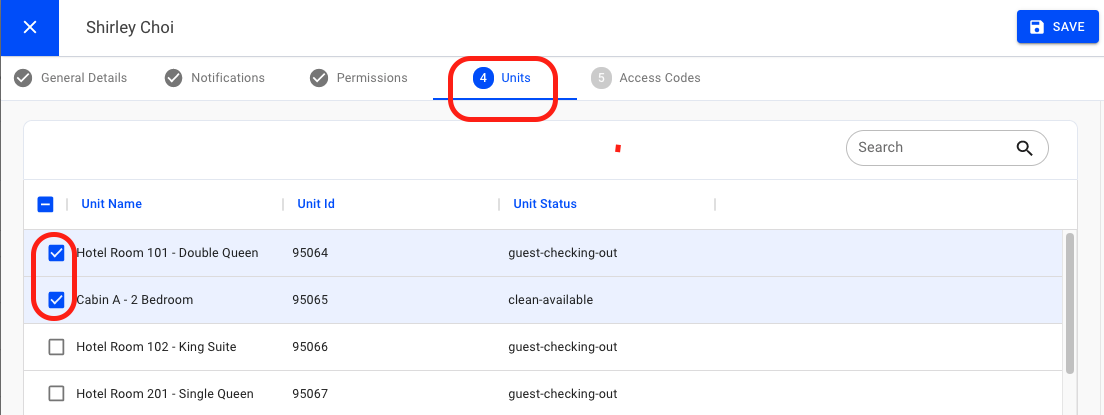
2. Under Units: ensure the team member profile is attached to the units where you have the guest portal activated.
Operto Guest. Building your Guest Portal from Operto Guest Technologies on Vimeo.
How do I create specific guides for each unit that are not global guides?
You will always need to start creating any new guide under the Global Guest Portal section. Guides cannot be added under units.
Here is how to proceed:
- Create the guide at the global account level and do not publish it there unless the guide will be active on all units.
- From the property tabs, open the unit you'd like to apply that guide to and hit publish. You can also modify the same guide at each unit level before publishing it.
How do I enable messenger within my guest portal?
Your guests can now message you directly via their guest portal.
In order for you and your team members to receive your guests' messages and requests, you will need to configure their profiles accordingly.
1. Under People -> Members: you will select the team member who needs access and make sure to activate "chat notify" under his/her Property Alerts. If you'd like this team member to also get notified by email or phone when a new guests' message is received, you will activate the preferred Notifications Channel.
2. Under Units: ensure the team member profile is attached to the units where you have the guest portal activated.