From your Operto account:
- Login to your Operto dashboard
- Click here to navigate to the 'Integrations' tab on your Operto dashboard
- Login to your MyVR account
- Select ‘Connect’ on 'MyVR’ and ‘Accept’ to allow Operto to connect to your MyVR account
- After 1-2 minutes, your units will show up under Units -> Unactivated
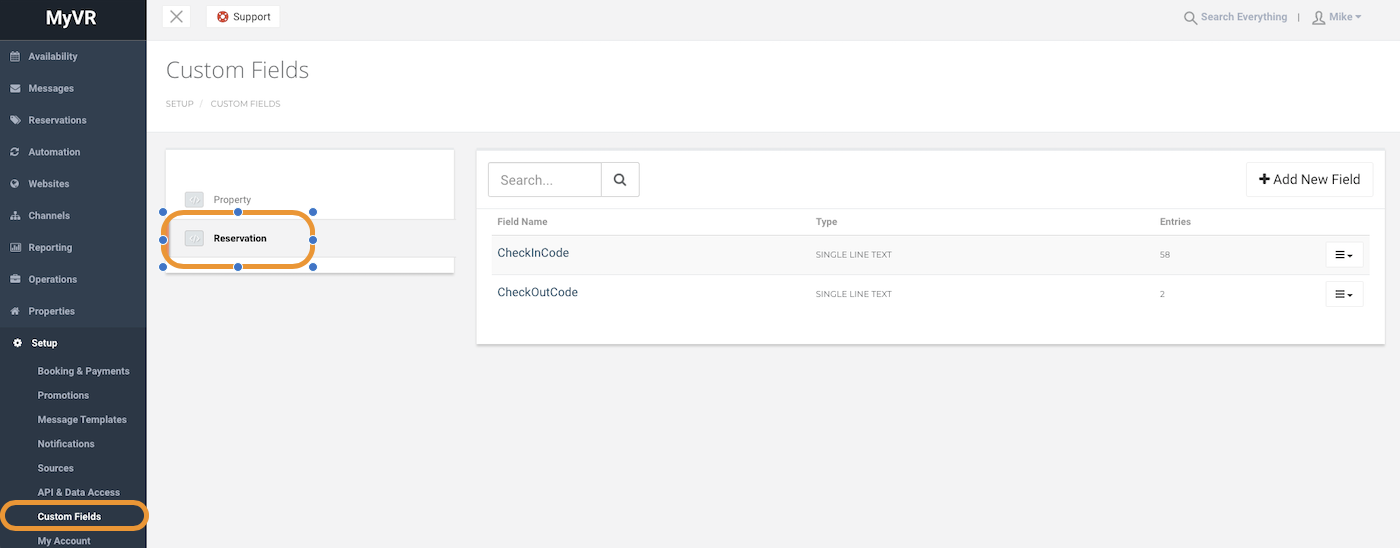
- Go into MyVR and create a custom field for access codes. To do so, follow these instructions from MyVR and label the field: checkInCode
- Ensure your welcome email to guests is triggered to get sent out once the custom field has been generated.
- Contact Client Success Team to notify them of which units you would like activated
Your MyVR account is now synced with your Operto dashboard.
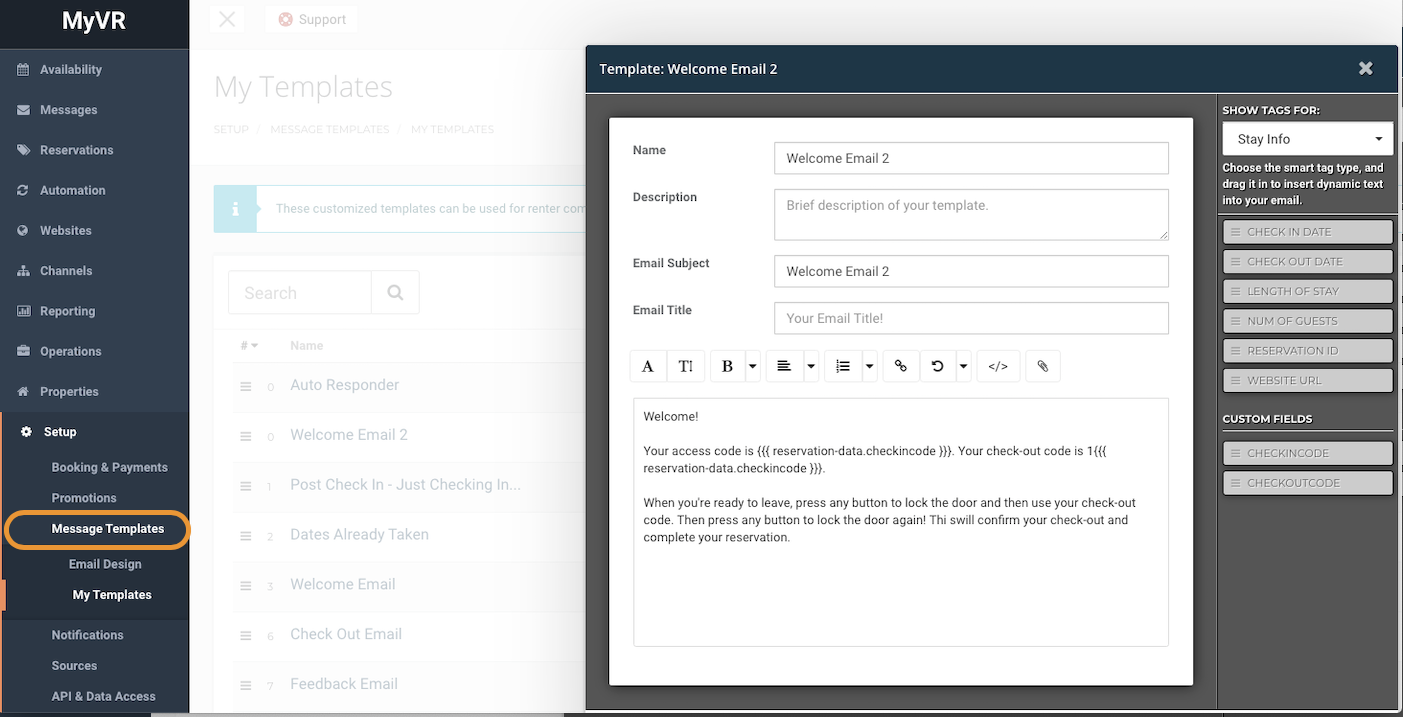
(Be sure to incorporate the checkInCode field into your guest messages for Operto activated properties as illustrated below.)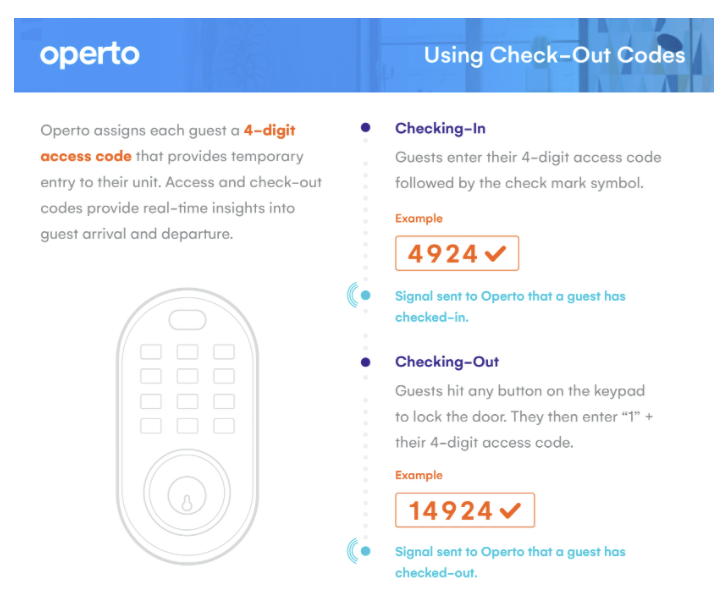
MyVR Messaging Instructions:
VariablesCheck-in variable: {{{ reservation-data.checkincode }}}
Check-out variable: 1{{{ reservation-data.checkincode }}}
Welcome! Your access code is {{{ reservation-data.checkincode }}}. Your check-out code is 1{{{ reservation-data.checkincode }}}. When you're ready to leave, press any button to lock the door and then use your check-out code. Then press any button to lock the door again!
This will confirm your check-out and complete your reservation.
Guest receives:

Custom Field
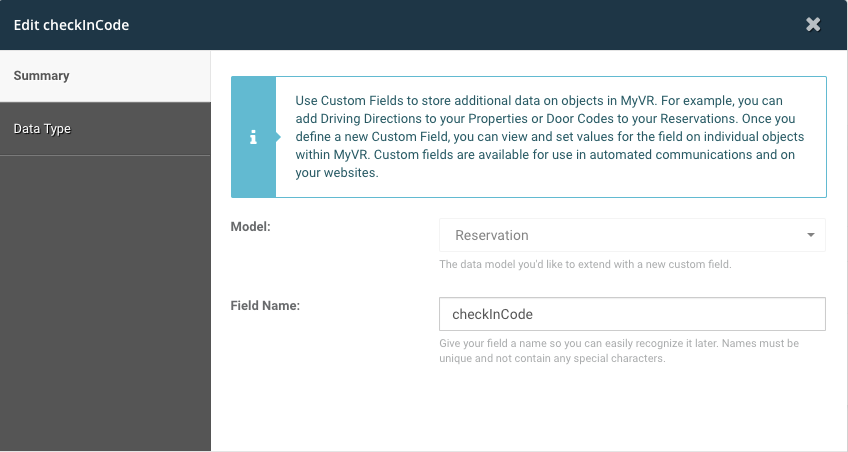
Ensure the custom field for check-in code is set up under Reservation and NOT under Property.Under the Field Name, please enter: checkInCode
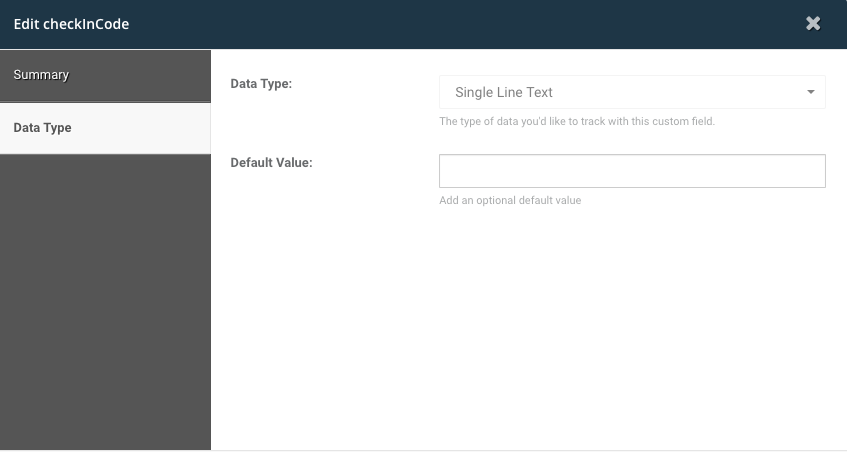
Your Custom Field should be set up as follows: