
Activating Auto-Relock on your smart lock enables your door to lock automatically after the lock has remained inactive for a pre-determined period of time.
Depending on your hardware setup, you will either be able to activate this feature directly on your lock or from your lock App.
- Yale Lock + SmartThings: Activate directly on the lock
- Yale Lock + Connected by August: Activate either on the lock or in the app
- August Lock + Connected by August: Activate on the app only
- Nuki Smart Lock: Activate on the app only
Yale Lock
Press following combination:
Mastercode ⚙️ 3 ⚙️ 1 ⚙️ one of the below keys ⚙️
1 - Deactivate auto-lock
2 - Auto-lock after 30 sec
3 - Auto-lock after 60 sec
4 - Auto-lock after 2 min
5 - Auto-relock after 3 min
Example: You want to set up Auto-Relock after 30 sec of lock inactivity, you will press:
Mastercode ⚙️ 3 ⚙️ 1 ⚙️ 2 ⚙️
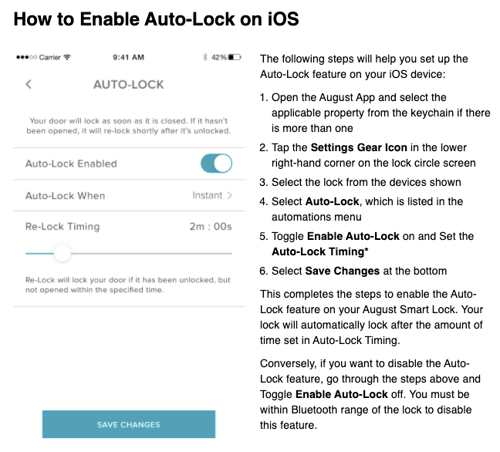
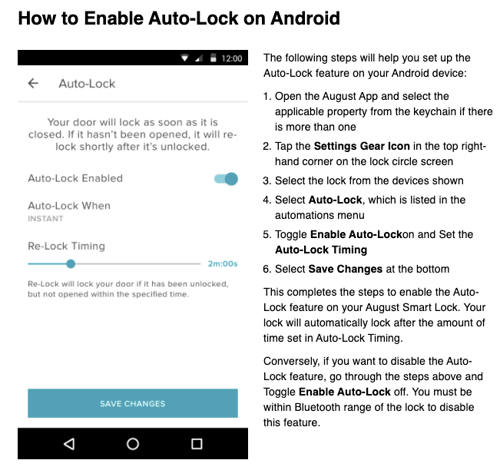
Yale or August lock Connected by August
To activate this feature from the August App, you must be an authorized owner of the associated lock. Furthermore, you'll need to be present within the Bluetooth range of the lock you are enabling this feature on.
Nuki Lock
To use the Auto-Lock feature, you need the Nuki app version 1.12.0 (or higher) and the Smart Lock firmware version 1.6.2 (or higher).
In order to enable Auto Lock, tap on the desired Smart Lock in the Nuki app and enter the lock settings. Then go to “Manage Smart Lock”. Here you can configure the “Auto-Lock” feature and select the desired time (30 sec – 30 min) after which the Nuki Smart Lock should lock the door.
Automatic locking actions triggered by the Auto-Lock feature are documented in the activity log.