
How to Integrate HomHero with Operto
Step-by-Step Guide
- Login to HomHero: Access your HomHero dashboard by logging in with your account credentials.
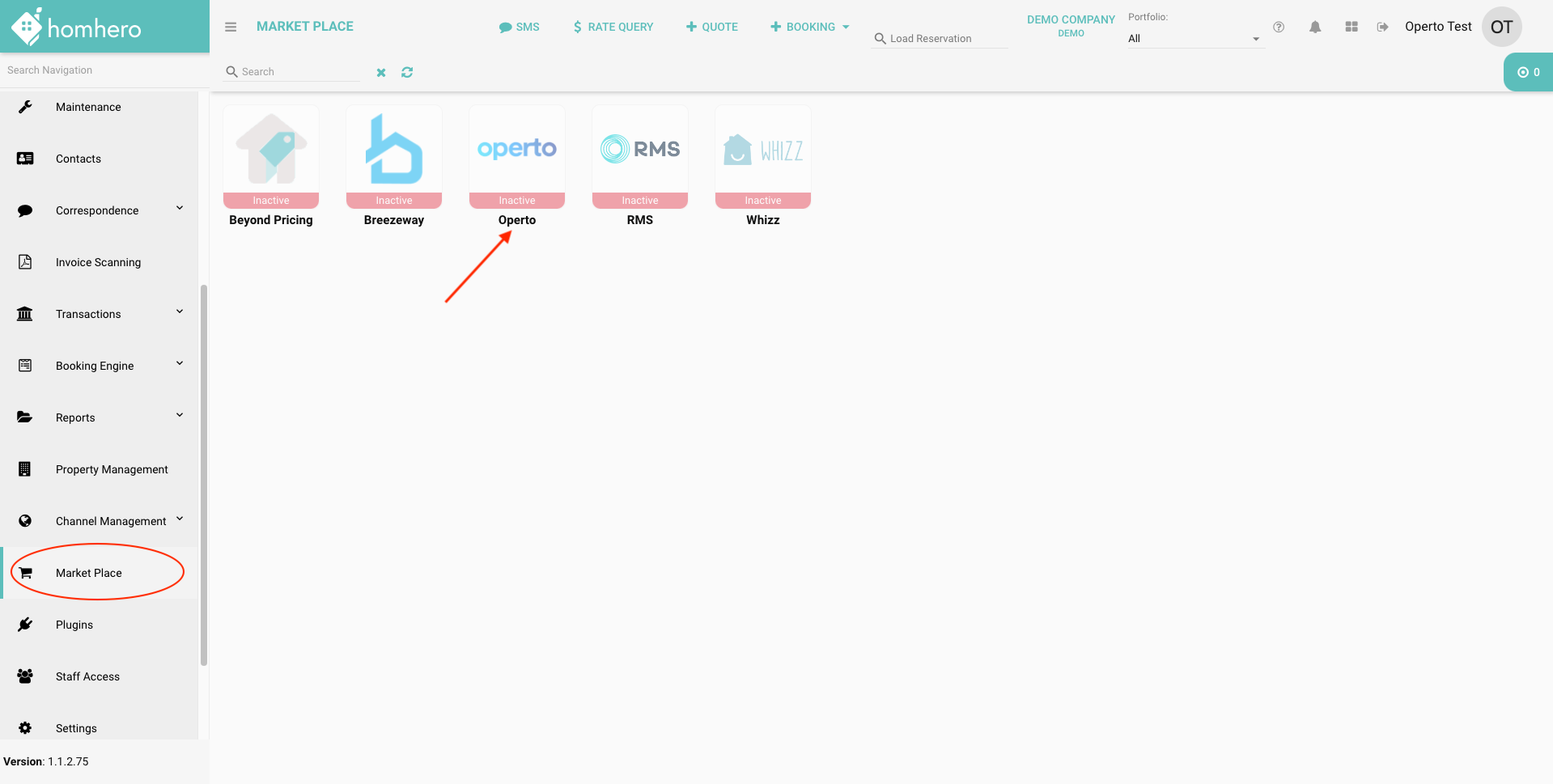
- Activate Operto: Navigate to the Market Place section within the HomHero dashboard. Select the Operto tile to initiate the integration.
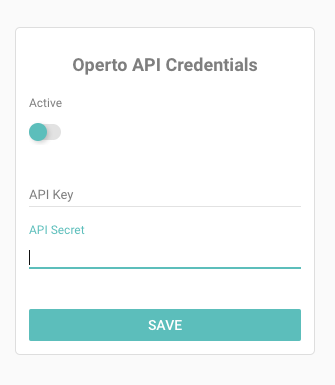
- Enter API Credentials: Enter the API key and secret provided by Operto into the designated fields. Toggle the integration to Active and click Save to confirm.
- Select Areas (Listings) to Sync with Operto: Go to the Mapping tab and select the areas (listings) you want to sync with Operto. You can either select them individually or in bulk. Once selected, click Sync Selected Areas.
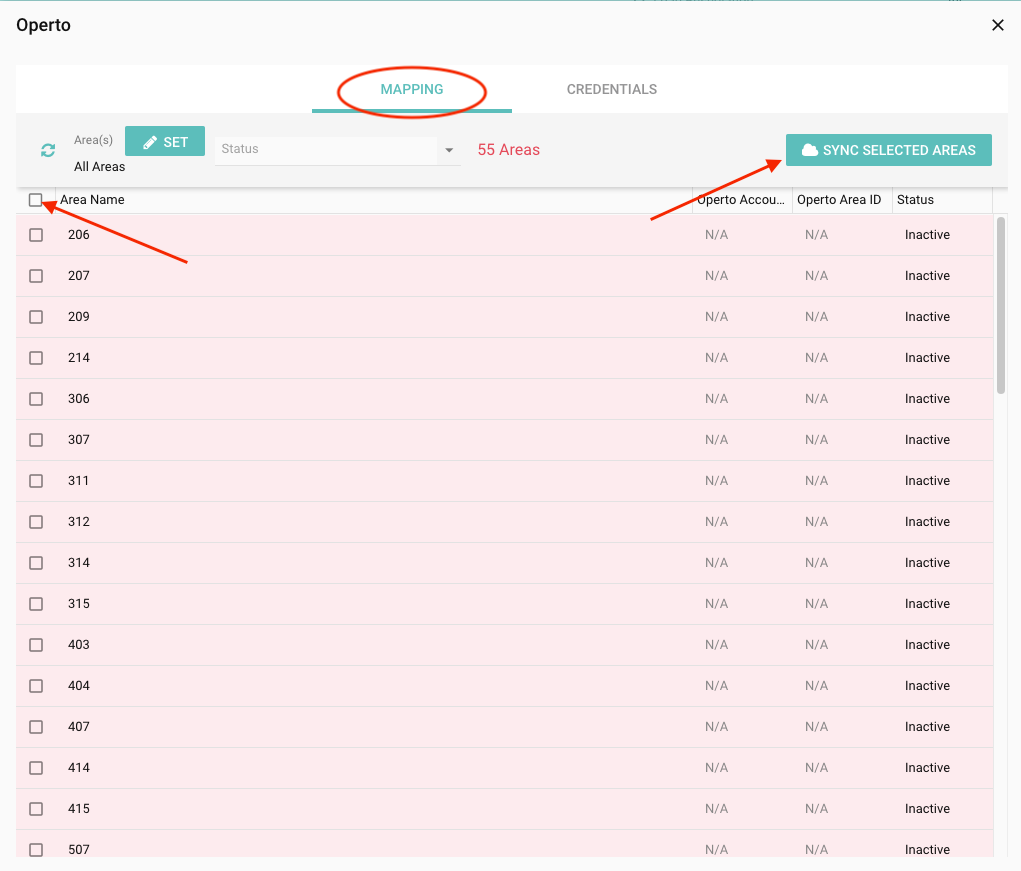
Once synced, the areas will display as Pending until confirmation is received from Operto.

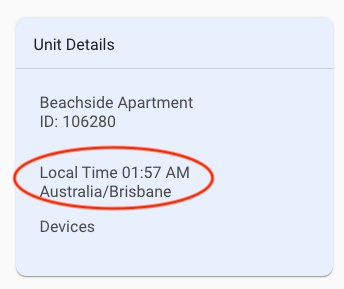
- Confirm Sync in Operto: In the Operto dashboard, navigate to Properties -> Units -> Inactive tab to confirm that the areas (listings) have been imported correctly. Ensure that the properties are displaying the correct time zone, as this is essential for accurate scheduling and access code generation.
- Assign Locks in Operto: If everything has been imported correctly, request your onboarding specialist to assign a lock, or submit an Add New Service request from your dashboard at Operto Expansion.
HomHero integration requires each property to have a lock assigned for activation. If you do not have a physical lock for the property, Operto can assign a virtual/fake lock (called Portal Lock) to bypass this requirement.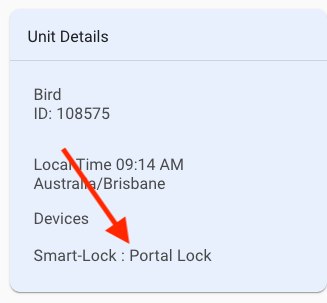
- Lock Assignment by Operto: Operto will onboard the locks to the property and notify you once the locks have been successfully assigned.
- Re-Sync Areas After Activation and Lock Assignment: After locks have been assigned, return to HomHero and Re-Sync Selected Areas. This will update the areas and mark them as Active in Operto.

- Confirm Reservation Import: Verify that reservations have been successfully imported into Operto. Access codes for each reservation will automatically sync with HomHero, allowing you to seamlessly send access information to guests through HomHero.
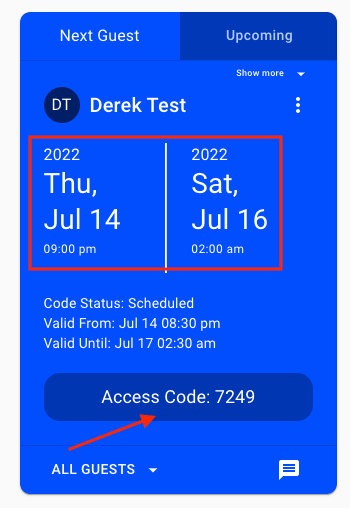
Set Up Messaging:
To send out the access codes and guest portal links to guests, follow these steps:
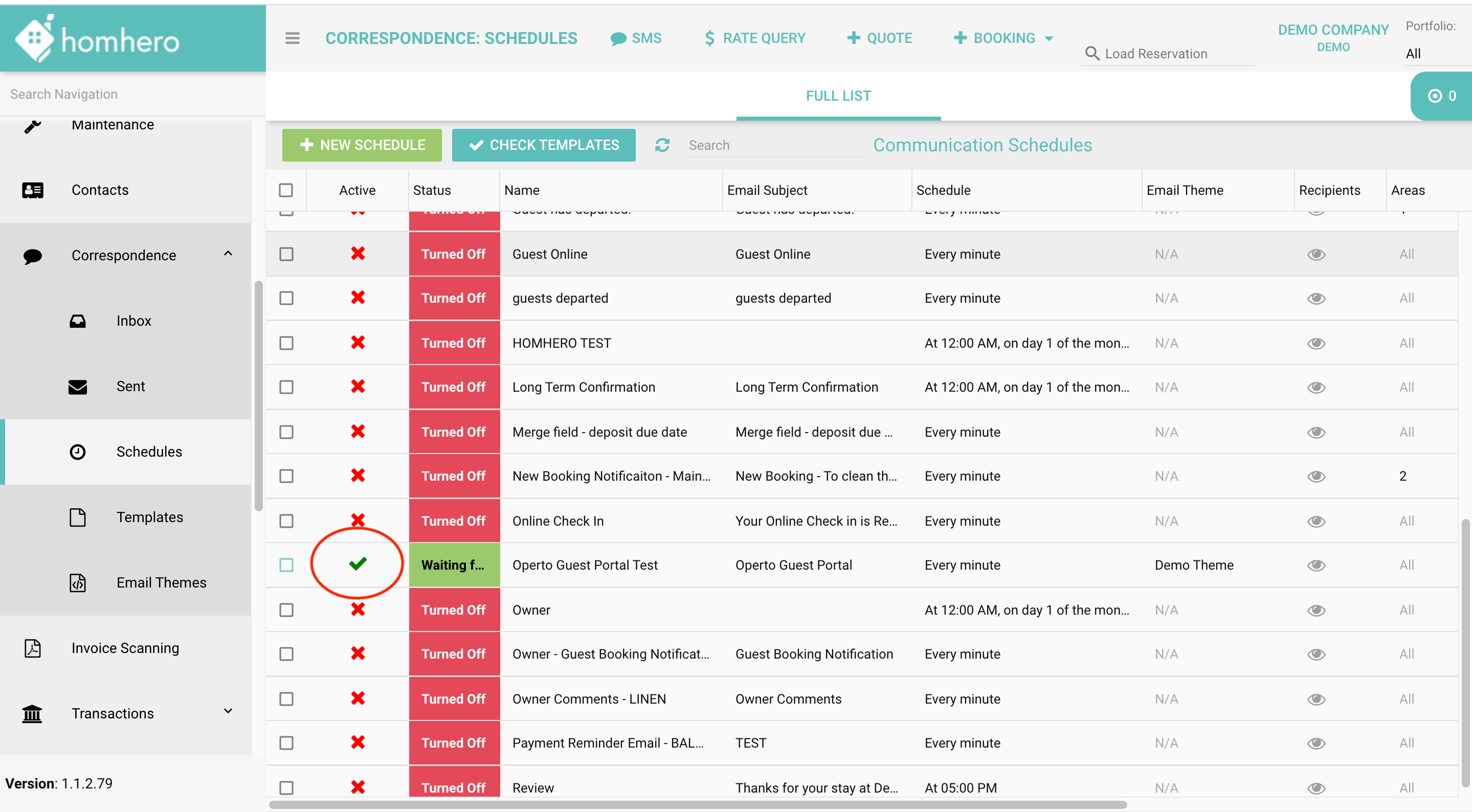
- In HomHero, navigate to Correspondence -> Schedule.
- Select the relevant messaging template, or create a new one by clicking the New Schedule button.
- Use the following Operto merge tags to create your messaging template:
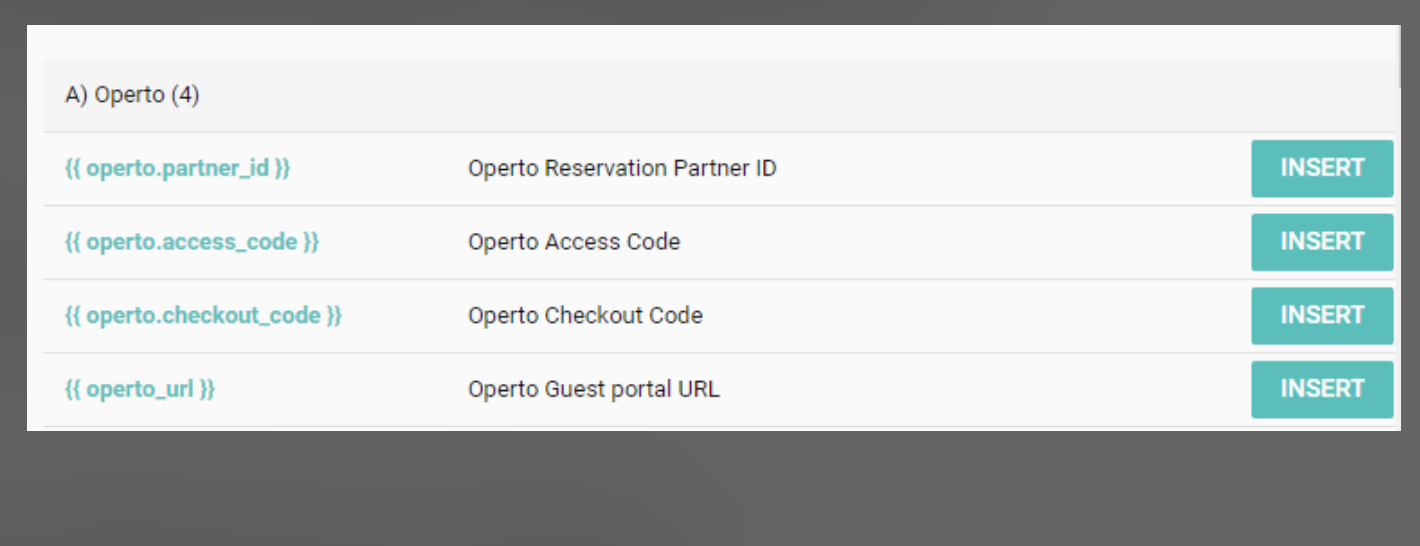
- Set the schedule for the message to be sent along with the reservation confirmation. Ensure the schedule is Activated.
- To generate the Guest Portal link, add this to the messaging:
https://guests.operto.com/CID_{{operto.partner_id}}