

From your Guesty account
1. Log into your Guesty dashboard
2. Click on Integrations
3. Click on Marketplace
4. Locate “Operto” and click Connect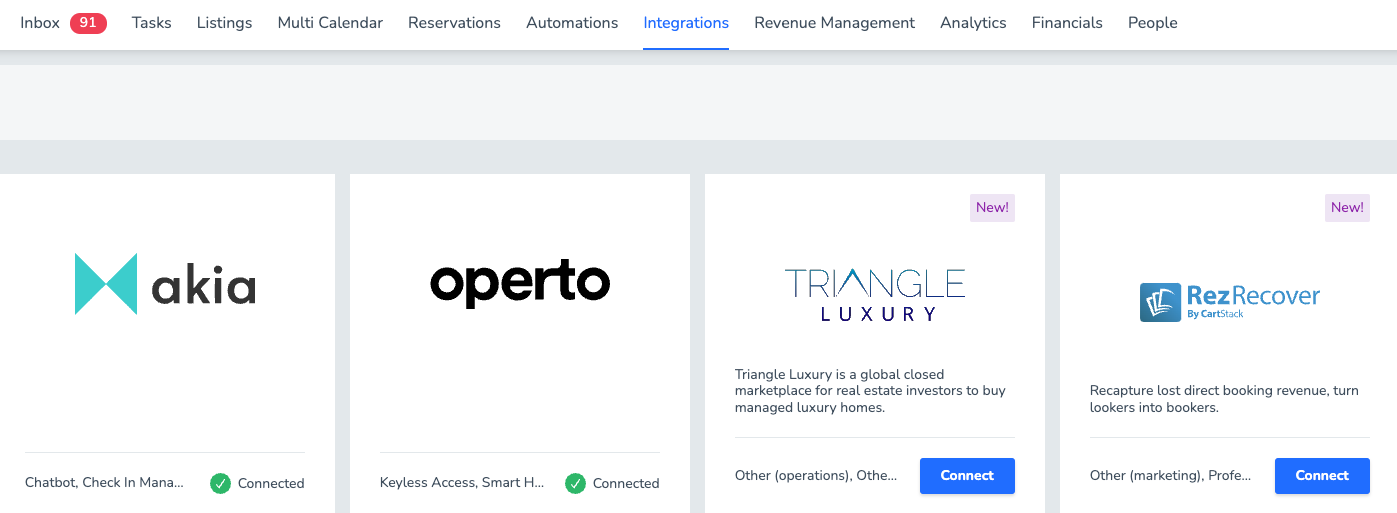
5. Copy the Integration Token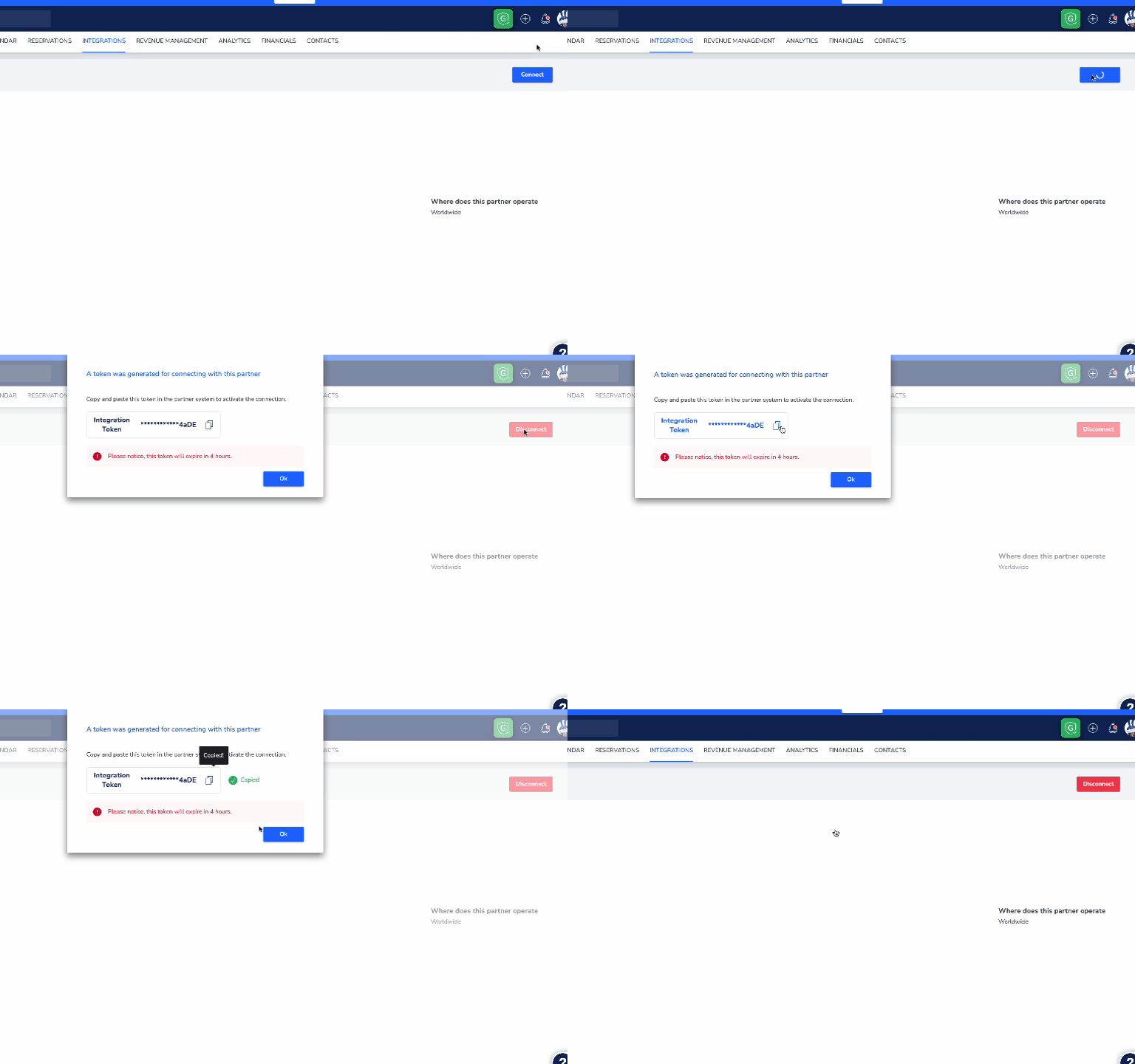
6. Go to Operto's Integration Page
7. Click on Connect next to Guesty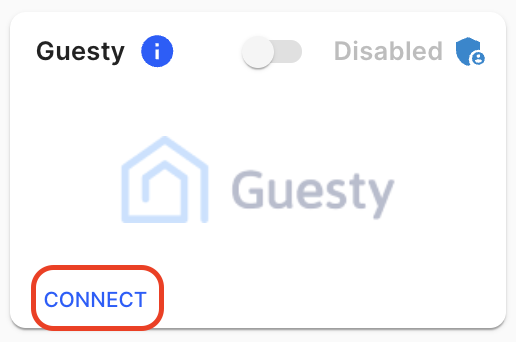
8. Paste your token and press save
To set up your Guest Messaging in your Guesty account
You will want to schedule a 1-hour delay on the guest messaging.
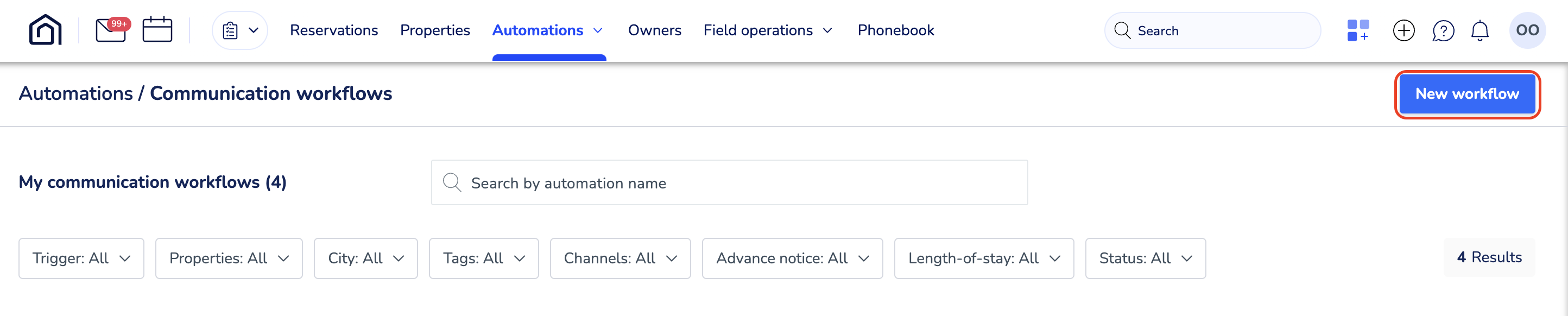
1. Go to the Automations -> Messages tab and click on the ‘New workflow’ button.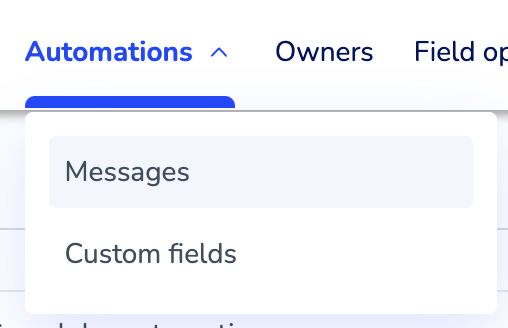
2. Click on ‘+ Create Custom’ and then 'New Reservation'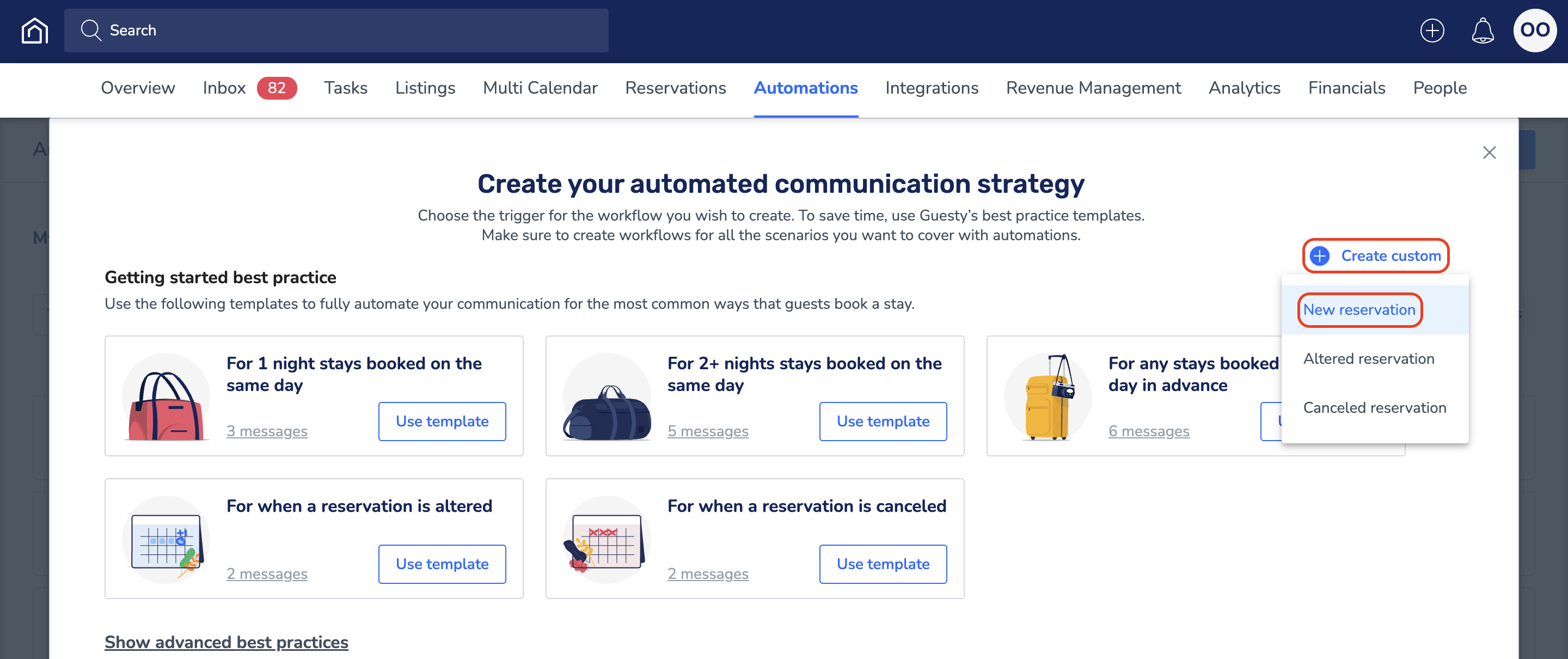
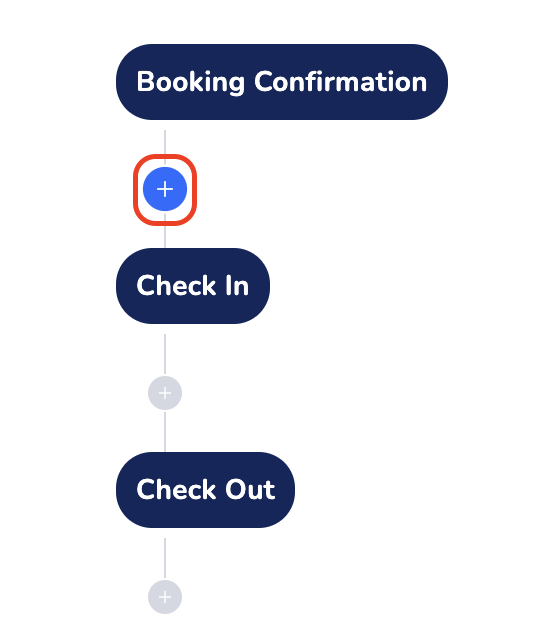
3. Click on the '+' button below the 'Booking Reservation'
4. Fill in the following details: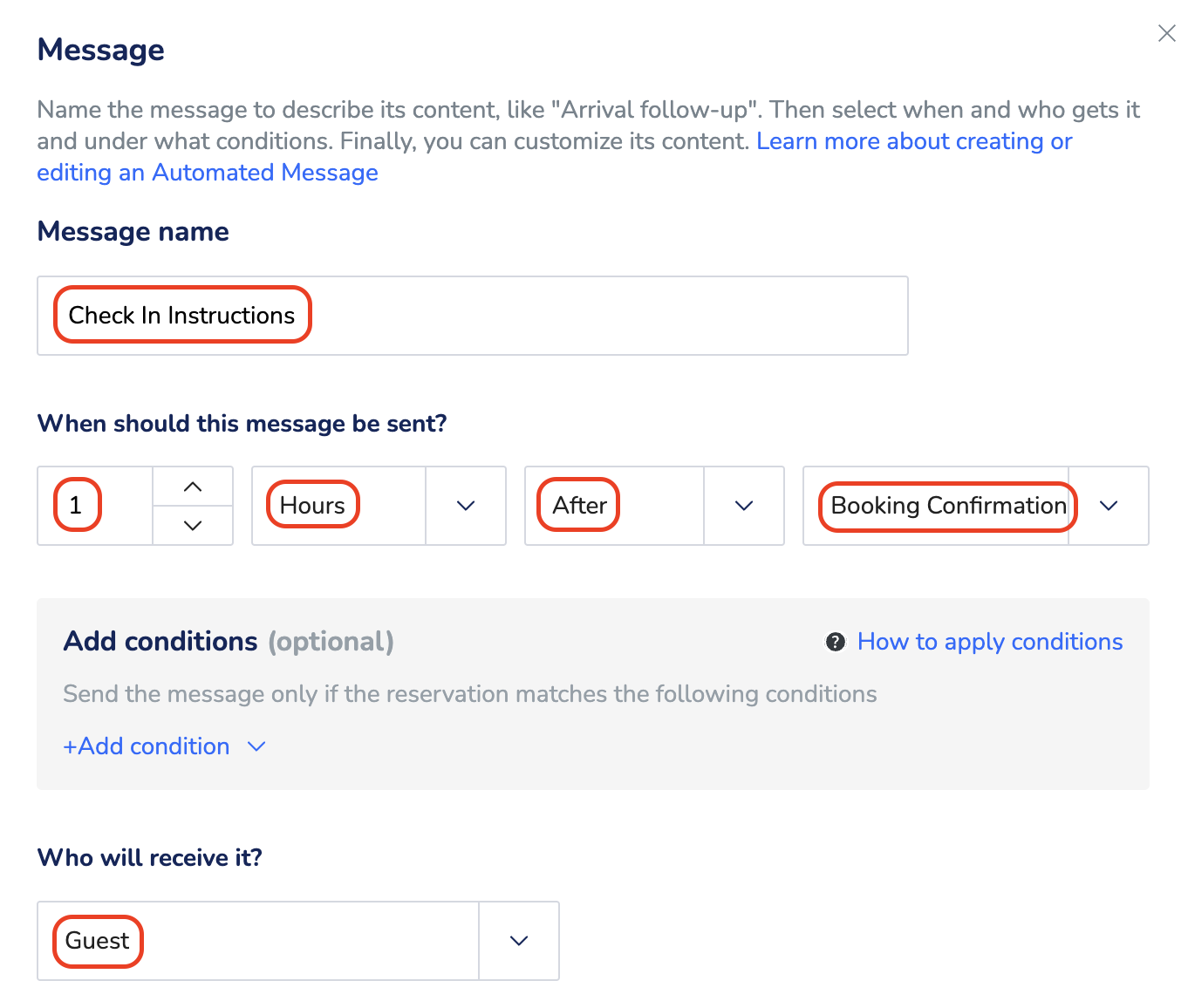
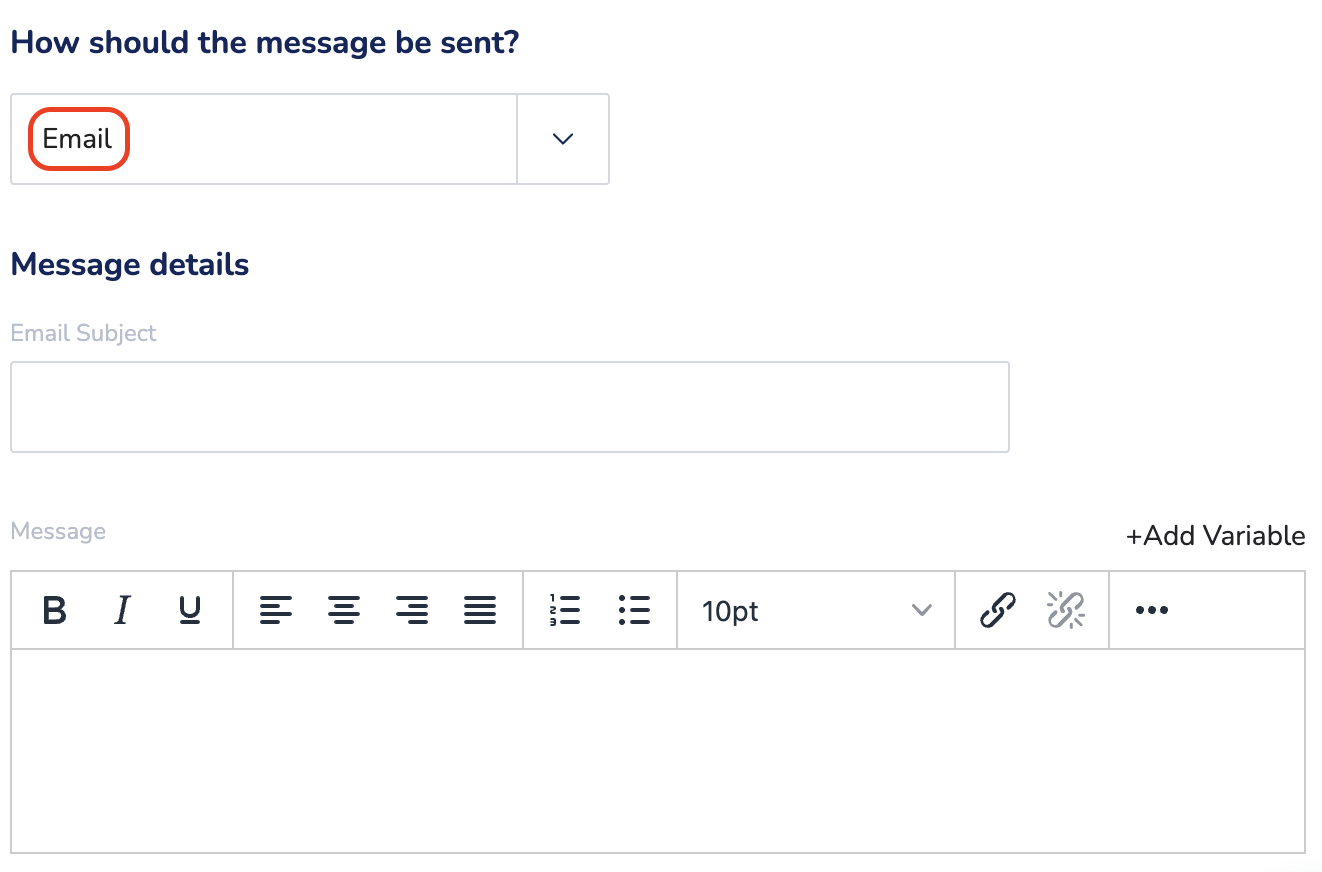
5. Under 'Message Details' write your Check-in Instructions message and be sure to include the guest's unique access code with the following format in your message:
check-in {{key_code}}
6. If you are using Operto Guest Portals, please request your company code from Operto Support and make sure to include the guest portal link in the message: https://guests.operto.com/companycode_{{confirmation_code}}
You must use Guesty's insert option for {{confirmation_code}} and cannot just type in the variable.
Note: The 1-hour timeframe will allow sufficient time for Guesty and Operto to communicate the reservation and access code to each other
Your Guesty account is now integrated with your Operto account. You can find your imported properties under the 'Properties' tab in your Operto Manager Portal.

Operto assigns each guest a 4-digit access code that provides temporary entry to their unit. Guest codes provide real-time insights into guest arrival and departure. |
• Checking InGuests enter the unit using their assigned 4-digit access code.4924✓ A signal is sent to Operto that the guest has checked-in. |
Guesty Messaging InstructionsUsing the variable {{key_code}} to insert the code into your check-in and pre-checkout instructions. Welcome! Your access code is {{key_code}}. This is what the guest will receive: Welcome! Your access code is 4924. |