

How do I Find a Guest's Access Code and Guest Portal Link in Cloudbeds?
1. Click on Reservation Details
2. Expand the details view by clicking on Show more
3. Your check-in code(s) will show under the reservation dates
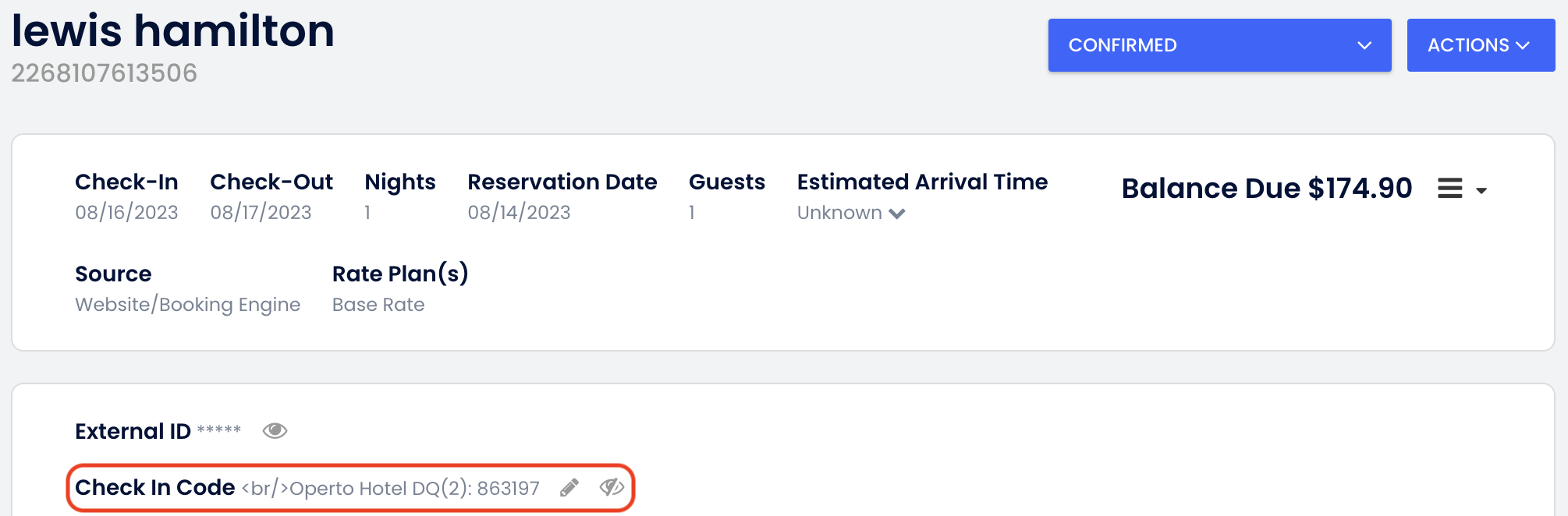
4. The external ID variable will be populated with the Guest Portal URL as shown below:

Note: Please make sure to disable the email templates in your Cloudbeds account if you are not fully onboarded with Operto since it is automatically enabled as soon as you integrate your Cloudbeds account with Operto.
Please note:
- All check-in code(s) will show for all rooms booked under the reservation
- Your guest will receive all check-in codes preceded by the property name and room name. E.g. "Operto Hotel DQ(2): 863197"
When do I schedule the email to go out to my guests with the access codes?
In your Cloudbeds account, the default sending schedules for sending access codes to guests is:
- One day after booking at any time (preferably in the morning)
- Zero days before check-in at Check-In time
- You can edit the sending schedules from your Cloudbeds dashboard at any time by navigating to the 'Email Scheduling' tab.
- If you require additional information, please refer to Cloudbeds documentation.
What is the variable used to send access codes from Operto to Cloudbeds?
- Make sure you are in Design Style "Classic"
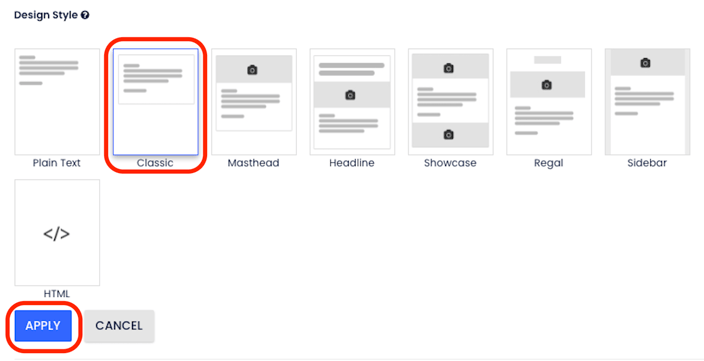
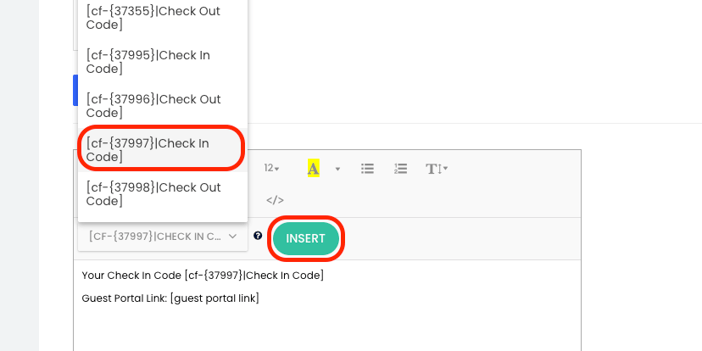
- Use the check-in code variable in the drop-down menu and click Insert
How can I set up Guest Messaging if I am on a Cloudbeds Essentials plan?
Cloudbeds do not offer Guest Messaging for customers on the Cloudbeds Essentials plan. Rest assured, you can use Operto's Guest Messaging instead to send out Access Codes and Guest Portal links to your guest. Just reach out to your Onboarding specialist or our Support team (support@operto.com) with your Guest Messaging Template and they set it up for you.
Does Operto receive updates about cancellations from Cloudbeds?
Yes, Operto will remove the access for the guest when the reservation is canceled as long as it is not a split reservation. However, please note that if you update any reservation details on Operto Manager Portal, then Operto becomes the source of truth for that reservation, so future updates made on Cloudbeds will not be received by Operto for that reservation. We would strongly suggest you make these types of changes through Cloubdbeds instead.
Can I modify a guest check-in/check-out time in Cloudbeds?
No, Operto receives a default reservation time, which cannot be amended in Cloudbeds.
Any further check-in or check-out time updates made in Cloudbeds will not reflect on the Operto Dashboard. We suggest you make these types of changes directly on Operto by clicking on the reservation. Please note that amending a reservation on Operto will sever the connection between Operto and Cloubdeds, so no future updates (example, date change) will be received by Operto. So, you would have to manually apply any further changes through Operto Manager Portal.
Can I modify a guest check-in/check-out date in Cloudbeds?
Yes, Operto will receive the updated check-in/check-out date from Cloudbeds and the guest code will be installed as per the updated date.
However, please note that if you update any reservation details on Operto Manager Portal, then Operto becomes the source of truth for that reservation, so future updates made on Cloudbeds will not be received by Operto for that reservation. We would strongly suggest you make these types of changes through Cloubdbeds instead.
Can I create a brand new reservation in the Operto Dashboard and bypass Cloudbeds entirely?
Yes, you can. Simply select the unit, and click on 'add new reservation' on the top right of the page.
Is it safe to delete a guest's confirmed reservation from Cloudbeds?
No, it is not safe to delete confirmed reservations from Cloudbeds. If a reservation gets deleted, Operto stops receiving updates for that reservation and the reservation continues to be a confirmed reservation in Operto. You should instead mark the reservation as canceled.
What happens when I re-assign a reservation to another unit in Cloudbeds?
If you re-assign a guest from one unit to another in Cloudbeds, the reservation will be removed from the original unit on Operto and moved to the new unit as long as it is not a split reservation. The Guest Code will remain the same for the reservation.
What happens when I have a split reservation in Cloudbeds?
Operto does not support split reservations coming from Cloudbeds. Operto might receive the split reservation but it will not reflect the correct dates and rooms.
If you have a split reservation, you would need to Revoke access for the imported reservation in Operto and then create a manual reservation on the Operto dashboard to ensure the codes get installed and removed in all the rooms.
How does the automatic check-in feature work?
When a guest uses their code for the first time or clicks the check-in button in Operto's guest portal, their status is updated as ‘in-house’ in Cloudbeds. Here is a demo video using Operto Guest Portal:
What if the room status is not eligible for check-in?
Operto will retry every 30 minutes until the room status is updated or until the check-out time has passed.
Does this feature support multiple rooms?
Yes, Cloudbeds shows ‘in-house’ if any room in a multiple-room reservation is checked in.
Are there any settings required in Cloudbeds?
No changes are needed in the client's Cloudbeds account.
What restrictions exist on updating the status in Cloudbeds?
Cloudbeds won’t mark a room 'in-house' if the previous reservation status isn’t checked out. Only reservations with a status of 'confirmed' can be updated to 'in-house.'
How should Operto Variables be set up in Cloudbeds
Operto creates a Check-in Code and External ID Custom Fields in Cloudbeds to store Guest Codes and Guest Portal links when you integrate Operto with Cloudbeds. However, if case your Customer Field is deleted or modified, you can use the following information to create/fix custom field.
In Cloudbeds, go to Settings, Guests, Custom Fields and press Edit button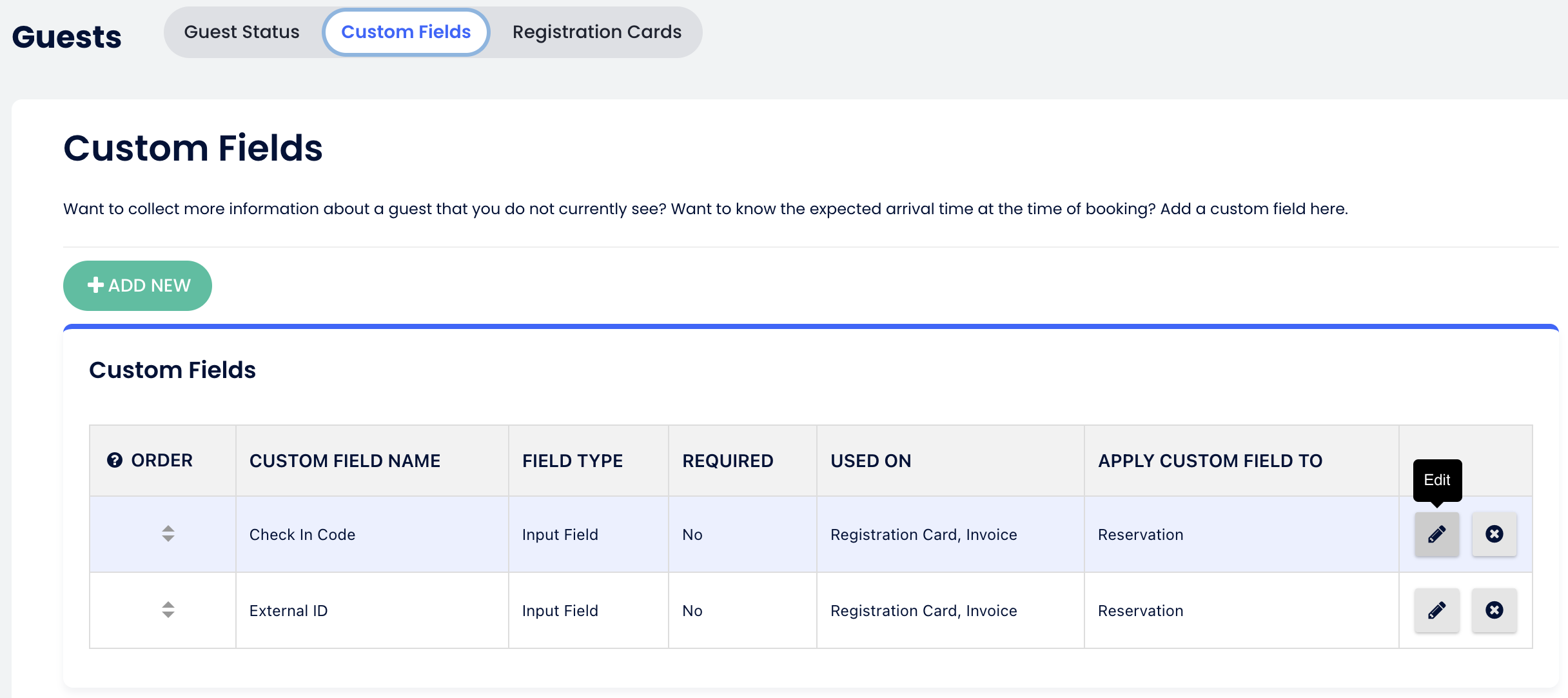
Check In Code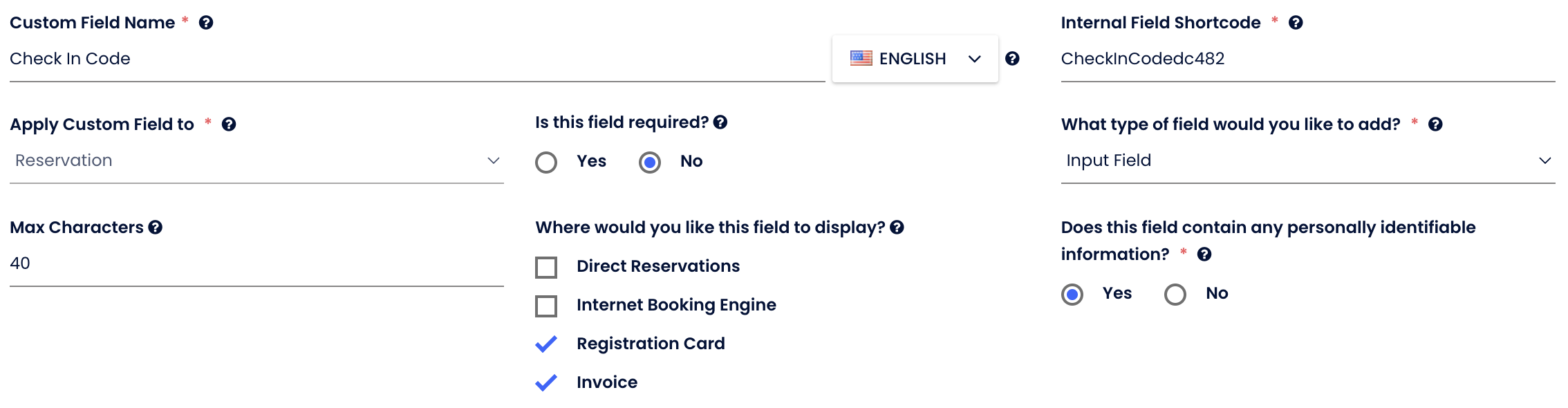
Note: Your Check In Code's shortcode might be slightly different but if your variable is missing, you can try using "CheckInCodedc482", "CheckInCode9D129", or "CheckInCodebbcfc".
External ID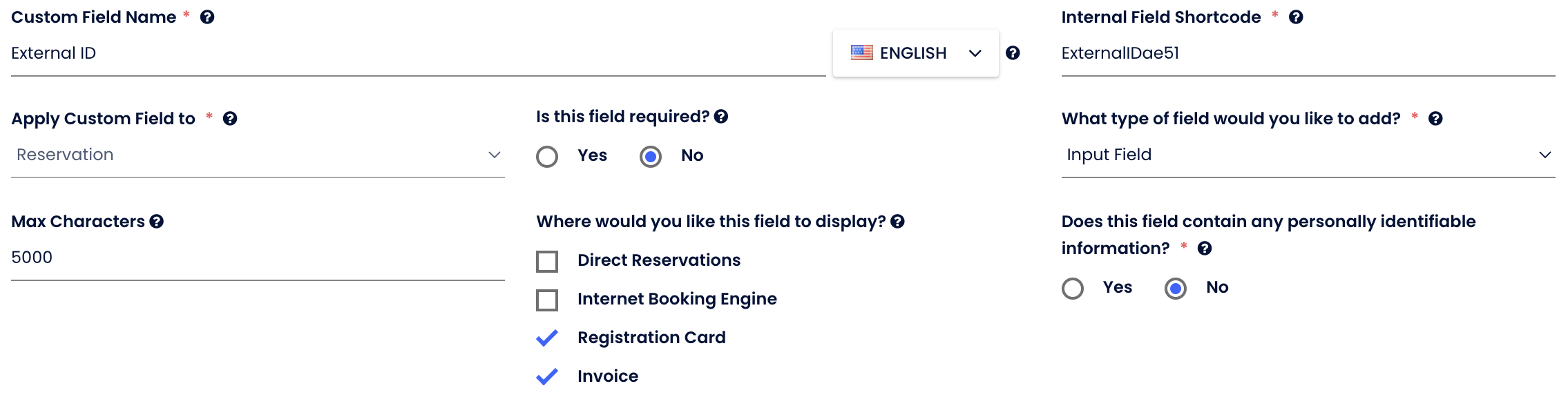
Note: Your External ID shortcode must be "ExternalIDae51"
Does this feature update the check-out status?
No, it only updates the check-in status.