
How to Integrate Tokeet with Operto
Integration Guide
- Login to Tokeet: Access your Tokeet dashboard by logging in at Tokeet Login.
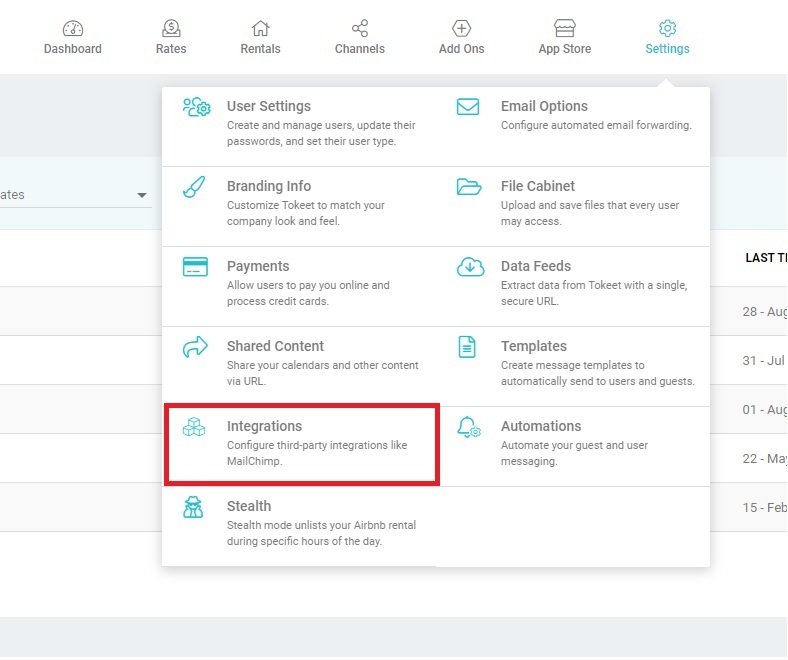
- Access Integrations: From the dashboard, click on Settings and select Integrations from the dropdown.
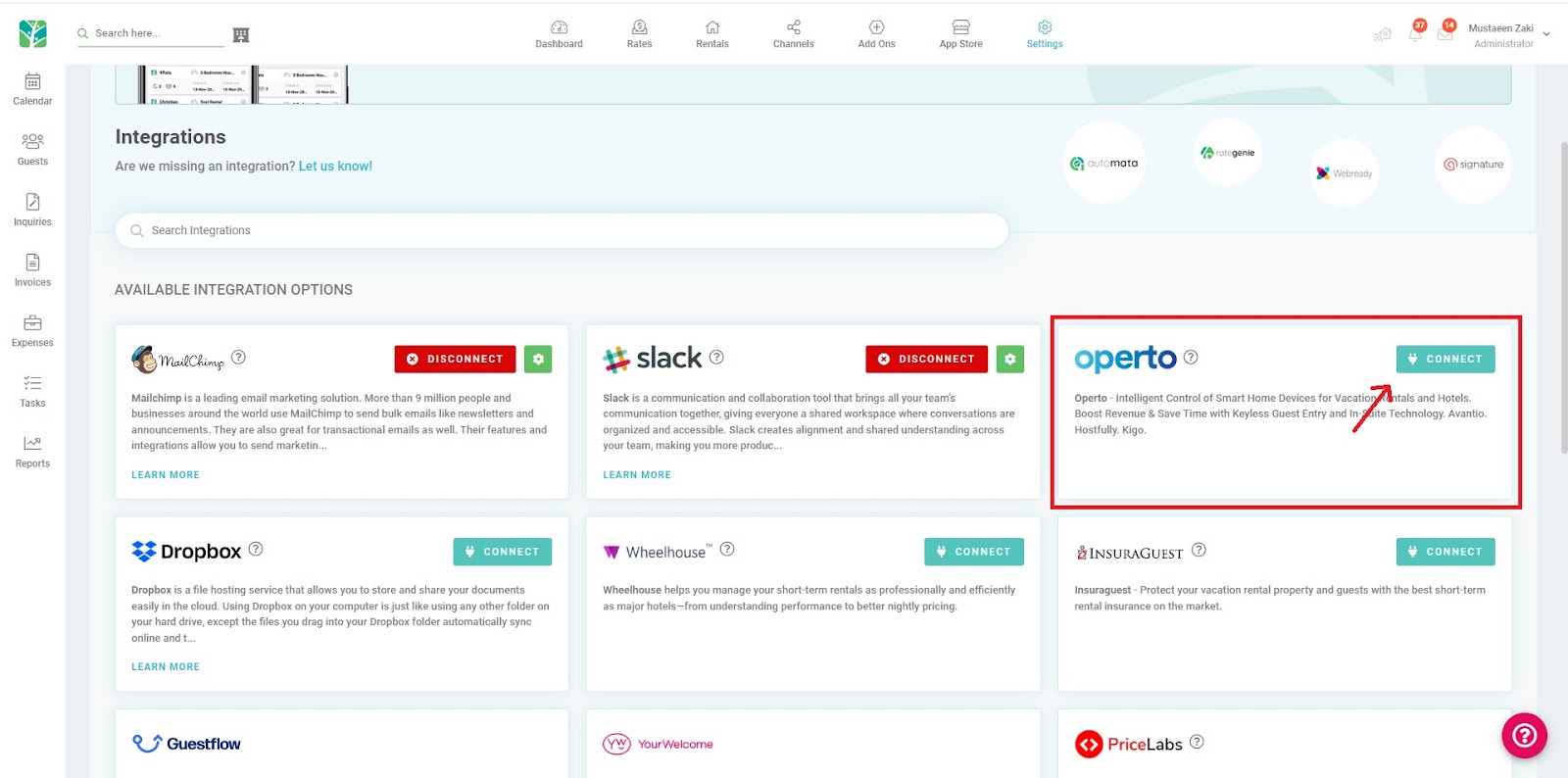
- Locate Operto Integration: Find the Operto integration and click on the connect button.
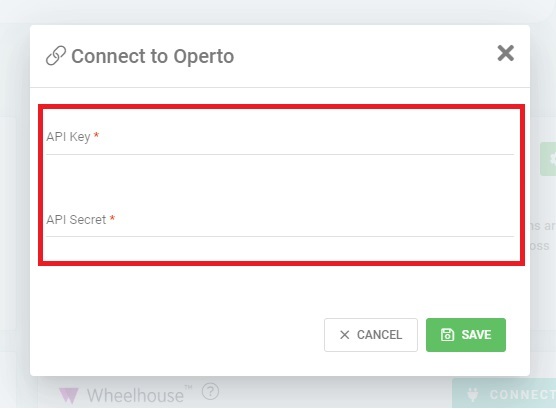
- Enter API Key and Secret: Enter the Operto API Key and Secret provided by your onboarding specialist and press the save button.
If you don't have the credentials, reach out to your onboarding specialist, CSM or the Support Team (support@operto.com).
- Enable Properties for Operto Integration:
- Click on settings button next to the Operto integration.
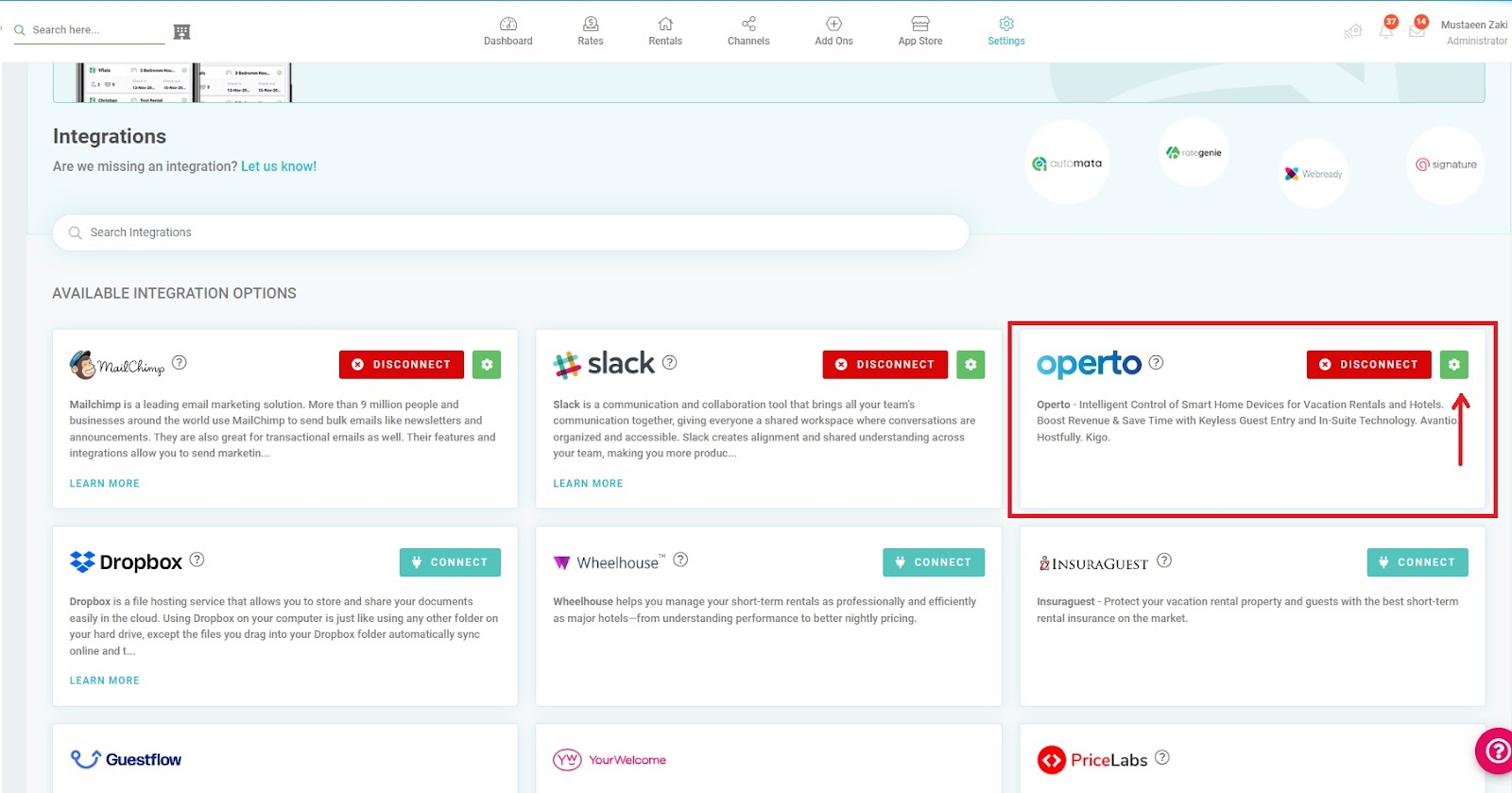
- You will see a list of listings, Turn ON the toggle for listings you want to enable in Operto.
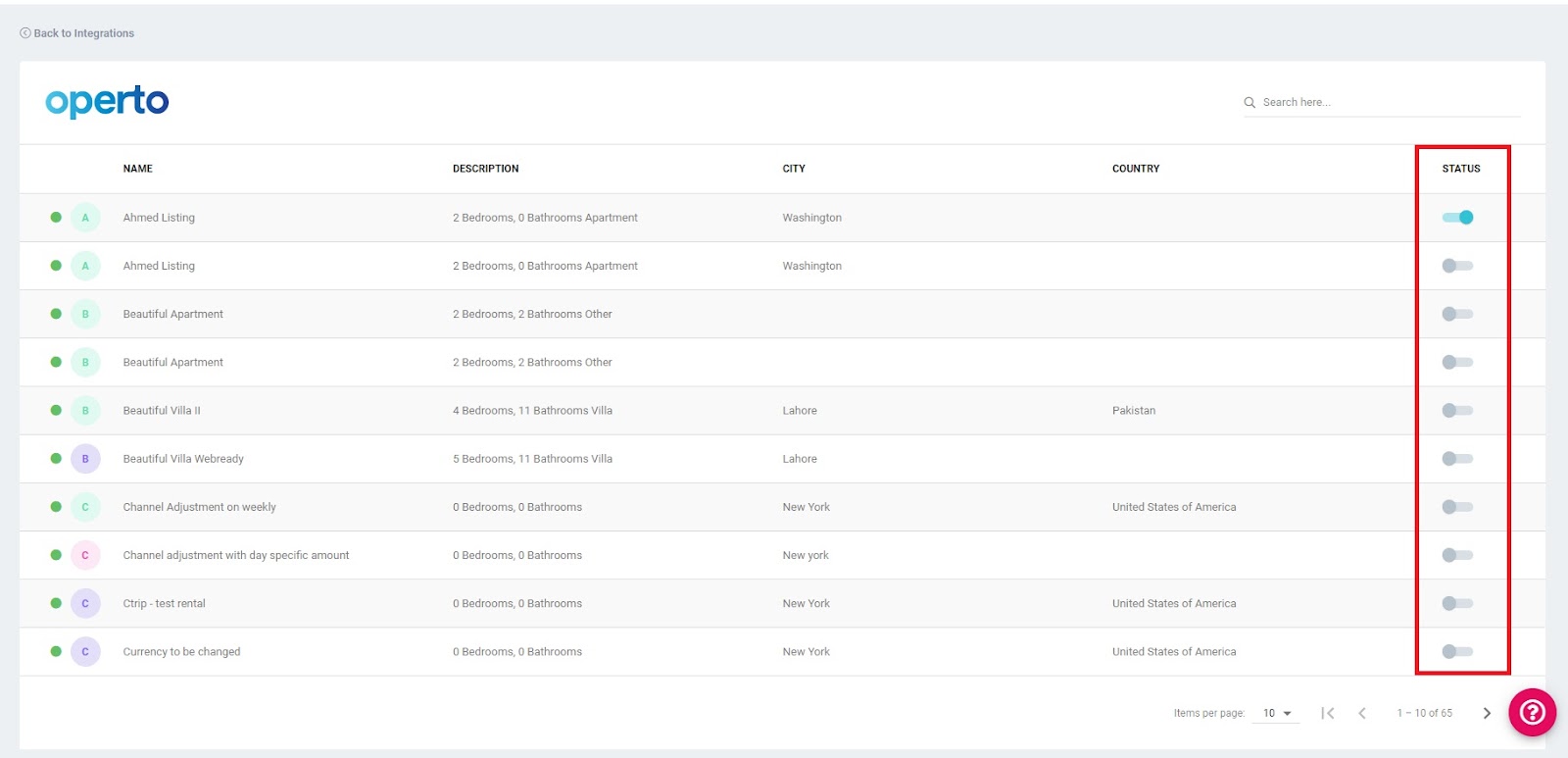
- Click on settings button next to the Operto integration.
- Verify Property Syncing: Once the integration is complete, all enabled properties from Tokeet will sync into Operto's Unactivated Units.
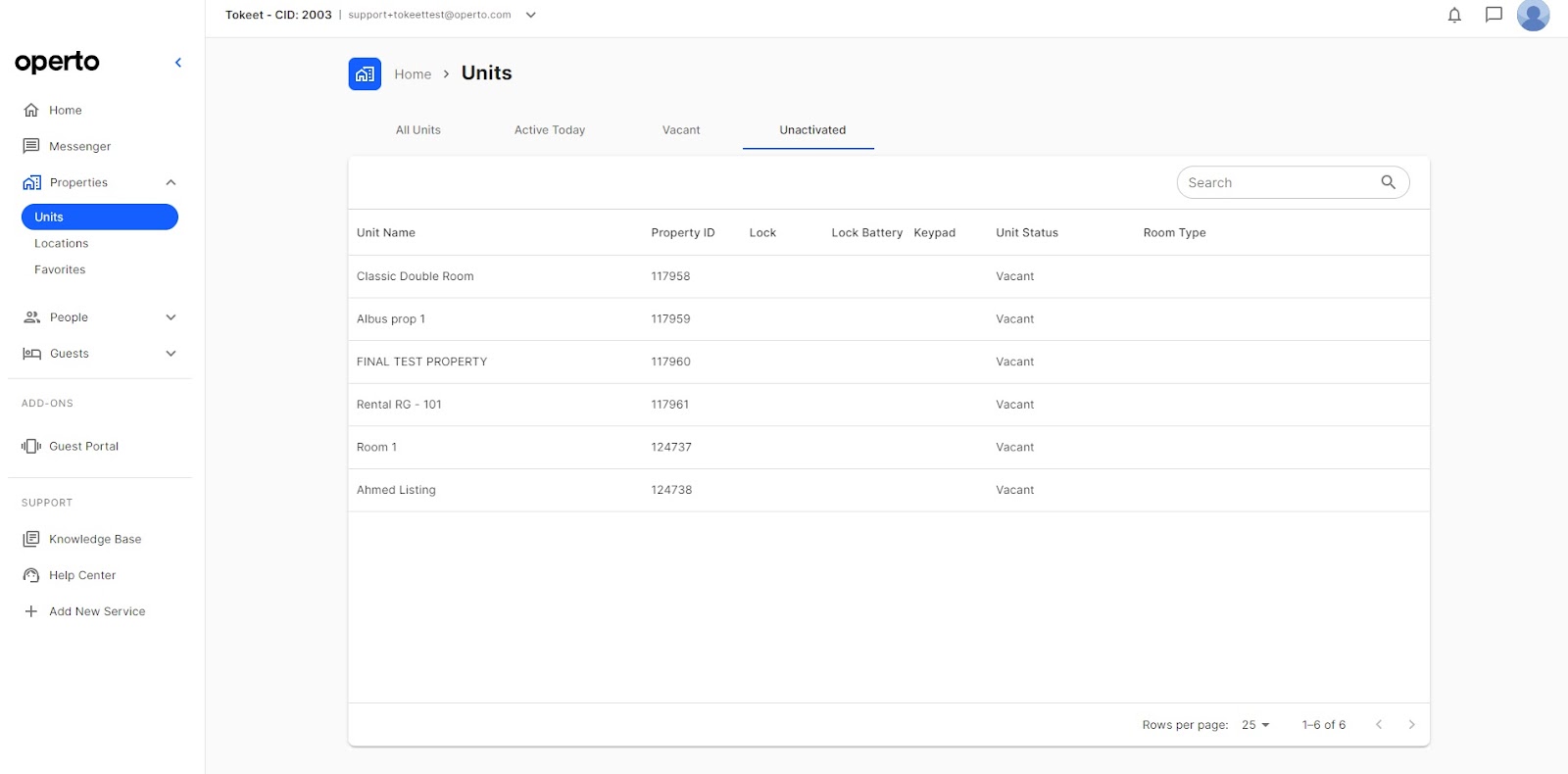
- Activate Properties in Operto: Reach out to your Onboarding Specialist or request to activate a service for this unit using the Add New Service option.
- Verify Reservation Syncing: Once Operto has activated the unit, Navigate to the Guests tab in Operto to verify that all information has synced correctly.
How to Set Up Messaging in Tokeet
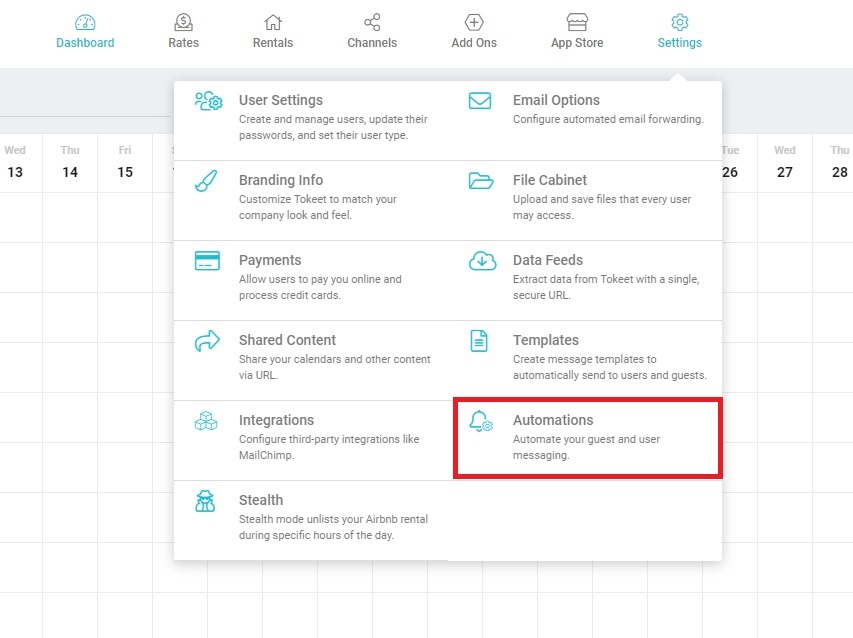
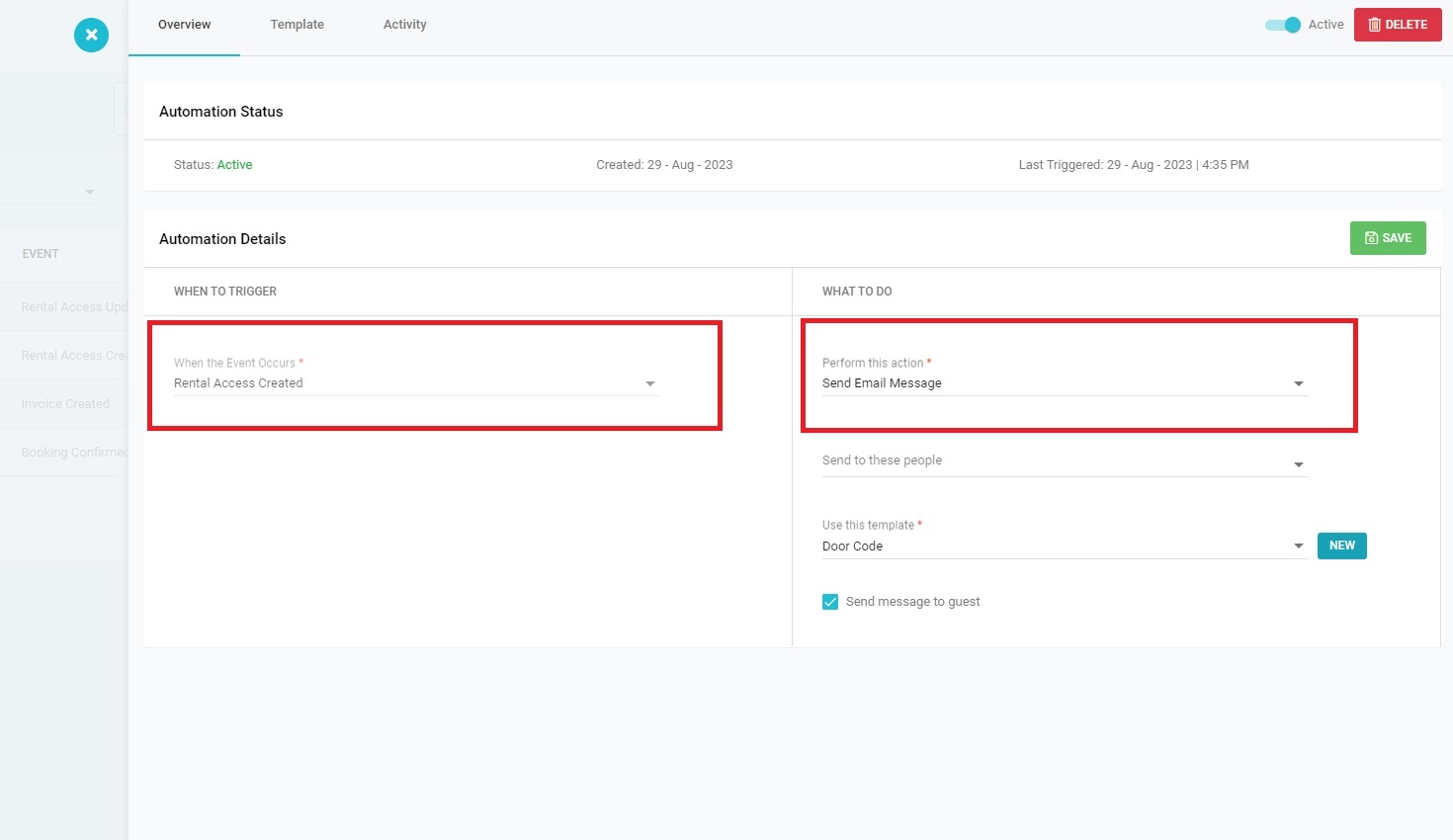
- Go to Automations.
- Click on the Add button to create a new automation.
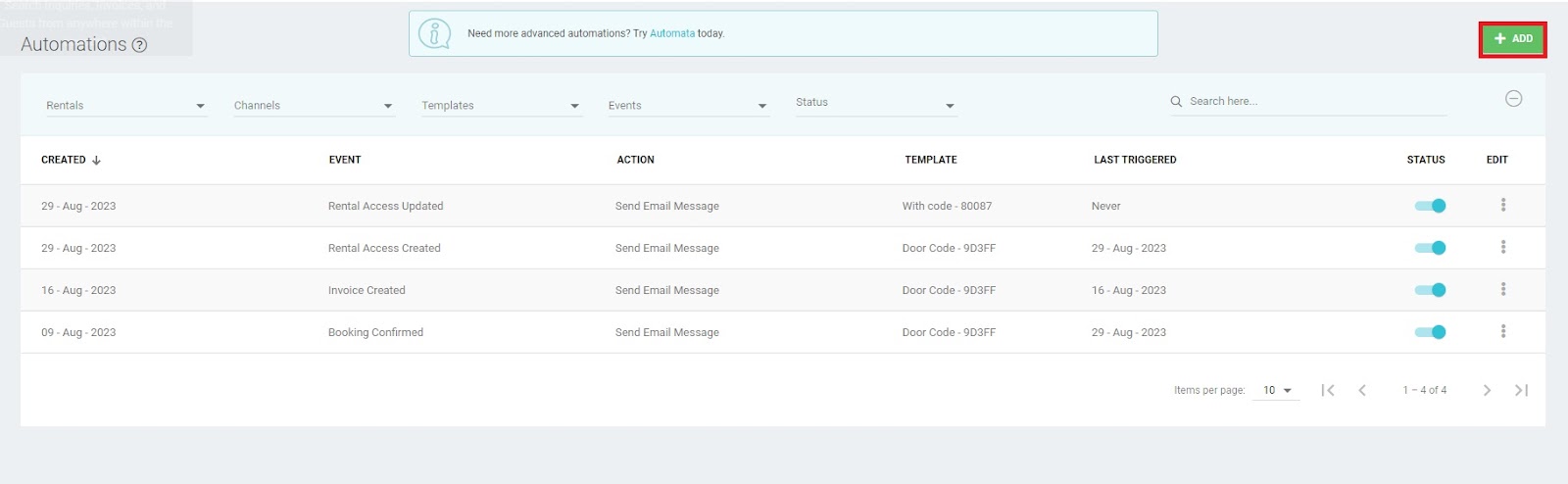
- Set ‘When the Event Occurs’ as Rental Access Created. Then, set the action to be performed as Email.
- In Templates, add the data token for Door Code:
|INQUIRY:SECURITY_DOOR_CODE|.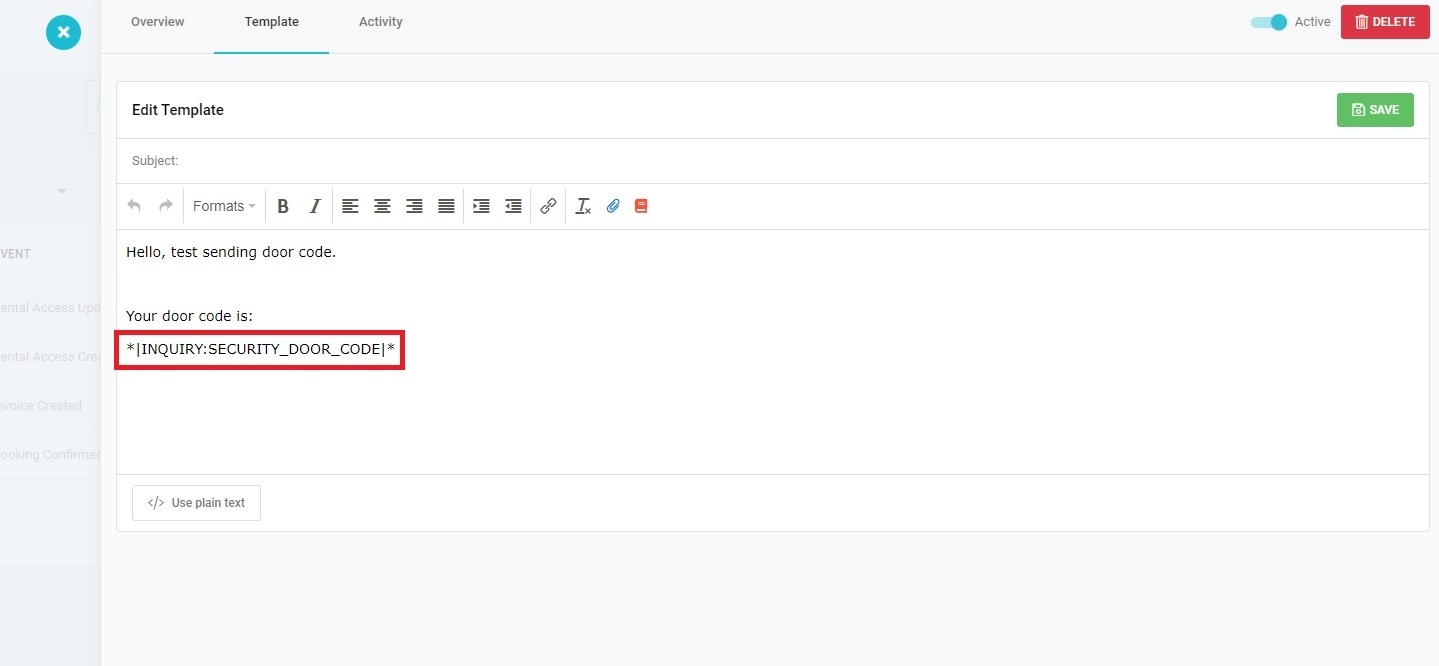
Now, whenever a booking is created for a rental connected and activated in Operto, a door code will be sent to the guest via email.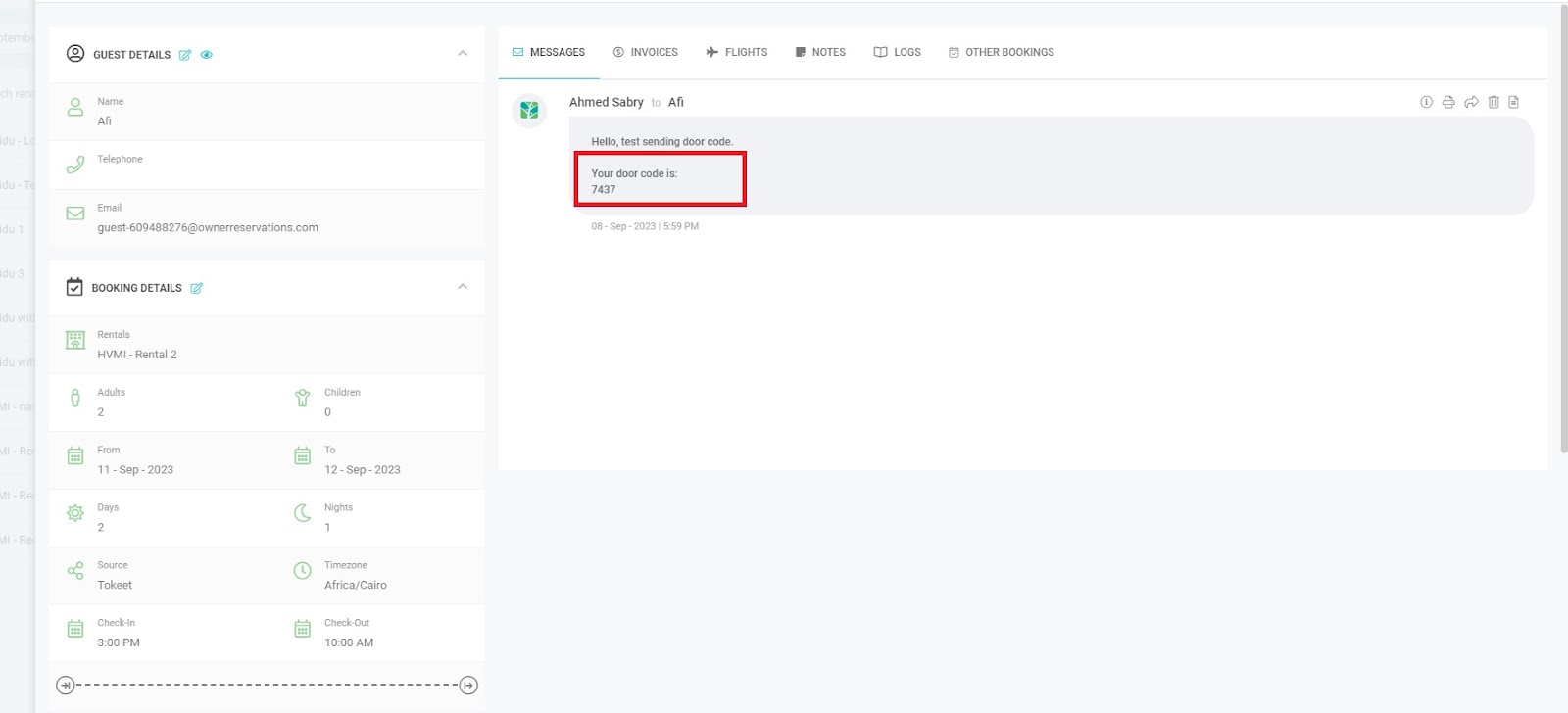
Reference: For common questions, please refer to the FAQ for Tokeet article.