

Connecting your KeyInCode lock or keypad to the WIFI
Once your lock is installed you will be able to connect it to the Wifi.
STEP 1 - Connect your Lock/Keypad to Wifi
1.) After installing batteries, your lock creates a Wi-Fi network for a few minutes
2.) Open the Wi-Fi settings on your smartphone
3.) Find and connect to the RemoteLock network. It will be named RemoteLOCK, followed by the lock’s MAC address.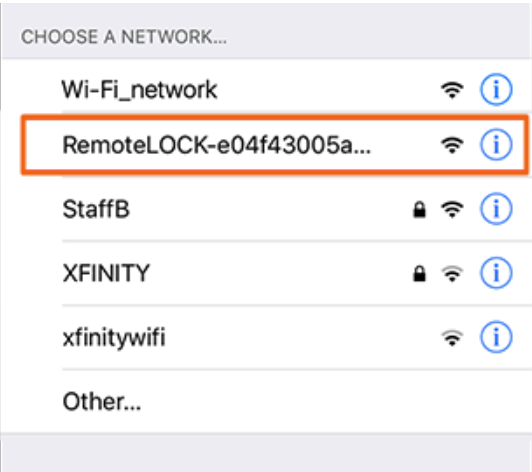
** Tip: in case you're not seeing the RemoteLock network: your lock broadcasts a temporary network that will expire after 10 minutes. To rebroadcast the network, simply remove and reinsert your lock’s batteries.
STEP 2 - Choose your Network
1.) Once connected to the lock/keypad’s network, you will be presented with a list of available Wi-Fi networks.
2.) Select the Wi-Fi network you want to connect your lock to.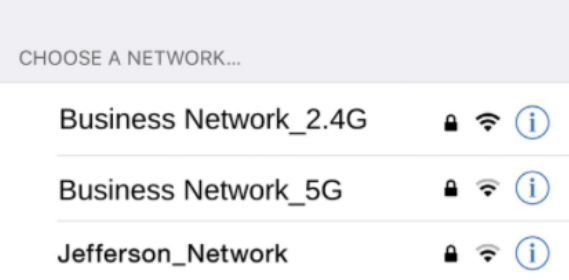
3.) Enter your password for the network and click connect.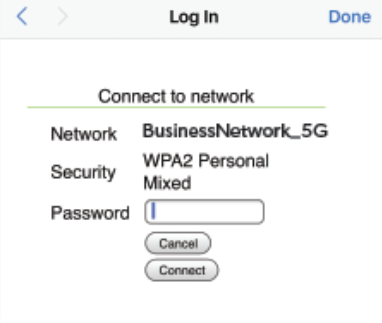
4.) When your lock is connected, you’ll see a success message and hear the lock beep twice.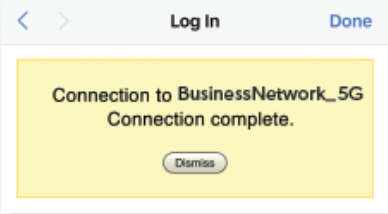
(If you hear 2 beeps on your lock, but do not see the “Connection Complete” message, your lock has still successfully connected to your network.)
** Tip: If you were not automatically directed to a list of available Wi-Fi networks, you can do so manually by typing 192.168.0.1 into your web browser's address bar.
** Tip: You must be within 3 feet of the lock to perform this connection.
STEP 3 - Provide your Lock/Keypad serial number
1.) Please send your Lock/Keypad serial number to Operto at support@operto.com
2.) Please make sure to indicate the name of the unit the lock/keypad serial number corresponds to.