
Easily manage multiple company IDs with Operto by linking them together. This allows you to switch between accounts seamlessly while staying on the Connect Dashboard.
Linking Logins/Accounts
To link different logins, follow the steps below:
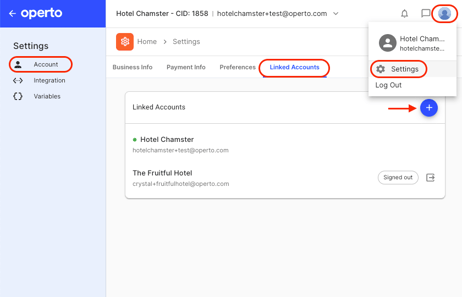
- On the Connect Dashboard, select the profile icon (top right) and then ‘Settings’
- Navigate to ‘Account’ →’Linked Accounts’
- Select ‘+’ and enter the email address and password of the account to be added.
Navigating Between Accounts:
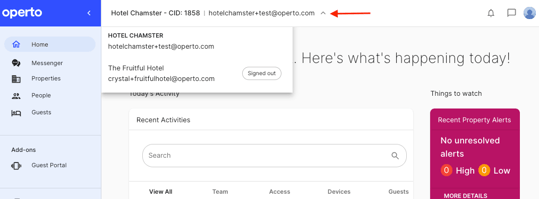
Once a valid email and password have been added, select the desired company from the dropdown menu at the top of the Connect Dashboard page to switch between multiple accounts.
Unlinking Logins/Accounts
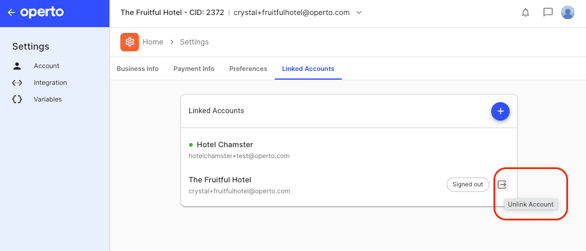
If you no longer manage a particular account, select the ‘Unlink Account’ icon. The login will expire on the current device and the accounts will be unlinked.
Note:
- Enhanced account management through linked accounts is device-specific. If you have linked accounts on one laptop and login via a different laptop, accounts will not show as connected.
- If browser cache/cookies are cleared, the linked accounts will be reset. You would need to log into one account and re-link the others.