
Communications & Automate
We are launching the new Communications & Automate feature in Operto is designed to streamline guest interactions and improve efficiency. With this tool, you can automate personalized messages to enhance guest satisfaction, reduce errors, and drive revenue through upsells.
How to Use the Communications Feature
Email:
SMS:
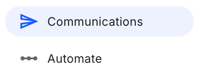
- Navigate to the Communications section in the Operto dashboard.
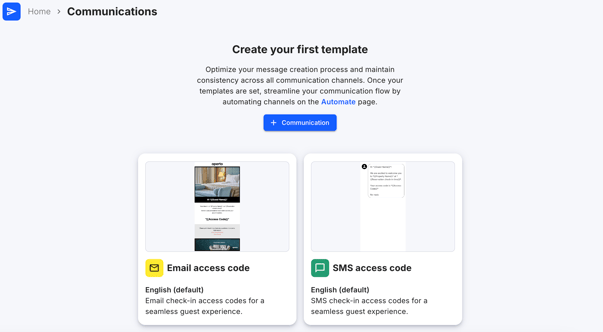
- Choose between creating an Email or SMS message using our Design Builder
- You can also select the Source Code option using the "+ Communication" dropdown menu
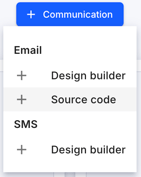
- You can also select the Source Code option using the "+ Communication" dropdown menu
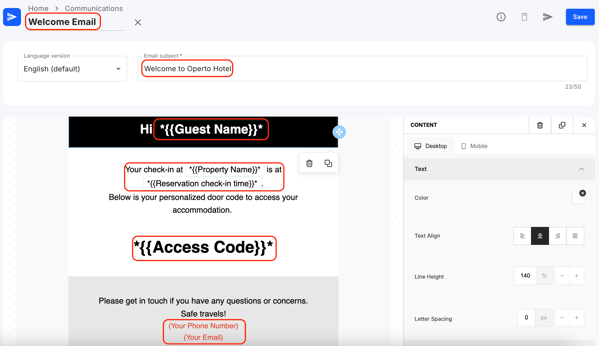
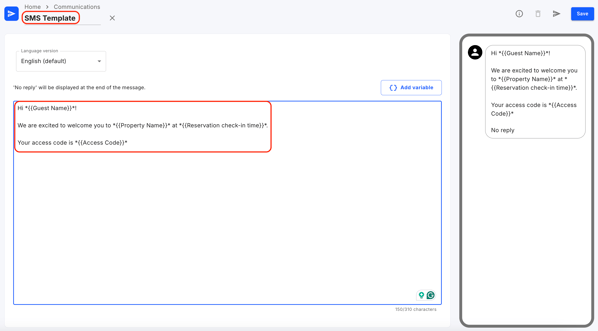
- Use the Template Builder to design your message, you can set the name of the template, the subject of the email, add host details, the language, and add personalized variables for reservation details such as guest name, property name, and access code/Guest Portal link, and press save.
- Email:
- SMS:
- Email:
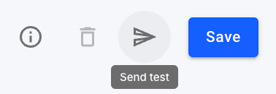
- You can test this the template using "Send test" button to see how the template looks when sent out to a guest.
How to Use the Automate Feature
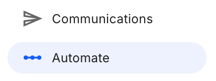
- Navigate to the Automate section in the Operto dashboard & press "+ New flow" button

- Set up automation triggers to schedule when the messages will be sent, such as before check-in or post-arrival, and select which templates to send out. You can also set the name of the flow and which properties it should go out for.
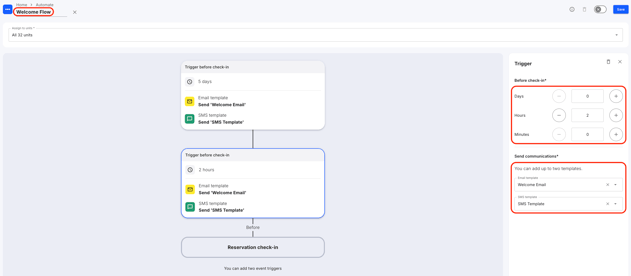
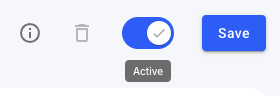
- Once you have set the flow, Activate it and press save.
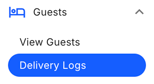
- Navigate to the Delivery logs under the Guests section to monitor the success of your communications using the Delivery Logs.
FAQs
- Q: What variables are available for setting up the messaging?
- A: You can use the following variables in your messaging:
-
- Access Code
- Checkout Code
- Confirmation Code
- Guest Email
- Guest Name
- Guest Phone
- Guest Portal URL
- Property Address
- Property Name
- Reservation check-in time
- Reservation check-out time
- Yourkey URL
- Q: Can I schedule messages for different guest interactions?
- A: Yes, you can set triggers to automate messages at key touchpoints like pre-check-in, arrival, or post-check-in.
- Q: Can I track if the messages were delivered successfully?
- A: Absolutely. You can view the message delivery status in the Delivery Logs section.
For more detailed information, watch the video tutorial or reach out to our support team at support@operto.com.