
How to Register Your Smart Module
If your lock is showing online but you are having issues with code install or remote locking/unlocking, there might be a module communication error and the module might not be registered properly. Each time the module is removed, you might also need to register the module.
Here are the steps:
Note: You must have your Master Entry Code already programmed before following the steps below.
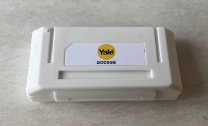
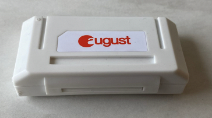
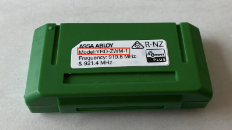
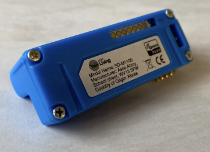
What is the cause of a Module Communication Error?
The Module Communication Error may also occur when:
If the number 1 does not appear on the keypad or touchscreen or make a sound when pressed, it is likely that the module was registered with a hub previously. To fix this, perform a Z-Wave exclusion to unregister the module. Here are the steps:
If the number 7 does not appear on they keypad or touchscreen or make a sound when pressed, it is likely due to one of the issues below. Review the related troubleshooting for help:
Master Entry Code Not Set
A Master Entry Code is required at the end of your lock’s physical installation. If a Master Entry Code is not set, you will not be able to continue setup. Review steps to set a Master Entry Code here:
Module Not Properly Seated
If you do not see the number 7, the Module may not be seated properly in the lock. Follow the steps below to seat the module:
Check the model number to see if your lock is compatible. In most cases, you can find the model number on the inside of the lock's battery cover.
Factory Reset
If none of the above troubleshooting works, you may need to reset the lock to its factory settings. You can find the factory reset method for each lock on the lock manufacturer’s website.
PLEASE NOTE: If a lock is factory reset, all existing settings and entry codes on the lock are erased.
If your lock is showing online but you are having issues with code install or remote locking/unlocking, there might be a module communication error and the module might not be registered properly. Each time the module is removed, you might also need to register the module.
Here are the steps:
Note: You must have your Master Entry Code already programmed before following the steps below.
- Remove one battery from your lock
- Remove the Smart Module, wait 10 secs and reinsert the Smart Module into the slot in the battery compartment
- Reinsert the battery
- Wake up the keypad by pressing the Yale logo or any key
- Enter your Master Entry Code and then the gear icon (or # button for UK locks)
- Press 7 followed by the gear icon, and then gear again.
- Wait for the menu to time out
- Press 7 followed by the gear icon
- Press 1 followed by the gear icon
- Press 4 followed by the # button
- Press 1 followed by the # button
What is the cause of a Module Communication Error?
The Module Communication Error may also occur when:
- A factory reset is pushed to the Connect by August lock
- The module is incorrectly removed from the lock while the batteries are still inserted
- The module has been switched out of one lock and into another one incorrectly
If the number 1 does not appear on the keypad or touchscreen or make a sound when pressed, it is likely that the module was registered with a hub previously. To fix this, perform a Z-Wave exclusion to unregister the module. Here are the steps:
- Put your SmartThings hub in Z-Wave exclusion mode (for this step, you can use any SmartThings module)
- On your SmartThings app, open the SmartThings hub
- Press 3 dots on the top right
- Select Z-Wave Utilities
- Select Z-Wave Exclusion
- Put your lock in Z-Wave exclusion mode
- Enter your Master Entry Code and then the gear icon (or # button for UK locks)
- Press 7 followed by the gear icon (4 followed by the # button for UK locks)
- Press 1 followed by the gear icon (1 followed by the # button for UK locks)
- Once both of them are in Z-Wave exclusion mode, old network settings will be deleted, you should now see number 1
If the number 7 does not appear on they keypad or touchscreen or make a sound when pressed, it is likely due to one of the issues below. Review the related troubleshooting for help:
Master Entry Code Not Set
A Master Entry Code is required at the end of your lock’s physical installation. If a Master Entry Code is not set, you will not be able to continue setup. Review steps to set a Master Entry Code here:
- Press or select the Gear key in the lower right hand corner of the keypad
- Press or select '1' then the Gear key
- Enter a 4-8 digit Master Entry Code
- Press or select the Gear key to complete steps
Module Not Properly Seated
If you do not see the number 7, the Module may not be seated properly in the lock. Follow the steps below to seat the module:
- Remove a battery, wait 10 seconds for the lock to properly shut down
- Remove and re-insert the module properly
- Replace the battery and listen to the lock startup sound.
Check the model number to see if your lock is compatible. In most cases, you can find the model number on the inside of the lock's battery cover.
Factory Reset
If none of the above troubleshooting works, you may need to reset the lock to its factory settings. You can find the factory reset method for each lock on the lock manufacturer’s website.
PLEASE NOTE: If a lock is factory reset, all existing settings and entry codes on the lock are erased.